介紹組件前,先認識 Control 類別。Control 為抽象類別,是所有視窗組件(即 Windows 中能取得控制代碼的元件)基類。
Control 為繼承設計,所有視窗組件皆繼承 Control,關係如圖 1:
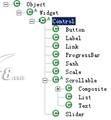
Control 實例代表 Windows 中一個視窗組件,含視窗控制代碼屬性,但程式中無法直接存取。
Control 提供視窗組件常用方法,所有視窗組件皆可調用:
(x,y) 為左上角頂點相對父視窗座標,(width,height) 為寬高。例:button.setBounds(40, 50, 100, 30)。true 可用,false 禁用。例:button.setEnabled(false)。true 可顯示,false 不可顯示。例:button.setVisible(false)。button.setToolTipText("very good")。button.setFont(font)。button.setForeground(color)。button.setBackground(color)。button.setCursor(new Cursor(null, SWT.CURSOR_WAIT))。Control 建構函數。parent 為父視窗,style 為樣式(預設 SWT.NONE)。例:Button button = new Button(shell, SWT.NONE)。此外 Control 實作一些視窗相關方法(如 createWidget、createHandle),直接與作業系統相關,有興趣可繼續研究。提示:並非所有組件調用 Control 方法都有用,部分方法為特定組件而存在。
大多數作業系統存在的組件,SWT 透過 JNI 直接封裝。
Button 為常用組件。新增按鈕簡單,指定父組件與樣式即可,如 Button button = new Button(shell, SWT.PUSH) 在 shell 中新增普通按鈕。通常也指定位置(未指定佈局時)與顯示標籤。範例 1:
public class HelloWorldButton {
    public HelloWorldButton() {
        Display display = new Display();
        Shell shell = new Shell(display);
        Button button = new Button(shell, SWT.PUSH);
        button.setBounds(40, 50, 100, 30);
        button.setText("Click Me");
        shell.setSize(200, 200);
        shell.open();
        while (!shell.isDisposed()) {
            if (!display.readAndDispatch()) display.sleep();
        }
        display.dispose();
    }
    public static void main(String[] args) { new HelloWorldButton(); }
}
執行效果如圖 2:
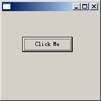
按鈕樣式眾多,CheckBox(核取方塊)與 RadioBox(選項按鈕)均為不同樣式按鈕。提示:若按鈕為核取方塊或選項按鈕,可用 getSelection() 判斷是否被選中。
Label 為常用組件。新增簡單,指定父組件與樣式,如 Label label = new Label(shell, SWT.SEPARATOR | SWT.VERTICAL)。可指定複合樣式,SWT 按複合樣式顯示。範例 2:
public class HelloWorldLabel {
    public static void main(String[] args) {
        Display display = new Display();
        Shell shell = new Shell(display);
        shell.setLayout(new FillLayout());
        Label label1 = new Label(shell, SWT.WRAP);
        label1.setText("very good!");
        new Label(shell, SWT.SEPARATOR | SWT.HORIZONTAL);
        new Label(shell, SWT.SEPARATOR | SWT.VERTICAL);
        Label label2 = new Label(shell, SWT.NONE);
        label2.setText("very good!");
        shell.setSize(200, 70);
        shell.open();
        while (!shell.isDisposed()) {
            if (!display.readAndDispatch()) display.sleep();
        }
        display.dispose();
    }
}
視窗中新增 4 標籤,各設不同顯示樣式。執行效果如圖 3:
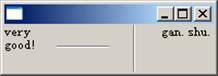
標籤可作為顯示文字組件,也可作為分隔符(作為分隔符時不顯示文字)。
Text 為 SWT 文字框。新增簡單,指定父組件與樣式,如 Text t = new Text(shell, SWT.MULTI | SWT.BORDER | SWT.WRAP | SWT.V_SCROLL)。文字框有多種顯示樣式。範例 3:
public class HelloWorldText {
    public static void main(String[] args) {
        Display display = new Display();
        Shell shell = new Shell(display);
        shell.setLayout(new GridLayout(1, false));
        new Text(shell, SWT.BORDER);
        new Text(shell, SWT.RIGHT | SWT.BORDER);
        new Text(shell, SWT.PASSWORD | SWT.BORDER);
        new Text(shell, SWT.READ_ONLY | SWT.BORDER).setText("Read Only");
        Text t = new Text(shell, SWT.MULTI | SWT.BORDER | SWT.WRAP | SWT.V_SCROLL);
        t.setText("very long sting test!very long sting test!very long sting test!" + "very long sting test! ");
        t.setLayoutData(new GridData(GridData.FILL_BOTH));
        shell.setSize(200, 200);
        shell.open();
        while (!shell.isDisposed()) {
            if (!display.readAndDispatch()) display.sleep();
        }
        display.dispose();
    }
}
視窗中新增 5 不同樣式文字框。執行效果如圖 4:
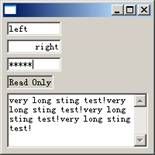
不同類型標籤只需指定不同樣式,文字框有左對齊、右對齊、密碼框、唯讀文字框、多行顯示文字框。
Combo 為 SWT 下拉列表框。用 Combo combo = new Combo(shell, SWT.DROP_DOWN) 新增,combo.setItems(ITEMS) 設定下拉列表(ITEMS 為 String 陣列)。下拉列表框有幾種樣式。範例 4:
public class HelloWorldCombo {
    private static final String[] ITEMS = { "Alpha", "Bravo", "Charlie", "Delta", "Echo", "Foxtrot", "Golf", "Hotel", "India", "Juliet", "Kilo", "Lima", "Mike", "November", "Oscar", "Papa", "Quebec", "Romeo", "Sierra", "Tango", "Uniform", "Victor", "Whiskey", "X-Ray", "Yankee", "Zulu" };
    public static void main(String[] args) {
        Display display = new Display();
        Shell shell = new Shell(display);
        shell.setLayout(new RowLayout());
        Combo combo = new Combo(shell, SWT.DROP_DOWN);
        combo.setItems(ITEMS);
        Combo readOnly = new Combo(shell, SWT.DROP_DOWN | SWT.READ_ONLY);
        readOnly.setItems(ITEMS);
        Combo simple = new Combo(shell, SWT.SIMPLE);
        simple.setItems(ITEMS);
        shell.open();
        while (!shell.isDisposed()) {
            if (!display.readAndDispatch()) display.sleep();
        }
        display.dispose();
    }
}
視窗中新增 3 不同樣式下拉列表框。執行效果如圖 5:
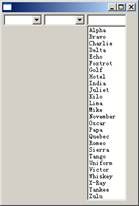
上例僅新增 Combo 顯示資訊。通常使用者希望所選 Item 關聯物件,選擇某 Item 後直接取得所選物件操作。可用 Widget 類別 setData(String key, Object value) 與 getData(String key) 實現。Combo 為 Widget 子類,初始化時用 setData 關聯 Item 字串與物件,選擇時用 getData 取出。Widget 透過物件陣列保存使用者設定物件引用。提示:Widget 為所有視窗組件父類,支援多項資料顯示且可選擇者,皆可用 getData/setData 取得關聯物件。
List 為 SWT 列表框。用 List single = new List(shell, SWT.BORDER | SWT.SINGLE | SWT.V_SCROLL) 新增,setItems(ITEMS) 設定列表項(ITEMS 為 String 陣列)。列表框有幾種樣式。範例 5:
public class HelloWorldList {
    private static final String[] ITEMS = { "Alpha", "Bravo", "Charlie", "Delta", "Echo", "Foxtrot", "Golf", "Hotel", "India", "Juliet", "Kilo", "Lima", "Mike", "November", "Oscar", "Papa", "Quebec", "Romeo", "Sierra", "Tango", "Uniform", "Victor", "Whiskey", "X-Ray", "Yankee", "Zulu" };
    public static void main(String[] args) {
        Display display = new Display();
        Shell shell = new Shell(display);
        shell.setLayout(new FillLayout());
        List single = new List(shell, SWT.BORDER | SWT.SINGLE | SWT.V_SCROLL);
        for (int i = 0, n = ITEMS.length; i < n; i++) single.add(ITEMS[i]);
        single.select(4);
        List multi = new List(shell, SWT.BORDER | SWT.MULTI | SWT.V_SCROLL);
        multi.setItems(ITEMS);
        multi.select(9, 11);
        shell.open();
        while (!shell.isDisposed()) {
            if (!display.readAndDispatch()) display.sleep();
        }
        display.dispose();
    }
}
視窗中新增兩列表框:單選與多選。執行效果如圖 6:
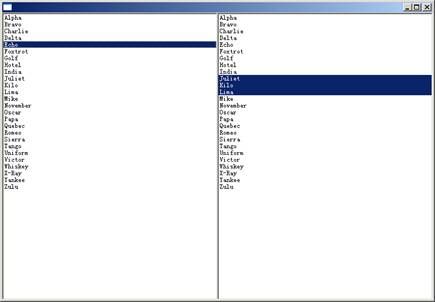
提示:選擇列表框多項值可連續或不連續,選不連續項需先按住 Shift 鍵再用滑鼠選擇。
建立組件時應指定屬性,含風格與對齊方式。以下以 Button 為例,其他類似。
用 org.eclipse.swt.widgets.Button 新增 SWT Button,可指定不同風格參數:
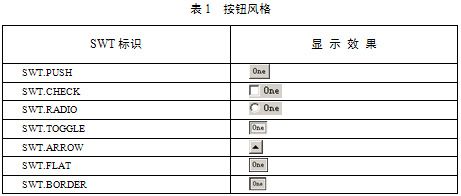
SWT.PUSH:普通按鈕SWT.CHECK:核取方塊SWT.RADIO:選項按鈕SWT.TOGGLE:帶狀態普通按鈕SWT.ARROW:箭頭按鈕SWT.FLAT:扁平按鈕SWT.BORDER:帶邊框按鈕SWT.FLAT、SWT.BORDER 可與其他風格共存。按鈕風格顯示如表 1:
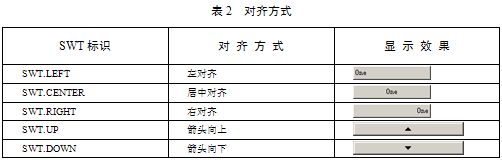
按鈕文字可設對齊方式。SWT 按鈕對齊有 3 種:左對齊、右對齊、置中。箭頭按鈕可設向上/向下。如表 2:
使用者不僅可設按鈕風格、對齊、狀態,還能用 setImage 設按鈕圖片。可同時組合風格、對齊、狀態,如 SWT.BORDER | SWT.RADIO 設為帶邊框選項按鈕。