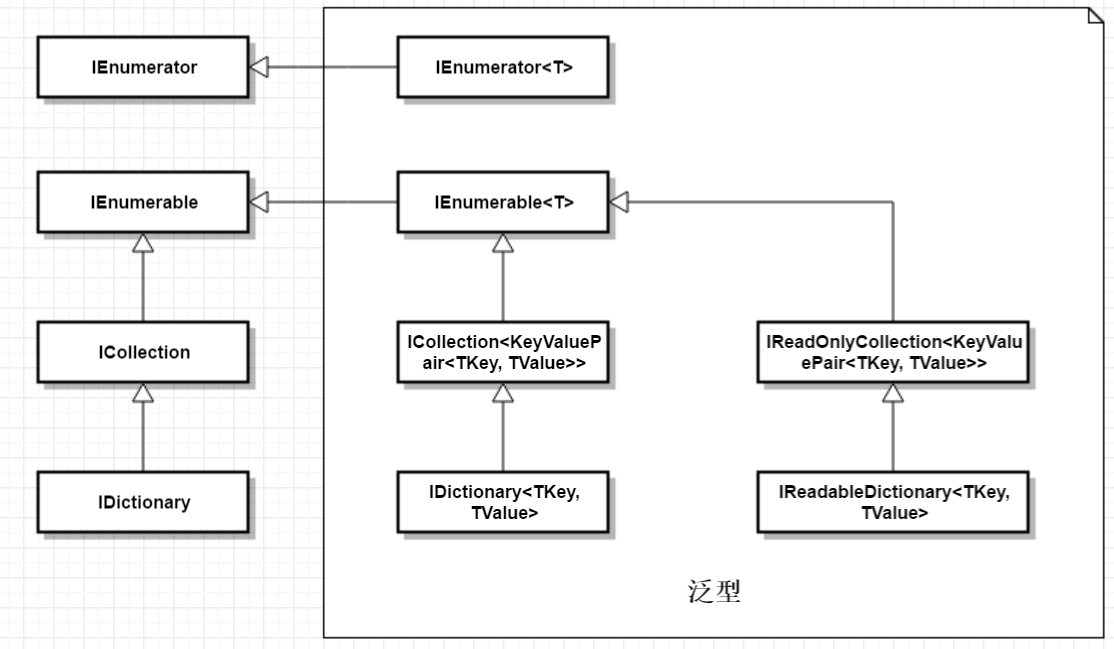
在實際 WPF 開發中,最常見的情境是將資料集合(如資料表、實體清單)繫結到 DataGrid、ListBox 等列表控制項。WPF 內建 System.Collections.ObjectModel.ObservableCollection<T> 泛型集合,已實作 INotifyCollectionChanged 介面,當集合新增、移除項目時會自動通知 UI 更新,省去手寫變更通知程式碼的麻煩。
<Window x:Class="Learn.WPF.Window1"
 xmlns="https://schemas.microsoft.com/winfx/2006/xaml/presentation"
 xmlns:x="https://schemas.microsoft.com/winfx/2006/xaml"
 Title="Window1">
 <Grid>
  <StackPanel>
   <ListBox x:Name="listbox1" />
  </StackPanel>
 </Grid>
</Window>
public class Personal
{
public string Name { get; set; }
public int Age { get; set; }
public string Sex { get; set; }
}
public class PersonalList : ObservableCollection<Personal> { }
public partial class Window1 : Window
{
public Window1()
{
InitializeComponent();
var list = new PersonalList
{
new Personal { Name = "Tom", Age = 10, Sex = "Male" },
new Personal { Name = "Mary", Age = 15, Sex = "Female" },
new Personal { Name = "Jack", Age = 12, Sex = "Male" },
};
var binding = new Binding { Source = list };
this.listbox1.SetBinding(ListBox.ItemsSourceProperty, binding);
this.listbox1.DisplayMemberPath = "Name";
}
}關鍵點: 使用 DisplayMemberPath 指定顯示的屬性,否則會呼叫 ToString() 顯示完整型別名稱。
<Window x:Class="Learn.WPF.Window1"
 xmlns="https://schemas.microsoft.com/winfx/2006/xaml/presentation"
 xmlns:x="https://schemas.microsoft.com/winfx/2006/xaml"
 xmlns:my="clr-namespace:Learn.WPF"
 Title="Window1">
 <Window.Resources>
  <my:PersonalList x:Key="personals">
   <my:Personal Name="Tom" Age="10" Sex="Male" />
   <my:Personal Name="Mary" Age="15" Sex="Female" />
   <my:Personal Name="Jack" Age="12" Sex="Male" />
  </my:PersonalList>
 </Window.Resources>
 <Grid>
  <StackPanel>
   <ListBox x:Name="listbox2"
    ItemsSource="{Binding Source={StaticResource personals}}"
    DisplayMemberPath="Name" />
  </StackPanel>
 </Grid>
</Window>
透過 xmlns:my 引入 CLR 命名空間,即可在 XAML 中直接宣告資料物件。
主從結構中,選取主清單某筆資料時,細節區需自動顯示該筆完整資訊。將 ListBox.IsSynchronizedWithCurrentItem 設為 True,即可啟用集合檢視的「目前項目」追蹤機制。
<ListBox x:Name="listbox1"
 ItemsSource="{Binding Source={StaticResource personals}}"
 DisplayMemberPath="Name"
 IsSynchronizedWithCurrentItem="True" />

<Label x:Name="lblName" Content="{Binding Source={StaticResource personals}, Path=Name}" />
<Label x:Name="lblAge" Content="{Binding Source={StaticResource personals}, Path=Age}"/>
<Label x:Name="lblSex" Content="{Binding Source={StaticResource personals}, Path=Sex}"/>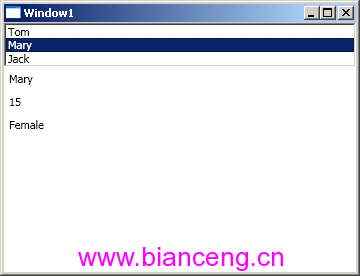
改變 ListBox 選取項時,下方三個 Label 會自動同步顯示對應屬性值。
<ListBox x:Name="listbox1"
 ItemsSource="{Binding Source={StaticResource personals}}"
 DisplayMemberPath="Name"
 IsSynchronizedWithCurrentItem="True" />

<ListBox x:Name="listbox2"
 ItemsSource="{Binding Source={StaticResource personals}}"
 DisplayMemberPath="Age"
 IsSynchronizedWithCurrentItem="True" />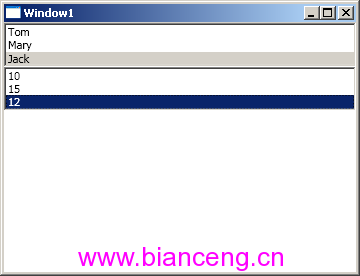
限制: IsSynchronizedWithCurrentItem 不支援多重選取模式下的同步。
重複撰寫 {Binding Source={StaticResource personals}} 不僅冗長,維護也困難。WPF 提供 DataContext(資料內容)屬性,讓父元素指定共用資料來源,子元素自動向上尋找最近的 DataContext。
<StackPanel DataContext="{StaticResource personals}">
 <ListBox x:Name="listbox1"
  ItemsSource="{Binding}"
  DisplayMemberPath="Name"
  IsSynchronizedWithCurrentItem="True" />

 <Label x:Name="lblName" Content="{Binding Path=Name}" />
 <Label x:Name="lblAge" Content="{Binding Path=Age}"/>
 <Label x:Name="lblSex" Content="{Binding Path=Sex}"/>
</StackPanel>
未指定 Source 時,Binding 會自動使用繼承鏈上的 DataContext。
<StackPanel x:Name="stackPanel1">
 <ListBox x:Name="listbox1" ItemsSource="{Binding}" DisplayMemberPath="Name" IsSynchronizedWithCurrentItem="True" />
 <Label Content="{Binding Path=Name}" />
 <Label Content="{Binding Path=Age}"/>
 <Label Content="{Binding Path=Sex}"/>
</StackPanel>
public partial class Window1 : Window
{
public Window1()
{
InitializeComponent();
var list = new PersonalList {
new Personal{Name="Tom", Age=10, Sex="Male"},
new Personal{Name="Mary", Age=15, Sex="Female"},
new Personal{Name="Jack", Age=12, Sex="Male"},
};
this.stackPanel1.DataContext = list;
}
}public partial class Window1 : Window
{
public Window1()
{
InitializeComponent();
// ...
this.DataContext = list; // 整個視窗共用同一資料來源
}
}DataContext 具有跨層級繼承特性,讓資料與 UI 解耦更靈活,是 MVVM 架構的核心基石之一。