Console 應用不僅限於文字輸出,善用光標定位與字符塊即可構建準圖形化儀表板。本文展開如何用純字符繪製動態 CPU 負載監控介面,效果逼近「工作管理員 > 效能」頁籤。
目標參考:Windows 工作管理員 CPU 歷史圖
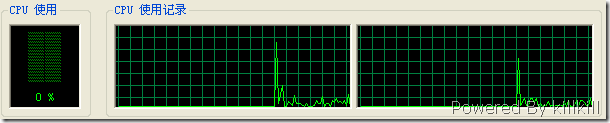
Console 實現效果:
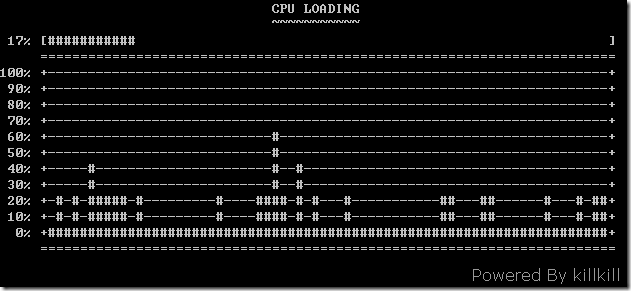
Console.SetCursorPosition(left, top) 移動寫入位置。Console.ForegroundColor/BackgroundColor (見前文「七彩輸出」)。private static void BuildFramework() {
Console.WriteLine(" CPU LOADING "); // Row 0
Console.WriteLine(" ~~~~~~~~~~~ "); // Row 1
Console.WriteLine(" 11% [ ]"); // Row 2: 百分比顯示區
Console.WriteLine(" ========================================================================"); // Row 3: 頂部邊框
Console.WriteLine("100% +----------------------------------------------------------------------+"); // Row 4
Console.WriteLine(" 90% +----------------------------------------------------------------------+"); // Row 5
Console.WriteLine(" 80% +----------------------------------------------------------------------+"); // Row 6
Console.WriteLine(" 70% +----------------------------------------------------------------------+"); // Row 7
Console.WriteLine(" 60% +----------------------------------------------------------------------+"); // Row 8
Console.WriteLine(" 50% +----------------------------------------------------------------------+"); // Row 9
Console.WriteLine(" 40% +----------------------------------------------------------------------+"); // Row 10
Console.WriteLine(" 30% +----------------------------------------------------------------------+"); // Row 11
Console.WriteLine(" 20% +----------------------------------------------------------------------+"); // Row 12
Console.WriteLine(" 10% +----------------------------------------------------------------------+"); // Row 13
Console.WriteLine(" 0% +----------------------------------------------------------------------+"); // Row 14
Console.WriteLine(" ========================================================================"); // Row 15: 底部邊框
// 列標尺 (註釋供開發參考)
// | | | | | | | | | | | | | | | |
// 0 5 10 15 20 25 30 35 40 45 50 55 60 65 70
// |<-------------------- xLength:70 ---------------------------->|
}// 用 # 繪製負載條
Console.SetCursorPosition(6, 2); // 移至 Row 2, Col 6 (百分比後的括號內)
int xLength = 70; // 圖表寬度
int graphics = (int)(cpuLoad * xLength / 100.0); // 計算填充長度
for (int i = 0; i < graphics; i++) Console.Write("#");
for (int i = 0; i < xLength - graphics; i++) Console.Write(" ");維護一個長度 70 的環形緩衝區記錄歷史負載值,每幀在對應行 (Row 4-14) 的對應列位置寫入 █ 或 ▓ 字符,並清除舊位置。利用 SetCursorPosition 逐點更新,流暢度極高。
static void Main() {
    Console.CursorVisible = false; // 隱藏閃爍光標
    BuildFramework();

    var cpuCounter = new PerformanceCounter("Processor", "% Processor Time", "_Total");
    var history = new int[70]; // 歷史緩衝
    int pos = 0;

    while (true) {
        float load = cpuCounter.NextValue();
        UpdatePercentage(load);        // 更新 Row 2 百分比與進度條
        UpdateWaveform(load, history, ref pos); // 更新歷史波形
        Thread.Sleep(200);             // 5 FPS
    }
}| 需求 | API / 屬性 | 示例 |
|---|---|---|
| 設定前景色 | Console.ForegroundColor | Console.ForegroundColor = ConsoleColor.Green; |
| 設定背景色 | Console.BackgroundColor | Console.BackgroundColor = ConsoleColor.Red; |
| 重置顏色 | Console.ResetColor() | 恢復預設灰白 |
| 光標定位 | Console.SetCursorPosition(left, top) | SetCursorPosition(10, 5); |
| 隱藏光標 | Console.CursorVisible = false | 避免動畫閃爍 |
| 讀單鍵不回顯 | Console.ReadKey(true) | 密碼輸入、暫停 |
| 讀單鍵回顯 | Console.ReadKey() | 「按任意鍵繼續」 |
完整可編譯專案 (VS2008 SP1, .NET 2.0 目標) 可從文末連結獲取,包含 ActiveConsole 封裝類與範例程式。
掌握 SetCursorPosition + 字符塊繪製,Console 瞬間變身「文字版 Canvas」,在無 GUI 環境 (Linux Server、Docker 容器、嵌入式串口) 同樣能提供豐富視覺回饋。