FlipView 是呈現小型到中型資料集合的理想控件,支援水平或垂直翻頁瀏覽,常用於產品圖片輪播、房產照片展示等場景。
ItemsControl,資料繫結模式與 ListView/GridView 一致SelectionChanged 事件處理選項變更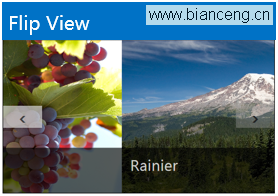
| 屬性/事件 | 說明 |
|---|---|
ItemsSource | 資料來源集合 |
ItemTemplate | 單一項目顯示樣板 |
ItemTemplateSelector | 依邏輯動態選擇樣板 |
ItemsPanel | 控制項目排列面板(決定水平/垂直翻頁) |
SelectionChanged | 選中項目變更時觸發 |
最基本用法,左右切換項目。

<FlipView x:Name="flipView1">
    <FlipView.ItemTemplate>
        <DataTemplate>
            <Grid>
                <Image Source="{Binding ImagePath}" Stretch="Uniform"/>
                <TextBlock Text="{Binding Title}" VerticalAlignment="Bottom"
                           FontSize="24" Foreground="White" Margin="10"/>
            </Grid>
        </DataTemplate>
    </FlipView.ItemTemplate>
</FlipView>
// C# 程式碼後置
var items = new List<ItemModel> {
new ItemModel { ImagePath = "Assets/1.jpg", Title = "產品一" },
new ItemModel { ImagePath = "Assets/2.jpg", Title = "產品二" }
};
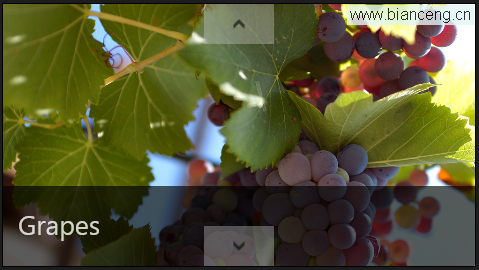
flipView1.ItemsSource = items;透過 ItemsPanel 設定 VirtualizingStackPanel 垂直方向。
<FlipView x:Name="flipView2">
    <FlipView.ItemsPanel>
        <ItemsPanelTemplate>
            <VirtualizingStackPanel Orientation="Vertical"/>
        </ItemsPanelTemplate>
    </FlipView.ItemsPanel>
    <FlipView.ItemTemplate>
        <DataTemplate>
            <!-- 樣板內容同模式一 -->
        </DataTemplate>
    </FlipView.ItemTemplate>
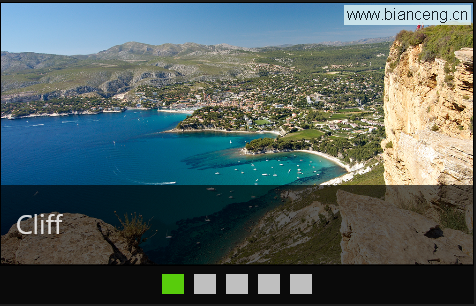
</FlipView>搭配 ListBox 顯示縮圖導航,支援直接跳轉特定項目。
<Grid>
    <FlipView x:Name="flipView3"
              ItemsSource="{Binding Items}"
              ItemTemplate="{StaticResource FlipItemTemplate}" />

    <ListBox x:Name="indicatorList"
             ItemsSource="{Binding Items}"
             SelectedItem="{Binding SelectedItem, ElementName=flipView3, Mode=TwoWay}"
             ItemContainerStyle="{StaticResource ContextControlItemStyle}"
             Style="{StaticResource ListBoxStyle1}"
             HorizontalAlignment="Center" VerticalAlignment="Bottom" Margin="0,0,0,20">
    </ListBox>
</Grid>
指示器樣式資源定義:
<Page.Resources>
    <Style x:Key="ListBoxStyle1" TargetType="ListBox">
        <Setter Property="ItemsPanel">
            <Setter.Value>
                <ItemsPanelTemplate>
                    <StackPanel Orientation="Horizontal"/>
                </ItemsPanelTemplate>
            </Setter.Value>
        </Setter>
    </Style>

    <Style x:Key="ContextControlItemStyle" TargetType="ListBoxItem">
        <Setter Property="Template">
            <Setter.Value>
                <ControlTemplate TargetType="ListBoxItem">
                    <Ellipse Width="12" Height="12" Fill="Gray" Margin="4"
                             Stroke="{TemplateBinding BorderBrush}" StrokeThickness="2"/>
                </ControlTemplate>
            </Setter.Value>
        </Setter>
    </Style>
</Page.Resources>FlipView 適合線性瀏覽體驗,搭配虛擬化面板可保證流暢效能。下一章將介紹 ListView 控件的分組與選取進階用法。