Windows 8 支援裝置旋轉,應用需在縱向模式提供等同品質的體驗。GridView 可自動適配,自訂佈局則需透過 VisualState 切換專用樣板。


使用 GridView 呈現資料時,縱向切換會自動調整項目排列,無需額外程式碼。
其他控件需在 FullScreenPortrait VisualState 中聲明切換動畫與佈局調整。
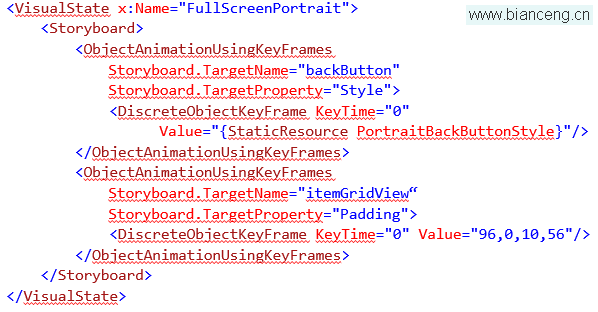
<VisualState x:Name="FullScreenPortrait">
    <Storyboard>
        <ObjectAnimationUsingKeyFrames Storyboard.TargetName="horizontalListView"
            Storyboard.TargetProperty="Visibility">
            <DiscreteObjectKeyFrame KeyTime="0" Value="Collapsed"/>
        </ObjectAnimationUsingKeyFrames>
        <ObjectAnimationUsingKeyFrames Storyboard.TargetName="verticalListView"
            Storyboard.TargetProperty="Visibility">
            <DiscreteObjectKeyFrame KeyTime="0" Value="Visible"/>
        </ObjectAnimationUsingKeyFrames>
        <ObjectAnimationUsingKeyFrames Storyboard.TargetName="pageTitle"
            Storyboard.TargetProperty="Margin">
            <DiscreteObjectKeyFrame KeyTime="0" Value="20,10,0,0"/>
        </ObjectAnimationUsingKeyFrames>
    </Storyboard>
</VisualState>縱向適配的核心是「內容不變,佈局重組」。下一章將介紹裝置方向感測器的程式化控制。