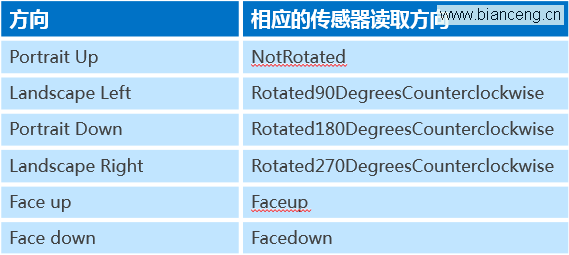
Windows 8 裝置內建方向感測器,可偵測六種方向狀態。透過 SimpleOrientationSensor 與 DisplayProperties API,應用可即時回應裝置旋轉,調整遊戲操作、介面佈局或鎖定方向。
| 裝置方向 | 感測器值 | Windows 鍵位置參考 |
|---|---|---|
| 水平向上 | NotRotated | Windows 鍵在下方 |
| 垂直向左 | Rotated90DegreesCounterclockwise | Windows 鍵在右側 |
| 水平向下 | Rotated180DegreesCounterclockwise | Windows 鍵在上方 |
| 垂直向右 | Rotated270DegreesCounterclockwise | Windows 鍵在左側 |
| 螢幕朝上 | Faceup | 平放桌面 |
| 螢幕朝下 | Facedown | 螢幕朝下 |
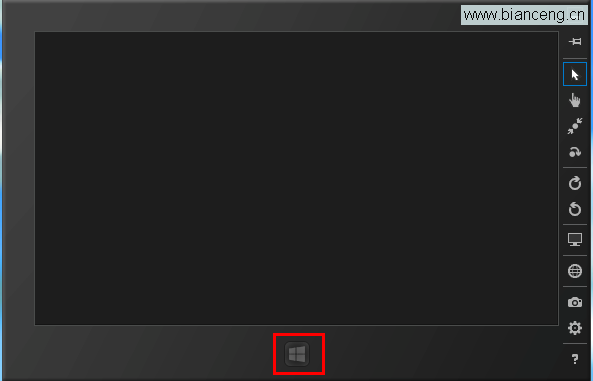
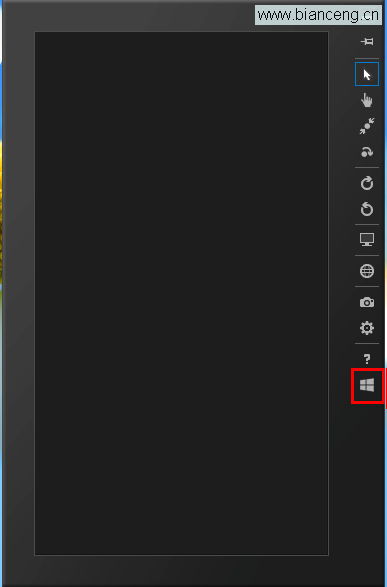
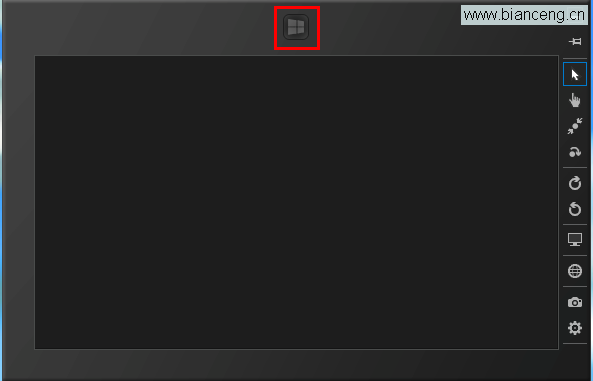
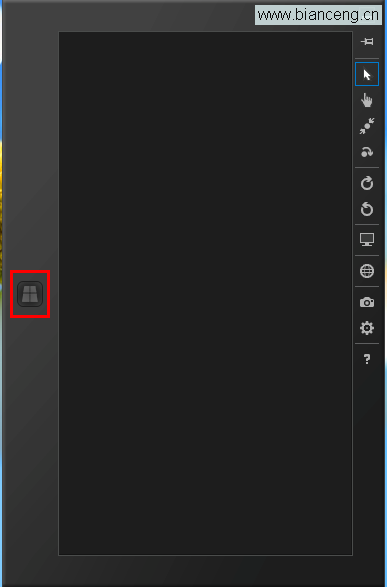
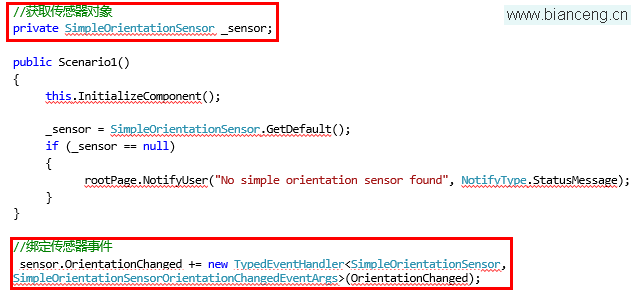
var sensor = SimpleOrientationSensor.GetDefault();sensor.OrientationChanged += Sensor_OrientationChanged;private void Sensor_OrientationChanged(SimpleOrientationSensor sender,
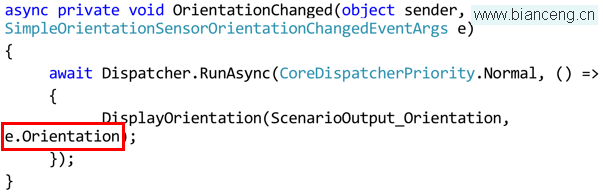
SimpleOrientationSensorOrientationChangedEventArgs e) {
var orientation = e.Orientation;
// 更新 UI 或遊戲邏輯
UpdateOrientationDisplay(orientation);
}
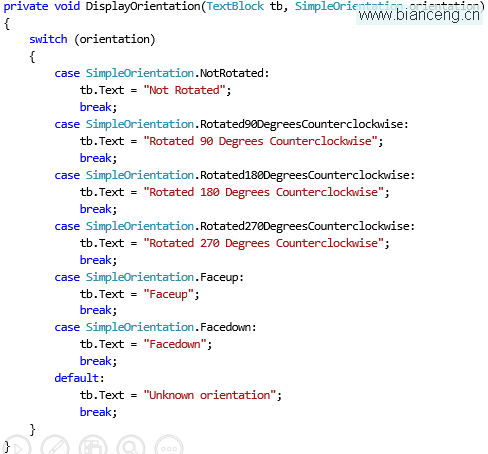
private void UpdateOrientationDisplay(SimpleOrientation orientation) {
string text = "";
switch (orientation) {
case SimpleOrientation.NotRotated: text = "水平向上"; break;
case SimpleOrientation.Rotated90DegreesCounterclockwise: text = "垂直向左"; break;
case SimpleOrientation.Rotated180DegreesCounterclockwise: text = "水平向下"; break;
case SimpleOrientation.Rotated270DegreesCounterclockwise: text = "垂直向右"; break;
case SimpleOrientation.Faceup: text = "螢幕朝上"; break;
case SimpleOrientation.Facedown: text = "螢幕朝下"; break;
}
// UI 更新需在 UI 執行緒
Dispatcher.RunAsync(CoreDispatcherPriority.Normal, () => {
txtOrientation.Text = text;
});
}
| 成員 | 類型 | 說明 |
|---|---|---|
| OrientationChanged | 事件 | 方向變更時觸發 |
| CurrentOrientation | 唯讀屬性 | 目前裝置方向 |
| NativeOrientation | 唯讀屬性 | 裝置原生方向 |
| AutoRotationPreferences | 可讀寫屬性 | 應用偏好方向(模擬器不支援) |
設定 DisplayProperties.AutoRotationPreferences 限制支援的旋轉方向:
// 僅支援橫向
DisplayProperties.AutoRotationPreferences = DisplayOrientations.Landscape;

// 支援橫向與縱向
DisplayProperties.AutoRotationPreferences = DisplayOrientations.Landscape |
DisplayOrientations.Portrait;方向感測器讓應用具備空間感知能力。下一章將介紹語義縮放控件,實現大量資料的縮放導航。