不想為了單一檔案下載功能架設完整 IIS/ASP.NET 網站?System.Net.HttpListener 讓桌面應用 (WinForms/WPF/Console) 幾行程式碼即可啟動 HTTP 監聽器,回應下載請求。本文示範完整實作:監聽指定路徑、設定 Content-Disposition 標頭觸發瀏覽器「另存新檔」、分塊串流傳輸大檔案、中文檔名編碼處理。
using System;
using System.IO;
using System.Net;
using System.Web; // 需參考 System.Web.dll
using System.Windows.Forms;

public partial class MainForm : Form {
  private HttpListener _listener;
  private string _filePath = @"C:\Demo\LargeFile.zip";

  private async void BtnStart_Click(object sender, EventArgs e) {
    _listener = new HttpListener();
    _listener.Prefixes.Add("https://+:8080/download/"); // 需管理員權限或預留 URL ACL
    _listener.Start();
    BtnStart.Enabled = false;
    LblStatus.Text = "監聽中... 請在瀏覽器開啟 https://localhost:8080/download/";

    try {
      var context = await _listener.GetContextAsync();
      ProcessRequest(context);
    } catch (Exception ex) {
      MessageBox.Show(ex.Message);
    } finally {
      _listener.Stop();
      BtnStart.Enabled = true;
      LblStatus.Text = "已停止";
    }
  }

  private void ProcessRequest(HttpListenerContext ctx) {
    var resp = ctx.Response;
    string fileName = Path.GetFileName(_filePath);

    // 關鍵:Content-Disposition 強制下載而非瀏覽器開啟
    resp.Headers.Add(HttpResponseHeader.ContentDisposition,
      "attachment; filename=" + HttpUtility.UrlEncode(fileName, System.Text.Encoding.UTF8));

    resp.ContentType = "application/octet-stream";
    resp.ContentLength64 = new FileInfo(_filePath).Length;

    // 分塊串流傳輸,避免大檔案佔用記憶體
    const int BufferSize = 8192;
    byte[] buffer = new byte[BufferSize];
    using (var fs = File.OpenRead(_filePath)) {
      int read;
      while ((read = fs.Read(buffer, 0, buffer.Length)) > 0) {
        resp.OutputStream.Write(buffer, 0, read);
      }
    }
    resp.OutputStream.Close(); // 結束回應
  }
}
| 項目 | 說明 |
|---|---|
Prefixes.Add("https://+:8080/download/") | 監聽所有主機名的 8080 埠,路徑含 /download/ 避免與本機 IIS 衝突。+ 需管理員權限或 netsh http add urlacl 授權。 |
Content-Disposition: attachment | 瀏覽器收到此標頭會彈出「另存新檔」對話框,而非嘗試內嵌顯示 (如 PDF/圖片)。 |
HttpUtility.UrlEncode | 中文檔名必須 UTF-8 編碼,否則瀏覽器下載時檔名會亂碼。 |
分塊串流 (FileStream.Read → OutputStream.Write) | 不將整個檔案讀入記憶體,支援 GB 級大檔案下載。 |
GetContextAsync | 非同步等待請求,不阻塞 UI 執行緒。 |
https://localhost:8080/download/ 按 Enter。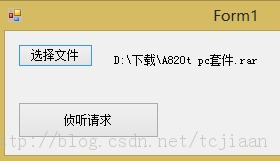

Range 標頭、Accept-Ranges、多執行緒下載。ProcessRequest 檢查 QueryString Token 或 Basic Auth。netsh http add urlacl url=https://+:8080/download/ user=Everyone。while (_listener.IsListening) { var ctx = await _listener.GetContextAsync(); Task.Run(() => ProcessRequest(ctx)); }。https:// 前綴,HttpListener 支援 SSL。HttpListener 是 .NET 框架內建的輕量 HTTP 伺服器,零依賴、零設定檔,極適合桌面應用內嵌簡單 HTTP 服務 (下載、回呼、Webhook 接收、健康檢查)。掌握此技術,讓桌面應用輕鬆跨越進程邊界與瀏覽器/行動裝置互動。