在 Windows 8 應用開發中,GridView 是呈現資料集合最常用的控件之一,支援分組、選取、點擊等豐富互動。本文將帶你從零開始,逐步建立一個具備分組功能的 GridView 範例。
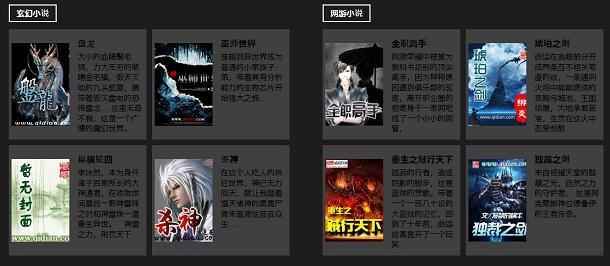
首先建立實體類別與資料來源。以下範例模擬小說分類資料:
public class DataModel {
    public string txtTitle { get; set; }
    public string txtContent { get; set; }
    public string ImageUrl { get; set; }
}

public class DataGroupModel {
    public string GroupTitle { get; set; }
    public ObservableCollection<DataModel> ItemContent { get; set; }
}

public class ViewModelData {
    public ViewModelData() {
        Sourcedata = GetDataGroup();
    }
    private ObservableCollection<DataGroupModel> _Sourcedata;
    public ObservableCollection<DataGroupModel> Sourcedata {
        get { return _Sourcedata; }
        set { _Sourcedata = value; }
    }
    public ObservableCollection<DataGroupModel> GetDataGroup() {
        return new ObservableCollection<DataGroupModel>() {
            new DataGroupModel() {
                GroupTitle = "玄幻小說",
                ItemContent = new ObservableCollection<DataModel>() {
                    new DataModel() { txtTitle = "盤龍", txtContent = "大小的血睛鬃毛獅...", ImageUrl = "https://image.qidian.com/books/1017141/1017141.jpg" },
                    new DataModel() { txtTitle = "縱橫輪回", txtContent = "李沐然,本為身懷諸子百家所長...", ImageUrl = "https://image.qidian.com/books/1.jpg" },
                    new DataModel() { txtTitle = "巫師世界", txtContent = "穿越到異世界成為普通的小家族子弟...", ImageUrl = "https://image.qidian.com/books/2443169/2443169.jpg" },
                    new DataModel() { txtTitle = "殺神", txtContent = "在這個人吃人的瘋狂世界...", ImageUrl = "https://image.qidian.com/books/1911245/1911245.jpg" }
                }
            },
            new DataGroupModel() {
                GroupTitle = "網游小說",
                ItemContent = new ObservableCollection<DataModel>() {
                    new DataModel() { txtTitle = "全職高手", txtContent = "網游榮耀中被譽為教科書級別的頂尖高手...", ImageUrl = "https://image.qidian.com/books/1887208/1887208.jpg" },
                    new DataModel() { txtTitle = "重生之賊行天下", txtContent = "孤寂的行者,追逐陰影的腳步...", ImageUrl = "https://image.qidian.com/books/1693876/1693876.jpg" },
                    new DataModel() { txtTitle = "琥珀之劍", txtContent = "命運在我眼前分開成兩條互不相關筆直的線...", ImageUrl = "https://image.qidian.com/books/1784765/1784765.jpg" },
                    new DataModel() { txtTitle = "獨裁之劍", txtContent = "來自銀耀天堂的智慧之光...", ImageUrl = "https://image.qidian.com/books/2172318/2172318.jpg" }
                }
            }
        };
    }
}public MainPage() {
this.InitializeComponent();
this.DataContext = new ViewModelData();
}<Grid.Resources>
<CollectionViewSource x:Name="itemcollectSource"
Source="{Binding Sourcedata}"
IsSourceGrouped="true"
ItemsPath="ItemContent" />
<DataTemplate x:Key="gvtemplate">
<Grid Width="250" Height="200" Background="#33CCCCCC">
<Grid.ColumnDefinitions>
<ColumnDefinition Width="110"/>
<ColumnDefinition/>
</Grid.ColumnDefinitions>
<Image Grid.Column="0" Margin="5,0,0,0" Source="{Binding ImageUrl}" Stretch="None"/>
<TextBlock Grid.Column="1" Margin="15,15,0,0" Foreground="Black"
Text="{Binding txtTitle}" FontWeight="Bold" FontSize="16" TextWrapping="Wrap"/>
<TextBlock Grid.Column="1" Margin="15,40,0,0" Foreground="Black"
Text="{Binding txtContent}" FontWeight="Light" FontSize="14" TextWrapping="Wrap"/>
</Grid>
</DataTemplate>
</Grid.Resources><GridView Name="gv_Item"
SelectionMode="Single"
ItemsSource="{Binding Source={StaticResource itemcollectSource}}"
ItemTemplate="{StaticResource gvtemplate}"
SelectedItem="{Binding ItemContent, Mode=TwoWay}"
IsItemClickEnabled="True"
Margin="120,140,20,20">
<GridView.ItemsPanel>
<ItemsPanelTemplate>
<StackPanel Orientation="Horizontal"/>
</ItemsPanelTemplate>
</GridView.ItemsPanel>
<GridView.GroupStyle>
<GroupStyle>
<GroupStyle.HeaderTemplate>
<DataTemplate>
<Grid Margin="1,0,0,6">
<Button AutomationProperties.Name="組名稱" Content="{Binding GroupTitle}"/>
</Grid>
</DataTemplate>
</GroupStyle.HeaderTemplate>
<GroupStyle.Panel>
<ItemsPanelTemplate>
<VariableSizedWrapGrid Orientation="Vertical" Margin="0,0,50,0"/>
</ItemsPanelTemplate>
</GroupStyle.Panel>
</GroupStyle>
</GridView.GroupStyle>
</GridView>說明:ItemsPanel 決定項目排列方向(此處為水平),GroupStyle 定義分組標題與面板佈局。
完整原始碼下載:win8Gridview1.rar