Eclipse 是一個功能強大的框架,透過內建外掛機制支援多種擴展方式。然而,若想新增一點額外功能,往往得面對撰寫與部署新外掛的繁瑣工作,確實令人頭痛。在 EASE (Eclipse Advanced Scripting Environment) 的協助下,我們能以更理想的方式完成這項任務——且全程無需撰寫任何一行 Java 代碼。EASE 讓我們輕鬆運用 Python 或 JavaScript 等腳本語言,實現工作台的自動化功能。

本文將帶領讀者了解如何利用 Python 搭配 EASE 設定 Eclipse 環境,並探討多種以 Python 強化 IDE 的可行路徑。
文中範例基於 Jython (Python 的 Java 實作)。讀者可直接將 EASE 安裝至現有 Eclipse IDE,本文採用 Eclipse Mars 並安裝 EASE 核心、UI、Python 開發資源與模組 (Incubation)。
在 Eclipse 安裝對話框 (Help > Install New Software...) 中新增更新站點:https://download.eclipse.org/ease/update/nightly,並勾選以下元件:
安裝完成後,再安裝 EASE Jython 引擎:https://dl.bintray.com/pontesegger/ease-jython/。所有外掛安裝完畢後,建立一個新專案,新增名為 hello.py 的檔案,內容如下:
print "hello world"右鍵點選該檔案,選擇 Run As > EASE Script,主控台將顯示 "Hello World"。此時即可開始撰寫能存取工作區與專案的 Python 腳本。
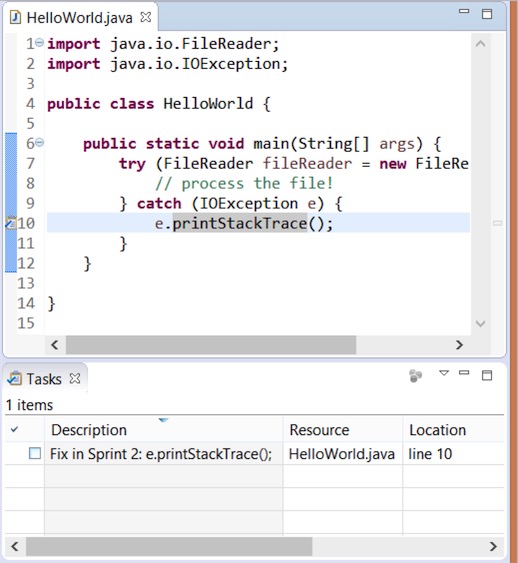
維持良好的程式碼品質極具挑戰,尤其在大型代碼庫或多人協作時。部分難題可透過腳本輕鬆解決,例如批次調整特定檔案格式、在 Git 等版控系統中移除 Unix 換行符以簡化差異比對。此外,亦可利用腳本產生 Eclipse 標記 (Markers),以程式碼高亮方式呈現改進建議。下列腳本示範如何為所有 "printStackTrace" 方法新增任務標記,以便在 Java 檔案中偵測:
loadModule('/System/Resources')
from org.eclipse.core.resources import IMarker

for ifile in findFiles("*.java"):
    file_name = str(ifile.getLocation())
    print "Processing " + file_name
    with open(file_name) as f:
        for line_no, line in enumerate(f, start=1):
            if "printStackTrace" in line:
                marker = ifile.createMarker(IMarker.TASK)
                marker.setAttribute(IMarker.TRANSIENT, True)
                marker.setAttribute(IMarker.LINE_NUMBER, line_no)
                marker.setAttribute(IMarker.MESSAGE, "Fix in Sprint 2: " + line.strip())
執行後,若專案中有包含 printStackTrace 的 Java 檔案,可在編輯器邊緣的任務視圖看到新建立的標記。
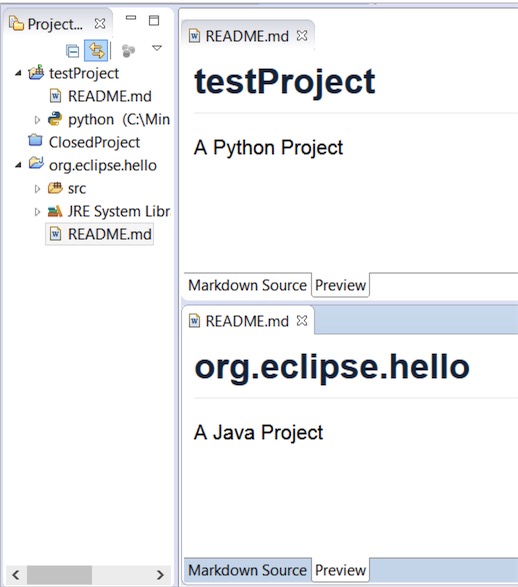
同時處理多個專案時,常需自動化處理重複性工作。例如在每個原始檔開頭加入版權標題、遷移框架時更新原始檔。以往切換至 Tycho 和 Maven 需為每個專案新增 pom.xml,現在 Tycho 支援無 pom 建置,反而需移除多餘的 pom 檔案——同樣只需幾行 Python 腳本即可完成。下列腳本為工作區中每個已開啟的 Java 或 Python 專案新增 README.md:
loadModule('/System/Resources')
for iproject in getWorkspace().getProjects():
    if not iproject.isOpen():
        continue
    ifile = iproject.getFile("README.md")
    if not ifile.exists():
        contents = "# " + iproject.getName() + "\n\n"
        if iproject.hasNature("org.eclipse.jdt.core.javanature"):
            contents += "A Java Project\n"
        elif iproject.hasNature("org.python.pydev.pythonNature"):
            contents += "A Python Project\n"
        writeFile(ifile, contents)
執行結果:每個已開啟專案皆擁有 README.md,Java 與 Python 專案另含描述行。
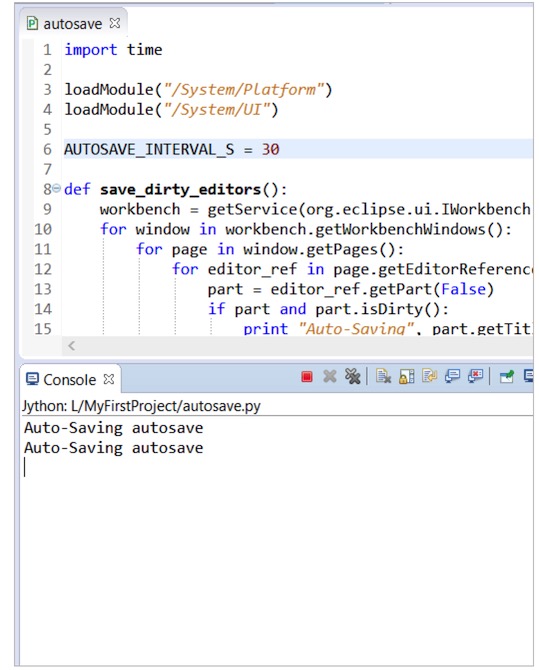
Python 腳本亦可用於快速修復所需功能,或作為原型供團隊成員參考。例如 Eclipse 目前不支援自動儲存正在編輯的檔案,雖未來版本將加入,但我們可自行實作:每 30 秒或關閉編輯器時自動儲存。核心程式碼片段如下:
def save_dirty_editors():
    workbench = getService(org.eclipse.ui.IWorkbench)
    for window in workbench.getWorkbenchWindows():
        for page in window.getPages():
            for editor_ref in page.getEditorReferences():
                part = editor_ref.getPart(False)
                if part and part.isDirty():
                    print "Auto-Saving", part.getTitle()
                    part.doSave(None)
執行前需在 Window > Preferences > Scripting 勾選 Allow Scripts to run code in UI thread。執行後,主控台將輸出儲存訊息;若要停止,點擊主控台視圖的紅色 "Terminate" 按鈕即可。
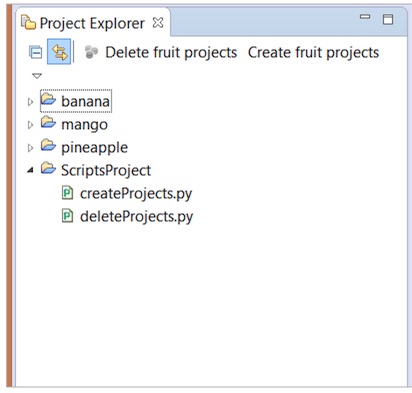
EASE 的一大特色是允許將腳本快速掛載到 IDE 的 UI 元素——如新增按鈕或選單項目,無需撰寫 Java 代碼或開發新外掛,只需在腳本標頭加入幾行註解。下例建立三個新專案的按鈕:
# name        : Create fruit projects
# toolbar     : Project Explorer
# description : Create fruit projects

loadModule("/System/Resources")
for name in ["banana", "pineapple", "mango"]:
    createProject(name)
另一腳本則在同一工具列新增按鈕刪除這三個專案。將這兩個腳本檔案放入新專案 "ScriptsProject",並在 Windows > Preference > Scripting > Script Locations 點擊 "Add Workspace" 選擇該專案,即可在專案總管看到按鈕,無需重啟 IDE。
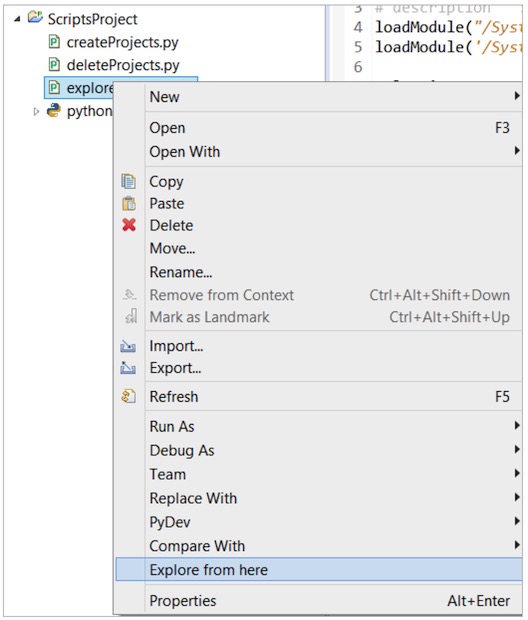
有時需呼叫 Eclipse 生態系外的工具。EASE 允許在腳本中封裝請求與工具呼叫。下例整合 explorer.exe 並加入右鍵選單,以目前選取項目開啟檔案總管:
# name        : Explore from here
# popup       : enableFor(org.eclipse.core.resources.IResource)
# description : Start a file browser using current selection

loadModule("/System/Platform")
loadModule('/System/UI')

selection = getSelection()
if isinstance(selection, org.eclipse.jface.viewers.IStructuredSelection):
    selection = selection.getFirstElement()
if not isinstance(selection, org.eclipse.core.resources.IResource):
    selection = adapt(selection, org.eclipse.core.resources.IResource)
if isinstance(selection, org.eclipse.core.resources.IFile):
    selection = selection.getParent()
if isinstance(selection, org.eclipse.core.resources.IContainer):
    runProcess("explorer.exe", [selection.getLocation().toFile().toString()])
同樣將腳本放入 "ScriptsProject" 並設定腳本位置後,右鍵檔案即可在彈出選單看到新項目。注意:此功能 Eclipse 已內建,僅作為第三方工具整合示例。
EASE 釋放了 Python 在 Eclipse IDE 中的強大潛能,專案處於起步階段,未來可期待更多精彩功能。有興趣的讀者可參考專案說明或參與相關論壇。作者將在 2016 年 EclipseCon 北美大會進一步介紹 EASE,並探討 C-Python 及其在科學用例的擴展應用,敬請期待。
原文標題:How to use Python to hack your Eclipse IDE
Bkjia 譯稿,轉載請註明原文譯者與出處為 Bkjia.com