Java 連接 SQL Server 常見坑點避雷指南(新手親測)
初學者使用 JDBC 連接 SQL Server 常遇到驅動加載、DLL 缺失、認證模式、密碼修改不生效等問題。本文總結四大核心坑點及解決步驟,助你快速搞定連接。
坑點一:JDBC 驅動包未正確添加
- 下載
sqljdbc.jar(或 mssql-jdbc)
- 項目右鍵 Build Path → Configure Build Path → Libraries → Add JARs 選中該包
- 或放入
WEB-INF/lib(Web 項目)自動加載
坑點二:缺少 sqljdbc_auth.dll 導致認證失敗
錯誤:Failed to load the sqljdbc_auth.dll
- 從 Microsoft 官網下載對應版本 JDBC 驅動包,解壓取
sqljdbc_auth.dll
- 區分 x86 / x64 目錄,選擇與 JRE 位數一致的 DLL
- 複製到
C:\Windows\System32(64位系統放 64位 DLL)或 JRE bin 目錄
坑點三:Windows 認證模式導致登錄失敗
安裝 SQL Server 時若選 Windows Authentication,Java 連接會報:該登錄名來自不受信任的域,不能與 Windows 身份驗證一起用
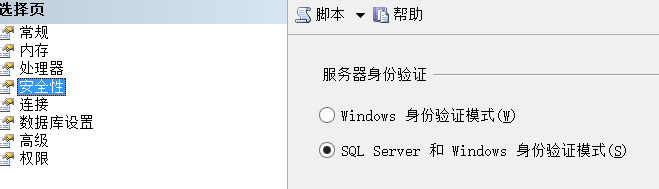
解決:切換為混合認證模式
- 使用 Windows 認證登錄 SSMS(SQL Server Management Studio)
- 右鍵實例 → Properties → Security
- 選中 SQL Server and Windows Authentication mode(混合模式)
- 點擊 OK,彈窗提示需重啟服務
坑點四:修改 sa 密碼後重啟服務才生效
- Security 頁面 → Server authentication 選混合模式後
- 展開 Security → Logins → sa 右鍵 Properties
- 修改 Password,取消 Enforce password policy(可選)
- 關鍵步驟: 右鍵實例 → Restart 重啟 SQL Server 服務



連接字符串模板(混合模式):
jdbc:sqlserver://localhost:1433;databaseName=YourDB;user=sa;password=YourPass