在本系列前三篇文章中,我們已介紹了Eclipse標準控件工具包(SWT)與JFace的基礎概念,涵蓋基本GUI控件、容器類型、佈局管理器,以及菜單系統的構建與最佳實踐。本文將深入探討org.eclipse.swt.widgets與org.eclipse.swt.custom包中的進階控件,假設讀者已閱讀第1部分。
本文通過BarApp應用演示各類控件,該應用繼承自BasicApplication類(內含控件創建輔助方法)。圖1展示了所有討論控件的佈局:最左側為三個帶邊框的Composite(各含一個Label),嵌套於兩層SashForm中;左側中部為垂直ToolBar;右上方為兩組CBanner包裹的水平ToolBar;底部則包含CoolBar、Link及標準對話框按鈕。清單1詳細列出了控件層次結構。
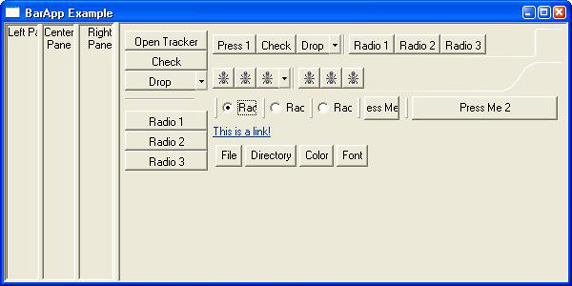
圖 1. BarApp 示例
ToolBar類似第2部分所述的Menu,包含ToolItem,每項可顯示文本或圖標(二者擇一)。若僅用圖標,必須設置ToolTip說明功能。ToolBar樣式互斥:HORIZONTAL(水平)或VERTICAL(垂直);可選樣式包括FLAT、WRAP、RIGHT、SHADOW_OUT。ToolItem五種互斥樣式:CHECK(複選)、DROP_DOWN(下拉菜單)、PUSH(按鈕)、RADIO(單選)、SEPARATOR(分隔符)。清單2、3展示創建方法。
protected ToolBar createVToolBar(Composite parent, int style) {
    return new ToolBar(parent, style | SWT.VERTICAL);
}
protected ToolBar createHToolBar(Composite parent, int style) {
    return new ToolBar(parent, style | SWT.HORIZONTAL);
}
清單 2. 創建 ToolBar 的方法
protected ToolItem createToolItem(ToolBar bar, int style, String text,
    Image image, String tooltip, SelectionListener listener) {
    if (image != null && (text == null && tooltip == null)) {
        throw new IllegalArgumentException("image only items require a tool tip");
    }
    ToolItem ti = new ToolItem(bar, style);
    if (image != null) ti.setImage(image);
    else if (text != null) ti.setText(text);
    if (tooltip != null) ti.setToolTipText(tooltip);
    if (listener != null) ti.addSelectionListener(listener);
    return ti;
}
清單 3. 創建 ToolItem 的方法
多數作業系統提供系統托盤(Tray),不可直接構造,需通過Display.getSystemTray()獲取。托盤包含TrayItem,無樣式選項,通常作PUSH按鈕工作。
CoolBar允許用戶拖曳重排CoolItem,支持更靈活的換行與順序控制。僅支持FLAT樣式;CoolItem僅支持DROP_DOWN樣式,且必須關聯一個實現GUI的控件(如Button),否則無顯示與功能。清單4、5為創建代碼,清單6演示關聯控件並彈出菜單(圖2)。
protected CoolBar createCoolBar(Composite parent, int style) {
    return new CoolBar(parent, style);
}
protected CoolItem createCoolItem(CoolBar bar, int style, String text,
    Image image, SelectionListener listener) {
    CoolItem ci = new CoolItem(bar, style);
    if (text != null) ci.setText(text);
    if (image != null) ci.setImage(image);
    return ci;
}
清單 4、5. 創建 CoolBar 與 CoolItem
CoolBar cb = createCoolBar(..., SWT.FLAT);
CoolItem ci = createCoolItem(cb, SWT.FLAT, "Drop", null, null);
Button b = createButton(cb, SWT.PUSH, "Press Me 1", null, new SelectionAdapter() {
    public void widgetSelected(SelectionEvent se) { menu.setVisible(true); }
});
ci.setControl(b); // 關聯 Button
Menu m = new Menu(cb);
// 添加菜單項...
清單 6. CoolItem 創建示例
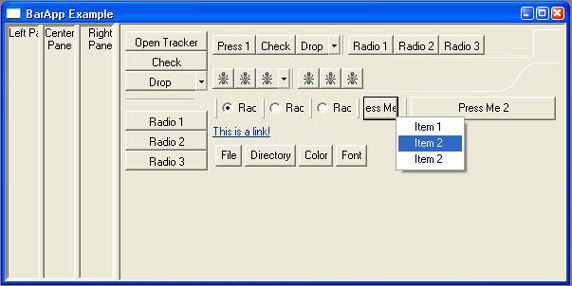
圖 2. CoolItem 示例
當需動態分配螢幕空間時,SashForm是TabFolder的替代方案。它在子控件間顯示可拖動的分隔條(Sash),通常子控件為帶邊框的Composite以增強可視性。支持嵌套形成複雜佈局。樣式互斥:HORIZONTAL、VERTICAL;可選SMOOTH使移動更流暢。清單7為創建方法,圖3、4展示調整效果(對比圖1可見預設外層20%、內層33%)。
protected SashForm createSashForm(Composite parent, int style) {
    SashForm sf = new SashForm(parent, style);
    return sf;
}
protected SashForm createVSashForm(Composite parent) {
    return createSashForm(parent, SWT.VERTICAL);
}
protected SashForm createHSashForm(Composite parent) {
    return createSashForm(parent, SWT.HORIZONTAL);
}
清單 7. 創建 SashForm 的方法
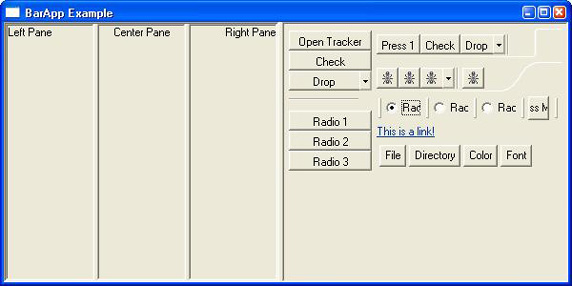
圖 3. SashForm 示例 1
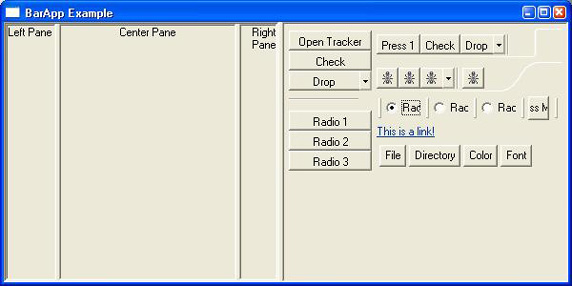
圖 4. SashForm 示例 2
CBanner(custom包)為預定義佈局的特殊Composite,支持可選的Left、Right、Bottom三個控件(常用前兩者,通常為ToolBar)。Eclipse主工具區即使用此控件。提供分隔器調整左右空間,setSimple(boolean)控制分隔器外觀。創建代碼簡單,圖5展示簡易與複雜兩種樣式。
protected CBanner createCBanner(Composite parent) {
    return new CBanner(parent, SWT.NONE);
}
圖 5. CBanner 示例
Link(Eclipse 3.1+)外觀似網頁超鏈接,僅支持文本內容,可用純文本或HTML <a>標籤(如<a href="url">文字</a>)。清單8為創建方法,圖6展示紅色強調效果。
protected Link createLink(Composite parent, String text,
    SelectionListener listener) {
    Link l = new Link(parent, SWT.NONE);
    if (text != null) l.setText(text);
    if (listener != null) l.addSelectionListener(listener);
    return l;
}
清單 8. 創建 Link 的方法
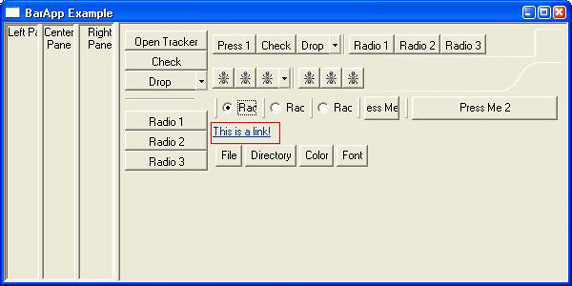
圖 6. Link 示例
Tracker提供臨時透明輪廓,讓用戶通過鍵盤/滑鼠調整位置大小,釋放後應用程序同步更新相關控件。清單9為創建方法,圖7展示擴展到右側的效果。
protected Tracker createTracker(Composite parent, int style) {
    return createTracker(parent, style, null, null);
}
protected Tracker createTracker(Composite parent, int style,
    ControlListener cl, KeyListener kl) {
    Tracker t = new Tracker(parent, style);
    if (cl != null) t.addControlListener(cl);
    if (kl != null) t.addKeyListener(kl);
    return t;
}
清單 9. 創建 Tracker 的方法
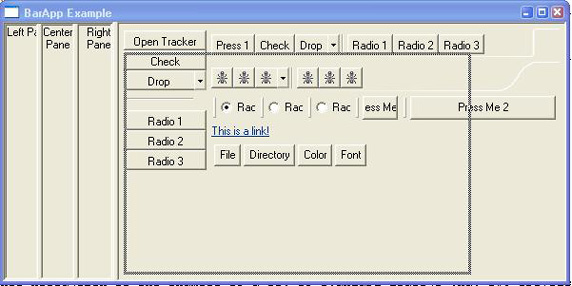
圖 7. Tracker 示例
SWT提供標準對話框:FileDialog(選文件)、DirectoryDialog(選目錄)、FontDialog(選字體)、ColorDialog(選顏色)。清單10展示創建代碼,圖8-11為運行截圖。注意對話框標題可能不可自定義。
FileDialog fd = new FileDialog(getShell(), SWT.OPEN);
fd.setText("Sample File Dialog");
String path = fd.open();
// 其餘類似...
清單 10. 創建多種 Dialog 的方法
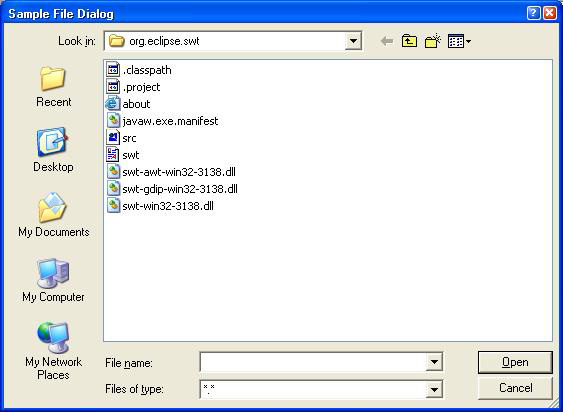
圖 8. 文件對話框示例
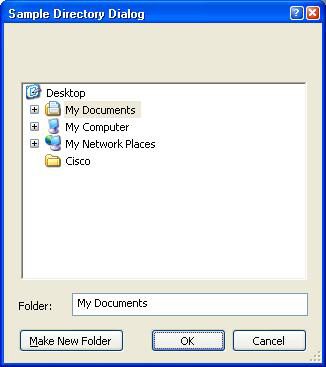
圖 9. 目錄對話框示例
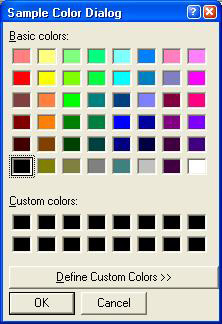
圖 10. 顏色選擇示例
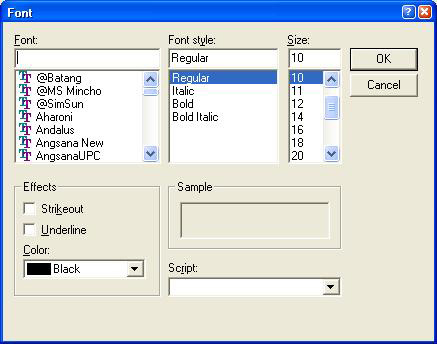
圖 11. 字體選擇示例
本文介紹了ToolBar、CoolBar、Tray、Link、SashForm、CBanner、Tracker及標準對話框,完成了SWT核心控件巡禮。下一部分將進入JFace領域,講解ContentProvider與LabelProvider構建表格/樹模型。
來源:IBM developerWorks