系列第二篇:示範在 SWT 中嵌入 Excel,取得 Workbook → Worksheet → Range (A1) → 設定 Value,並讀回驗證。詳細註解每個 OLE 物件 ID 取得來源。
package com.jrkui.example.excel;

import java.io.File;
import org.eclipse.swt.SWT;
import org.eclipse.swt.layout.FillLayout;
import org.eclipse.swt.ole.win32.OLE;
import org.eclipse.swt.ole.win32.OleAutomation;
import org.eclipse.swt.ole.win32.OleClientSite;
import org.eclipse.swt.ole.win32.OleFrame;
import org.eclipse.swt.ole.win32.Variant;
import org.eclipse.swt.program.Program;
import org.eclipse.swt.widgets.Display;
import org.eclipse.swt.widgets.Menu;
import org.eclipse.swt.widgets.Shell;

public class ExcelShell {
    public static void main(String[] args) { new ExcelShell().open(); }

    public void open() {
        Display display = Display.getDefault();
        Shell shell = new Shell();
        shell.setSize(600, 400);
        shell.setText("Excel Window");
        shell.setLayout(new FillLayout());
        // 顯示 Excel 選單列
        shell.setMenuBar(new Menu(shell, SWT.BAR));
        createExcelPart(shell);
        shell.open();
        while (!shell.isDisposed()) {
            if (!display.readAndDispatch()) display.sleep();
        }
        display.close();
    }

    private void createExcelPart(Shell shell) {
        OleFrame oleFrame = new OleFrame(shell, SWT.NONE);
        OleClientSite clientSite = new OleClientSite(oleFrame, SWT.NONE, "Excel.Sheet");
        setValueForA1Cell(clientSite);
        clientSite.doVerb(OLE.OLEIVERB_SHOW);
    }

    private static final int SHEET_ID = 0x000001e5;
    private static final int CELL_ID = 0x000000c5;
    private static final int CELL_VALUE_ID = 0x00000006;

    private void setValueForA1Cell(OleClientSite clientSite) {
        OleAutomation workbook = new OleAutomation(clientSite);  // ClientSite 即 Workbook
        OleAutomation sheet = workbook.getProperty(SHEET_ID, new Variant[]{new Variant(1)}).getAutomation();
        Variant cellA1Variant = sheet.getProperty(CELL_ID, new Variant[]{new Variant("A1")});
        OleAutomation cellA1 = cellA1Variant.getAutomation();
        cellA1.setProperty(CELL_VALUE_ID, new Variant("Hello OLE!"));
        System.out.println(cellA1Variant.getString());  // 主控台輸出驗證
    }
}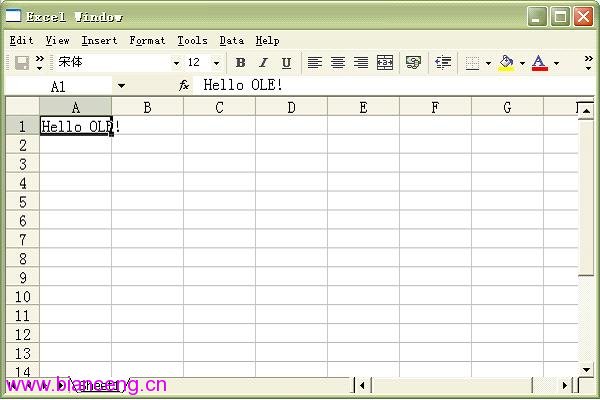
主控台輸出:Hello OLE!
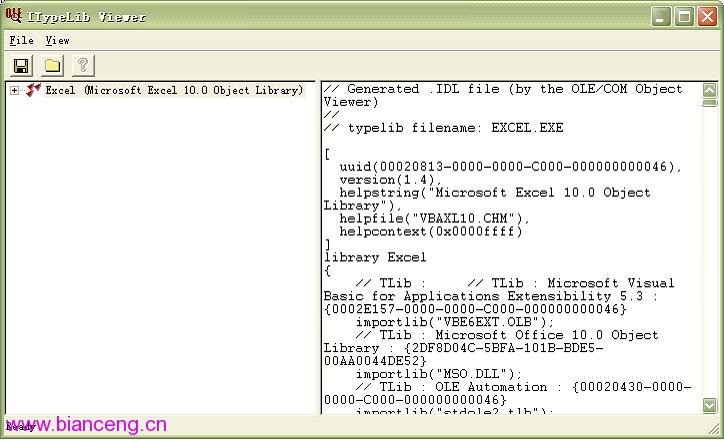
Excel.Sheet(版本無關)。new OleAutomation(clientSite) 直接轉換。Workbook.Sheets[1],ID 0x000001E5,需傳入索引 1(Variant 陣列)。Worksheet.Range("A1"),ID 0x000000C5,參數為字串 "A1"。0x00000006,setProperty 寫入,getString() 讀出。Document Objects → Microsoft Excel Worksheet,Registry** 標籤確認 ProgID = Excel.Sheet。Microsoft Excel Worksheet → View Type Information 開啟 ITypeLib Viewer。_Workbooks → Methods → Sheets:ID 0x000001E5,型別 propget,無參數。_Worksheet → Methods → Range:ID 0x000000C5,propget,參數 Cell1 (VARIANT), Cell2 (VARIANT, optional)。Range → Methods → Value:兩個同 ID 0x00000006,分別為 propget(讀)與 propput(寫)。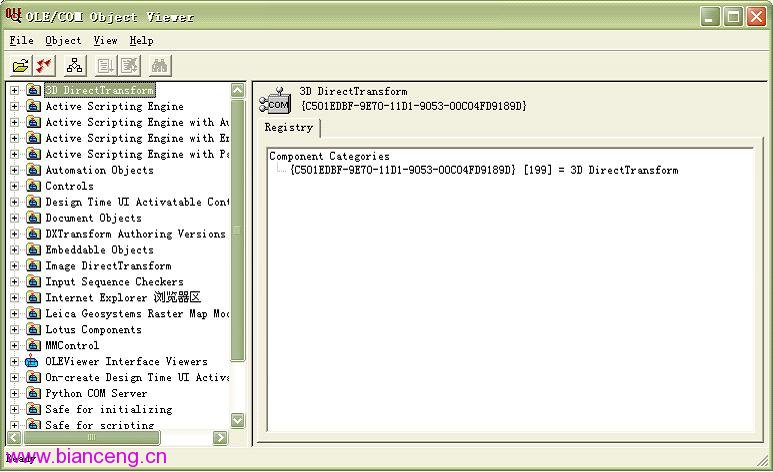
| 類別 | 說明 |
|---|---|
| OleFrame | 容器 Composite,管理 OLE 控制項生命週期 |
| OleClientSite | OLE 物件站點,綁定特定 ProgID (Excel.Sheet) |
| OleAutomation | 通用自動化代理,代表任意 OLE 物件 (Workbook/Worksheet/Range) |
| Variant | OLE 型別包裝器,雙向傳遞值與物件參考 |