Storyboard:動畫的容器與協調者
- 動畫集合,解決「多個 UI 元素同步/異步動畫」的結構問題。
- XAML 中動畫必須定義在 Storyboard 內;程式碼可建立獨立動畫(本地動畫)。
- 可置於三處:頂層元素、Style、ControlTemplate。
平行時間軸
<ParallelTimeline>
    <SetterTimeline TargetName="myEllipse" Path="(Ellipse.Width)">
        <DoubleAnimation From="10" To="300" Duration="0:0:5" RepeatBehavior="Forever" />
    </SetterTimeline>
    <SetterTimeline TargetName="myOtherEllipse" Path="(Ellipse.Width)">
        <DoubleAnimation From="300" To="10" Duration="0:0:5" RepeatBehavior="Forever" />
    </SetterTimeline>
</ParallelTimeline>
- 兩動畫同層於
ParallelTimeline → 同時執行。
SetterTimeline 指定目標元素與屬性路徑。
Style 中的 Storyboard:複用動畫
- 動畫定義於
Style.Storyboards,隱性目標為套用該 Style 的元素。
SetterTimeline 無需 TargetName,Path 直接針對目標型別屬性。- 自動套用至所有符合 TargetType 的元素。
ControlTemplate 中的 Storyboard:針對模板內部元素
- 模板內元素需
x:Name,動畫用 TargetName 參考。
Path 可深入巢狀屬性(如 (Rectangle.Fill).(GradientStops)[0].(GradientStop.Color))。- 索引語法
[0] 存取集合特定項目。
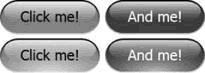
EventTrigger 自動驅動動畫
<ControlTemplate.Triggers>
    <EventTrigger RoutedEvent="ButtonBase.Click">
        <EventTrigger.Actions>
            <BeginAction TargetName="clickTimeline" />
        </EventTrigger.Actions>
    </EventTrigger>
    <EventTrigger RoutedEvent="Mouse.MouseEnter">
        <BeginAction TargetName="enterTimeline" />
    </EventTrigger>
    <EventTrigger RoutedEvent="Mouse.MouseLeave">
        <StopAction TargetName="enterTimeline" />
    </EventTrigger>
</ControlTemplate.Triggers>
BeginAction 啟動、StopAction 停止、PauseAction 暫停。- 重複動畫需
MouseLeave 停止,否則永遠重複。
- 事件名稱用定義類全名(如
Mouse.MouseEnter 而非 UIElement.MouseEnter),因為底層是附屬事件。
程式碼啟動動畫:Timeline 與 Clock 的關係
- Timeline = 靜態描述(做什麼、多久)。
- Clock = 執行體(現在進度、控制器)。
- WPF 載入 UI 時自動為每個 Timeline 建立 Clock。
- Style/Template 多實例 → 每實例獨立 Clock 組,互不干擾。
頂層 Storyboard 啟動
Timeline tl = FindName("clickTimeline") as Timeline;
Clock clock = this.FindStoryboardClock(tl);
clock.Controller.Begin();
Style/Template Storyboard 啟動
Clock clock = Style.FindStoryboardClock(myButton, "clickTimeline");
clock.Controller.Begin();
- Template 中的動畫同樣用
Style.FindStoryboardClock 取得。
- 只需啟動頂層 Clock,子 Clock 會自動依階層啟動。