延續上篇「本地 Gadget」介紹,本文深入剖析常規 Gadget 的架構本質、開發模式與實戰代碼。常規 Gadget 並非下載到裝置運行的 .NET Micro Framework 組件,而是基於 SCF (Simple Content Format) 協議的「網頁應用」模型:PC 端為伺服器輸出 SCF 內容流,SideShow 裝置為客戶端渲染顯示。
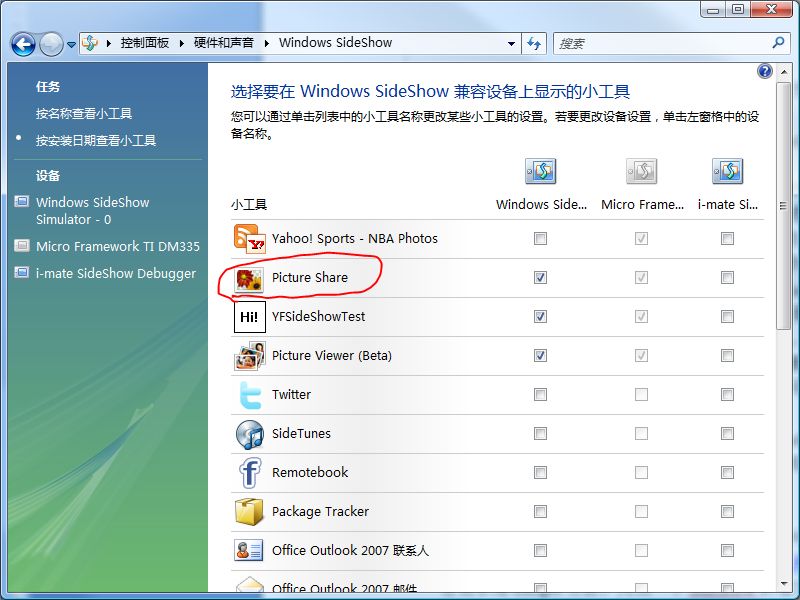
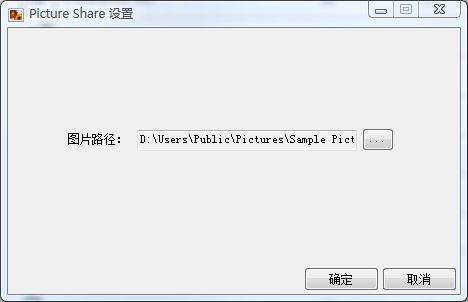
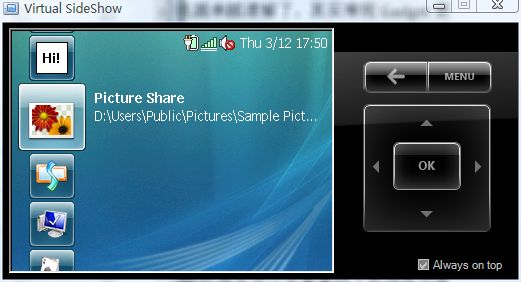
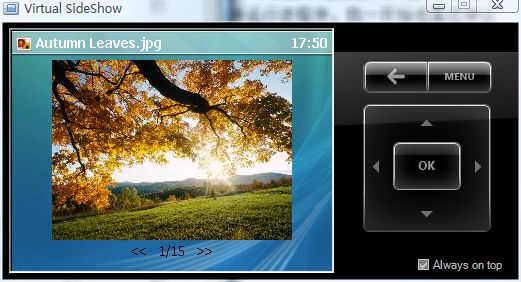
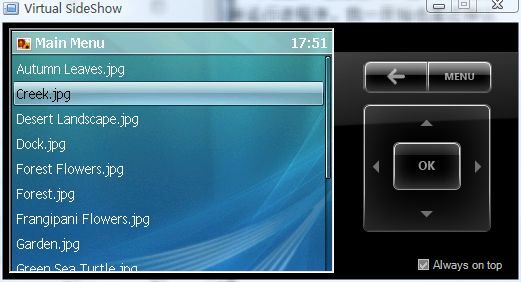
GadgetId:Gadget 本體識別,平台用此載入對應內容。PropertyPageId:屬性頁識別,繼承 Microsoft.SideShow.GadgetPropertyPage,平台用此顯示設定對話框。註冊需管理員權限 (VS2008 以管理員身份運行),否則寫入註冊表失敗。
GadgetRegistration.Register(
    false,                              // false=當前用戶, true=所有用戶
    GadgetId,                           // Gadget GUID
    ScfSideShowGadget.ScfEndpointId,    // 使用 SCF 端點
    "Picture Share",                    // 控制面板顯示名稱
    Assembly.GetEntryAssembly().Location, // 程式路徑
    String.Format("\"{0}\",{1}", Assembly.GetEntryAssembly().Location, -GadgetRegistration.DefaultIconResourceId), // 圖示
    false,                              // false=無需連線也顯示內容
    GadgetCachePolicies.KeepNewest,     // 快取策略:保留最新
    new Guid("9B84055E-E253-4119-8719-F684ECB9FBC1") // 屬性頁 GUID
);YFGadget = new ScfSideShowGadget(new Guid(GadgetEntry.Gadget_GUID));
// 核心事件
YFGadget.ContentMissing += OnContentMissing; // 裝置請求內容 (核心:動態生成 SCF)
YFGadget.ContentNavigate += OnContentNavigate; // 導航操作 (翻頁、選單)
YFGadget.ContextMenuSelect += OnContextMenuSelect; // 右鍵選單
YFGadget.MenuSelect += OnMenuSelect; // 選單項選擇
YFGadget.DeviceAdded += OnDeviceAdded; // 裝置連接
YFGadget.DeviceRemoved += OnDeviceRemoved; // 裝置斷開
YFGadget.GadgetEnter += OnGadgetEnter; // 進入 Gadget
YFGadget.GadgetExit += OnGadgetExit; // 退出 Gadget
YFGadget.AllDevicesRemoved += OnAllDevicesRemoved; // 所有裝置移除// 1. 掃描圖片目錄
string[] files = Directory.GetFiles(SharePath);
List<string> imgFiles = files.Where(f =>
new[] { ".jpg", ".bmp", ".gif" }.Contains(Path.GetExtension(f).ToLower())).ToList();
List<ScfElement> menuItems = new List<ScfElement>();
for (int i = 0; i < imgFiles.Count; i++) {
FileInfo fi = new FileInfo(imgFiles[i]);
Bitmap bmp = new Bitmap(fi.FullName);
int pageNo = i + 1; // 內容 ID: 頁面
int picNo = 10000 + i + 1; // 內容 ID: 圖片
// 縮放並減色深適配裝置螢幕
bmp = new Bitmap(bmp, 240, (int)(240 * ((float)bmp.Height / bmp.Width)));
YFGadget.AddContent(picNo, ImageContentTransforms.ReduceColorDepth, bmp);
// 構建頁面 SCF 元素
ScfElement page = Scf.Content(
pageNo, fi.Name, 200, // ID, 標題, 選單關聯 ID
Scf.Img(picNo, ScfAlign.Center, ScfImageFit.Native, fi.Name), // 圖片
Scf.Txt(ScfAlign.Center, false, Color.Black, "", $"<< {pageNo}/{imgFiles.Count} >>"), // 頁碼文字
Scf.Btn(DeviceButton.Left, "", pageNo == 1 ? imgFiles.Count : pageNo - 1), // 上一頁
Scf.Btn(DeviceButton.Right, "", pageNo == imgFiles.Count ? 1 : pageNo + 1), // 下一頁
Scf.Btn(DeviceButton.Back, "", 100) // 返回主選單
);
menuItems.Add(Scf.Item(pageNo, fi.Name)); // 主選單項
YFGadget.AddContent(page);
bmp.Dispose();
}
// 2. 添加主選單與右鍵選單
YFGadget.AddContent(Scf.Menu(100, "Main Menu", ScfSelectAction.Target, menuItems.ToArray()));
YFGadget.AddContent(Scf.Menu(200, "Right Menu", ScfSelectAction.Target, Scf.Item(100, "主選單")));AddContent 將 SCF 元素推送到平台快取,裝置按需拉取。ContentMissing 事件中動態生成內容可節省記憶體。ImageContentTransforms.ReduceColorDepth 自動適配裝置顏色深度;KeepAspectRatio 可選保持比例。Scf.Btn 綁定硬體按鍵 (Left/Right/Back) 到目標內容 ID,實現無程式碼導航。Scf.Menu 定義選單,Scf.Item 定義選單項目標題與目標內容 ID。Microsoft.SideShow.SimpleContentFormat.Scf 靜態類提供流暢 API,避免手寫 XML。ContentMissing 事件阻塞 UI 線程。IDisposable 正確釋放 Bitmap 等非托管資源。完整原始碼可留言交流。理解 SCF 內容流模型是掌握常規 Gadget 開發的鑰匙。