本文示範 AppBar 基本建構、情境命令動態顯示、程式化添加命令、選單彈出實作、頁面間共享 AppBar 等完整程式碼模式。
<Page.BottomAppBar>
    <AppBar x:Name="bottomAppBar" Padding="10,0,10,0">
        <Grid>
            <StackPanel Orientation="Horizontal" HorizontalAlignment="Left">
                <Button Style="{StaticResource EditAppBarButtonStyle}"/>
                <Button Style="{StaticResource RemoveAppBarButtonStyle}"/>
                <Button Style="{StaticResource AddAppBarButtonStyle}"/>
            </StackPanel>
            <StackPanel Orientation="Horizontal" HorizontalAlignment="Right">
                <Button Style="{StaticResource RefreshAppBarButtonStyle}"/>
                <Button Style="{StaticResource HelpAppBarButtonStyle}"/>
            </StackPanel>
        </Grid>
    </AppBar>
</Page.BottomAppBar>
樣式資源位於 Common/StandardStyles.xaml。

// XAML 設定預設開啟
<AppBar IsOpen="True" />

// C# 開啟
private void OpenButton_Click(object sender, RoutedEventArgs e) {
    topAppBar.IsOpen = true;
}

// 黏滯模式:僅右鍵/Win+Z/邊緣滑動關閉
private void StickyButton_Click(object sender, RoutedEventArgs e) {
    bottomAppBar.IsSticky = true;
}選取項目時才顯示的命令(如圖片編輯工具)。
<AppBar IsOpen="True" IsSticky="True">
    <Grid>
        <StackPanel Orientation="Horizontal" HorizontalAlignment="Left">
            <StackPanel x:Name="pinCommands" Visibility="Collapsed">
                <Button Style="{StaticResource UnpinAppBarButtonStyle}"/>
                <Button Style="{StaticResource PinAppBarButtonStyle}"/>
            </StackPanel>
            <StackPanel>
                <Button Style="{StaticResource FavoriteAppBarButtonStyle}"/>
                <Button Style="{StaticResource SearchAppBarButtonStyle}"/>
            </StackPanel>
        </StackPanel>
    </Grid>
</AppBar>// 顯示情境命令
pinCommands.Visibility = Visibility.Visible;
// 隱藏情境命令
pinCommands.Visibility = Visibility.Collapsed;頁面間共享 AppBar 時,特定頁面才需要的命令動態加入/移除。
<Page.BottomAppBar>
<AppBar x:Name="bottomAppBar" IsSticky="True">
<Grid>
<StackPanel x:Name="rightPanel" Orientation="Horizontal" HorizontalAlignment="Right">
<Button Style="{StaticResource AppBarButtonStyle}" Content=""
Click="SortMenuButton_Click"/>
</StackPanel>
</Grid>
</AppBar>
</Page.BottomAppBar>private Button _addButton;
protected override void OnNavigatedTo(NavigationEventArgs e) {
if (rightPanel != null) {
_addButton = new Button {
Style = (Style)App.Current.Resources["AddAppBarButtonStyle"]
};
_addButton.Click += Button_Click;
rightPanel.Children.Add(_addButton);
}
}
protected override void OnNavigatingFrom(NavigatingCancelEventArgs e) {
if (rightPanel != null && _addButton != null) {
_addButton.Click -= Button_Click;
rightPanel.Children.Remove(_addButton);
}
}命令過多時,以按鈕觸發 Popup 顯示選單。
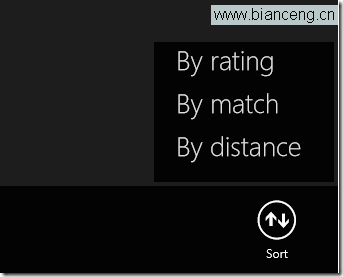
private void SortMenuButton_Click(object sender, RoutedEventArgs e) {
    var popup = new Popup { IsLightDismissEnabled = true };
    var panel = new StackPanel {
        Background = bottomAppBar.Background,
        Height = 140, Width = 180
    };

    var btnByRating = new Button {
        Content = "依評分",
        Style = (Style)App.Current.Resources["TextButtonStyle"],
        Margin = new Thickness(20, 5, 20, 5)
    };
    btnByRating.Click += SortButton_Click;
    panel.Children.Add(btnByRating);

    popup.Child = panel;
    popup.HorizontalOffset = Window.Current.Bounds.Right - panel.Width - 4;
    popup.VerticalOffset = Window.Current.Bounds.Bottom - bottomAppBar.ActualHeight - panel.Height - 4;
    popup.IsOpen = true;
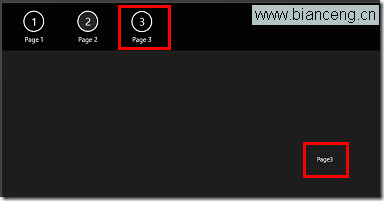
}根頁面承載共用 AppBar 與 Frame,子頁面導航於 Frame 內。
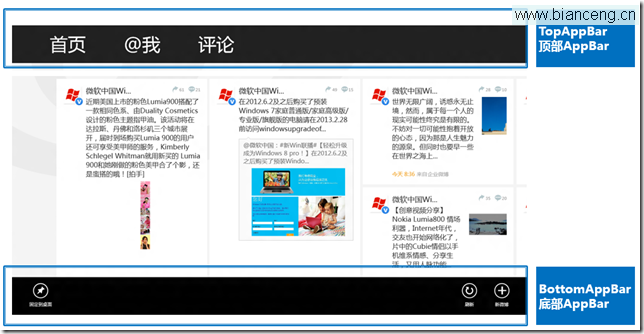
<Page.TopAppBar>
    <AppBar x:Name="globalAppBar" Padding="10,0,10,0">
        <Grid>
            <StackPanel x:Name="leftCommandPanel" Orientation="Horizontal" HorizontalAlignment="Left">
                <Button x:Name="Back" Style="{StaticResource BackAppBarButtonStyle}" Click="Back_Click"/>
            </StackPanel>
            <StackPanel x:Name="rightCommandPanel" Orientation="Horizontal" HorizontalAlignment="Right">
                <Button x:Name="page1Button" Content="1" Click="Page1Button_Click"/>
                <Button x:Name="page2Button" Content="2" Click="Page2Button_Click"/>
            </StackPanel>
        </Grid>
    </AppBar>
</Page.TopAppBar>

<Grid>
    <Frame x:Name="frame1"/>
</Grid>private Page _rootPage;
protected override void OnNavigatedTo(NavigationEventArgs e) {
_rootPage = e.Parameter as Page;
frame1.Navigate(typeof(Page1), this);
}
private void Back_Click(object sender, RoutedEventArgs e) {
if (frame1.CanGoBack) frame1.GoBack();
else if (_rootPage != null && _rootPage.Frame.CanGoBack) _rootPage.Frame.GoBack();
}
private void Page1Button_Click(object sender, RoutedEventArgs e) {
frame1.Navigate(typeof(Page1), this);
}
private void Page2Button_Click(object sender, RoutedEventArgs e) {
frame1.Navigate(typeof(Page2), this);
}
AppBar 實作涵蓋靜態宣告、動態命令、選單彈出、跨頁共用四大模式。下一章將介紹本地應用程式資料儲存 API。