Excel 增益集的使用者介面入口在於選單系統。Excel 2007 推出 Ribbon 介面後,傳統選單(Excel 2003 及之前)與 Ribbon 並存多年。企業級增益集若需支援舊版 Excel,必須在同一專案中實現雙模式選單。本文完整示範:Visual Studio 設計工具建立 Ribbon、匯出 Ribbon XML 手動載入、Shared Add-in 建立傳統選單與工具列,最後整合為版本自適應方案。
YYMenu.cs。| 控制項 | 關鍵屬性 | 說明 |
|---|---|---|
| Tab | ControlIdType | Custom 顯示獨立索引標籤;Office 嵌入內建索引標籤 |
| Tab | PositionType | 配合 BeforeOfficeId/AfterOfficeId 排序 |
| Group | Label | 群組標題 |
| Button | ControlSize | RibbonControlSizeLarge 顯示大圖示 |
| Button | Image/OfficeImageId | 自訂圖示或內建圖示 |
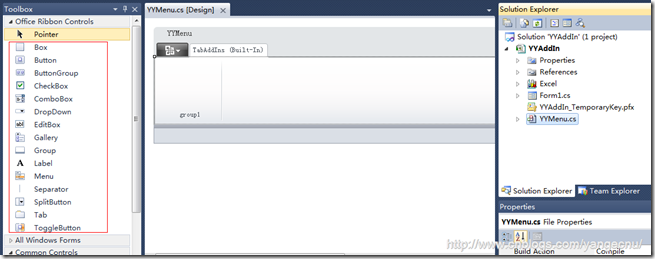
視覺化設計器產生的類別僅適用於 VSTO。Shared Add-in 需手動載入 XML。步驟:
Ribbon.xml 與 Ribbon.cs。Ribbon.xml 設為 內嵌資源。ThisAddIn.cs 覆寫 CreateRibbonExtensibilityObject:protected override IRibbonExtensibility CreateRibbonExtensibilityObject() {
return new Ribbon(); // 自動產生的 Ribbon 類別實作 IRibbonExtensibility
}
XML 中 <customUI loadImage="LoadImage">,按鈕設定 image="IconName.png"。實作 LoadImage:
public Bitmap LoadImage(string imageName) {
  var asm = Assembly.GetExecutingAssembly();
  var stream = asm.GetManifestResourceStream("MyAddIn.Resources." + imageName);
  return new Bitmap(stream);
}
圖示檔案需設為 內嵌資源。
IDTExtensibility2 介面,於 OnConnection 初始化選單。private CommandBarPopup YYMenu;
private const string MenuTag = "YYMenuTag";
public void AddMenus() {
CommandBar menuBar = (CommandBar)application.CommandBars.ActiveMenuBar;
// 移除舊選單避免重複
try { menuBar.FindControl(MsoControlType.msoControlPopup, Type.Missing, MenuTag, true, true)?.Delete(Type.Missing); } catch { }
YYMenu = (CommandBarPopup)menuBar.Controls.Add(MsoControlType.msoControlPopup, Type.Missing, Type.Missing, menuBar.Controls.Count + 1, true);
YYMenu.Tag = MenuTag;
YYMenu.Caption = "歪歪插件";
YYMenu.BeginGroup = true;
BuildFinancialGroup(); // 遞迴建立子選單與按鈕
// ... 其他群組
}
private CommandBarPopup AddPopupButton(CommandBarControls parent, string caption) {
CommandBarPopup popup = (CommandBarPopup)parent.Add(MsoControlType.msoControlPopup, Type.Missing, Type.Missing, Type.Missing, true);
popup.Caption = caption;
return popup;
}
private CommandBarButton AddCommandButton(CommandBarControls parent, string caption, Image icon) {
CommandBarButton btn = (CommandBarButton)parent.Add(MsoControlType.msoControlButton, Type.Missing, Type.Missing, Type.Missing, true);
btn.Style = MsoButtonStyle.msoButtonIconAndCaption;
btn.Caption = caption;
btn.Tag = caption + "|" + DateTime.Now.Ticks; // 唯一 Tag 避免事件衝突
btn.Picture = ImageConverterHelper.ImageToPictureDisp(icon); // 需轉 IPictureDisp
btn.Click += Btn_Click;
return btn;
}
public void AddToolBars() {
  CommandBar tb;
  try { tb = application.CommandBars["YYToolBar"]; } catch { tb = null; }
  if (tb == null) tb = application.CommandBars.Add("YYToolBar", MsoBarPosition.msoBarTop, false, true);
  // 加入按鈕邏輯同選單,但物件不可共用
  tb.Visible = true;
}
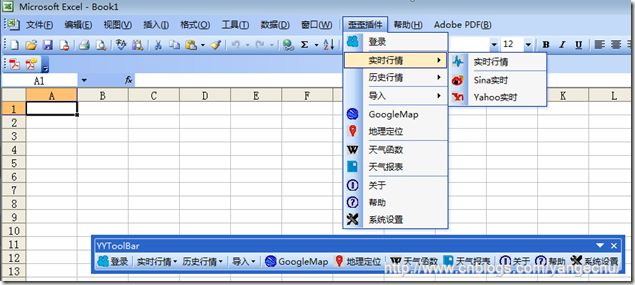
Ribbon.xml、Ribbon.cs 複製到 Shared Add-in 專案。Ribbon.xml 設為內嵌資源,Ribbon.cs 命名空間對齊,類別改為 partial class Connect : IRibbonExtensibility。GetCustomUI 回傳 XML 字串,LoadImage、按鈕回呼同前。OnConnection 依 application.Version 判斷:11.0 (Excel 2003) 建立傳統選單;>=12.0 由 Ribbon XML 自動載入。public string GetCustomUI(string ribbonID) {
return GetResourceText("MyAddIn.RibbonMenu.Ribbon.xml");
}
private static string GetResourceText(string name) {
var asm = Assembly.GetExecutingAssembly();
foreach (var res in asm.GetManifestResourceNames())
if (string.Equals(res, name, StringComparison.OrdinalIgnoreCase))
using (var sr = new StreamReader(asm.GetManifestResourceStream(res)))
return sr.ReadToEnd();
return null;
}
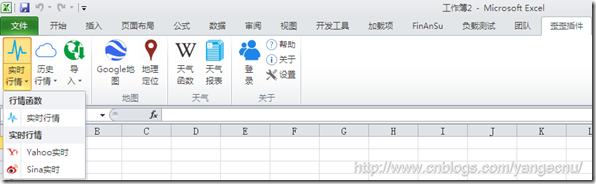
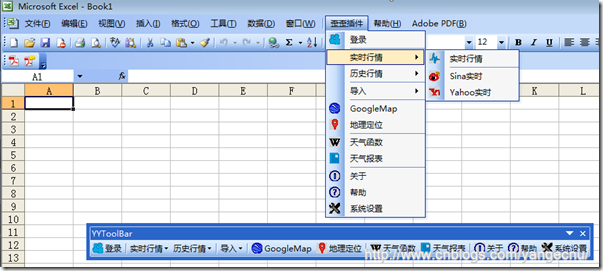
掌握 Ribbon 視覺化設計、Ribbon XML 手動載入、傳統 CommandBar 動態建立三項技能,並透過版本判斷整合於 Shared Add-in,即可打造支援 Excel 2003 至最新版本的企業級增益集。選單架構就緒後,下一步即是深入 Excel 物件模型實作核心業務邏輯。