開發 Outlook 2007 增益集,以替換型表單區域 取代預設郵件表單,整合:
| 類型 | 顯示位置 | 適用場景 |
|---|---|---|
| 相鄰 | 現有表單頁面底部/閱讀窗格底部 | 補充資訊 |
| 單獨 | 新增表單頁面 | 獨立功能頁 |
| 替換 | 取代第一頁所有內容,保留其他頁面 | 自訂訊息類別,完整取代預設 UI |
| 全部替換 | 取代第一頁並刪除其他頁面 | 極簡表單 |
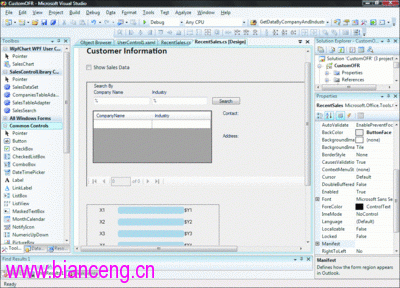
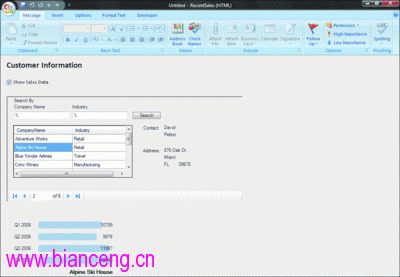
SalesDataRecentSales、標題、描述、顯示模式IPM.Note.CustomerSalesData (繼承郵件類別)CustomOFR:Outlook 增益集主專案SalesControlLibrary:Windows Forms 控制項庫 (搜尋控制項 + 資料繫結)WpfChart:WPF UserControl 庫 (銷售長條圖)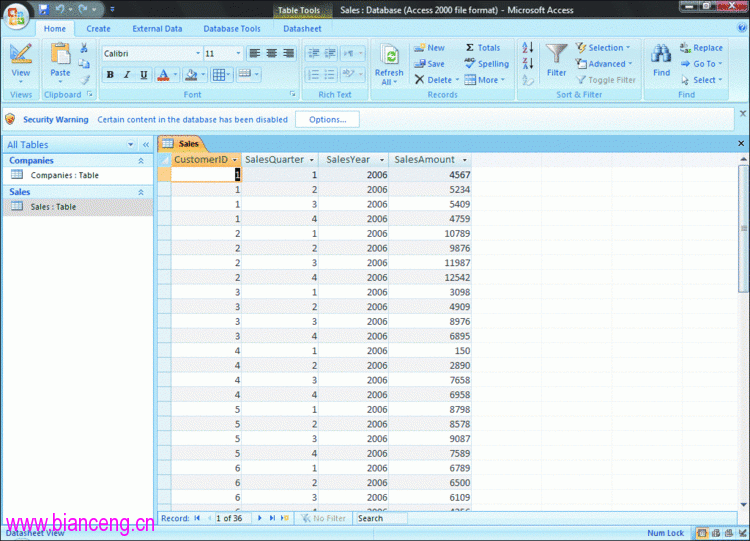
// SalesSearch 控制項核心查詢
private void executeSearch_Click(object sender, EventArgs e)
{
    companiesAdapter = new CompaniesTableAdapter();
    companiesBindingSource.DataSource = companiesAdapter.GetDataByCompanyAndIndustry(
        companyNameText.Text, industryText.Text); // 支援萬用字元 %
}<UserControl x:Class="WpfChart.SalesChart" ...>
<Grid Name="Grid1">
<Grid.ColumnDefinitions>
<ColumnDefinition Width="80"/>
<ColumnDefinition Width="190"/>
</Grid.ColumnDefinitions>
<Grid.RowDefinitions>
<RowDefinition Height="30"/> <!-- Q1 -->
<RowDefinition Height="30"/> <!-- Q2 -->
<RowDefinition Height="30"/> <!-- Q3 -->
<RowDefinition Height="30"/> <!-- Q4 -->
<RowDefinition Height="30"/> <!-- Title -->
</Grid.RowDefinitions>
<TextBlock Name="Category1" Text="X1" Grid.Column="0" Grid.Row="0" .../>
<Rectangle Name="Bar1" Fill="LightSteelBlue" RadiusX="5" RadiusY="5"
Grid.Column="1" Grid.Row="0" Width="170" Height="18"/>
<TextBlock Name="Label1" Text="$Y1" Grid.Column="1" Grid.Row="0" .../>
<!-- Q2~Q4 同樣結構 -->
<TextBlock Name="Title" FontSize="14" FontWeight="Bold" Grid.Column="1" Grid.Row="4"/>
</Grid>
</UserControl>public void UpdateWPFChart(string chartTitle, string[] xVals, double[] yVals)
{
double maxY = yVals.Max();
for (int i = 0; i < 4; i++)
{
if (i >= xVals.Length || i >= yVals.Length) break;
((TextBlock)FindName($"Category{i+1}")).Text = xVals[i];
((TextBlock)FindName($"Label{i+1}")).Text = yVals[i].ToString();
var bar = (Rectangle)FindName($"Bar{i+1}");
bar.Width = (yVals[i] / maxY) * Grid1.ColumnDefinitions[1].Width.Value;
}
Title.Text = chartTitle;
}partial class RecentSales
{
string[] currentXData;
double[] currentYData;
string currentCompany;
private void RecentSales_FormRegionShowing(object sender, EventArgs e)
{
salesChart1.Visibility = System.Windows.Visibility.Hidden; // 預設隱藏
}
private void UpdateChart()
{
if (showChart.Checked && currentXData != null && currentYData != null)
{
salesChart1.UpdateWPFChart(currentCompany, currentXData, currentYData);
salesChart1.Visibility = System.Windows.Visibility.Visible;
}
else
{
salesChart1.Visibility = System.Windows.Visibility.Hidden;
}
}
private void checkBox1_CheckedChanged(object sender, EventArgs e) => UpdateChart();
private void salesSearch1_SalesDataChangeEvent(object sender, SalesSearchEventArgs e)
{
currentCompany = e.CompanyName;
currentXData = e.XValues;
currentYData = e.YValues;
UpdateChart();
}
}
LoadBehavior=3 確保啟動載入