在組織機構維護、角色授權、流程節點指派等場景中,高效的用戶選擇器是核心交互組件。本文展示Winform開發框架權限模塊中「用戶選擇對話框」的設計:左側雙樹(機構樹+角色樹)篩選,右側可勾選網格展示用戶,底部流式面板匯總已選人員,支持跨機構、跨角色的混合選人與即時移除。
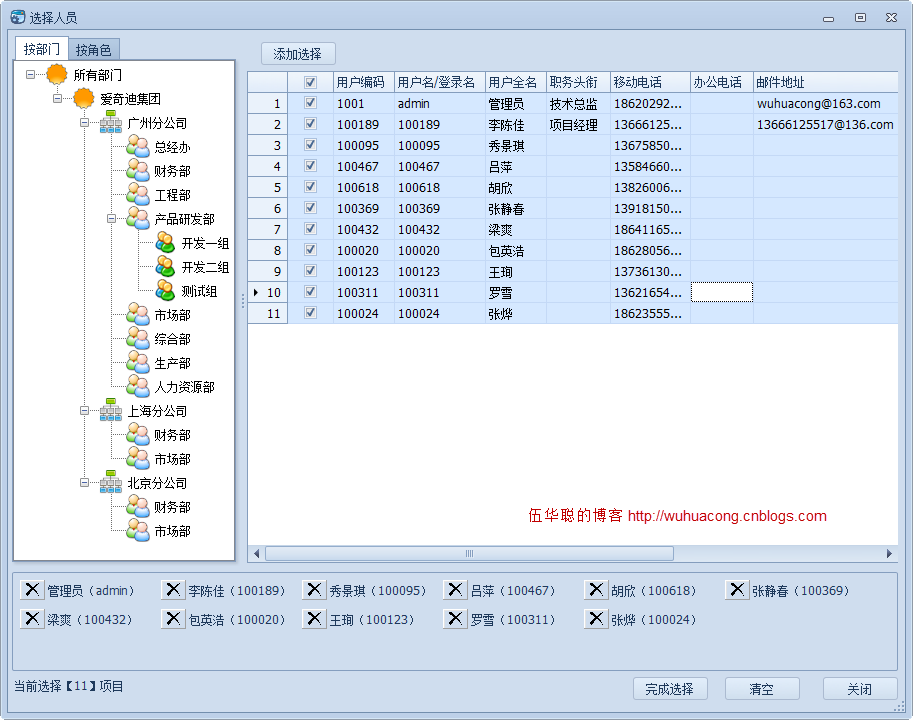
WinGridView(封裝分頁、勾選、導出)的用戶列表,顯示工號、姓名、職位、聯系方式等字段,行首複選框支持多選。FlowLayoutPanel 動態承載「已選用戶標簽控件」(Label + 刪除按鈕),直觀展示選擇結果,支持單個移除。
private void InitDeptTree() {
    this.treeDept.BeginUpdate();
    this.treeDept.Nodes.Clear();
    TreeNode node = new TreeNode { Text = "所有部門" };
    List<OUNodeInfo> list = BLLFactory<OU>.Instance.GetTree();
    AddDept(list, node);
    this.treeDept.Nodes.Add(node);
    this.treeDept.ExpandAll();
    this.treeDept.EndUpdate();
}

private void AddDept(List<OUNodeInfo> list, TreeNode treeNode) {
    foreach (OUNodeInfo ouInfo in list) {
        TreeNode deptNode = new TreeNode {
            Text = ouInfo.Name,
            Tag = ouInfo.ID,
            ImageIndex = Portal.gc.GetImageIndex(ouInfo.Category),
            SelectedImageIndex = Portal.gc.GetImageIndex(ouInfo.Category)
        };
        treeNode.Nodes.Add(deptNode);
        AddDept(ouInfo.Children, deptNode); // 遞歸處理子節點
    }
}
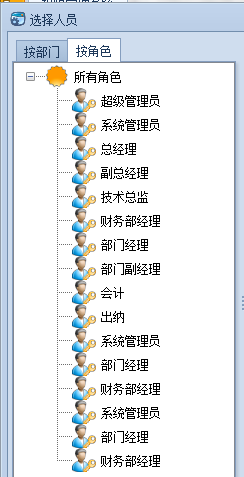
private void InitRoleTree() {
    this.treeRole.BeginUpdate();
    this.treeRole.Nodes.Clear();
    TreeNode node = new TreeNode { Text = "所有角色" };
    List<RoleInfo> list = BLLFactory<Role>.Instance.GetAll();
    foreach (RoleInfo info in list) {
        TreeNode roleNode = new TreeNode {
            Text = info.Name,
            Tag = info.ID,
            ImageIndex = 5,
            SelectedImageIndex = 5
        };
        node.Nodes.Add(roleNode);
    }
    this.treeRole.Nodes.Add(node);
    this.treeRole.ExpandAll();
    this.treeRole.EndUpdate();
}
public FrmSelectUser() {
    InitializeComponent();
    this.winGridView1.ShowCheckBox = true;
    this.winGridView1.ShowExportButton = false;
    this.winGridView1.ShowLineNumber = true;
    this.winGridView1.BestFitColumnWith = false;
    this.winGridView1.OnRefresh += new EventHandler(winGridView1_OnRefresh);
    this.winGridView1.gridView1.DataSourceChanged += new EventHandler(gridView1_DataSourceChanged);
    if (!this.DesignMode) { InitDeptTree(); InitRoleTree(); }
}

private void BindGridData() {
    List<UserInfo> list = new List<UserInfo>();
    if (this.treeDept.SelectedNode != null && this.treeDept.SelectedNode.Tag != null) {
        int ouId = this.treeDept.SelectedNode.Tag.ToString().ToInt32();
        list = BLLFactory<User>.Instance.FindByDept(ouId);
    } else if (this.treeRole.SelectedNode != null && this.treeRole.SelectedNode.Tag != null) {
        int roleId = this.treeRole.SelectedNode.Tag.ToString().ToInt32();
        list = BLLFactory<User>.Instance.GetUsersByRole(roleId);
    }
    this.winGridView1.DisplayColumns = "HandNo,Name,FullName,Title,MobilePhone,OfficePhone,Email,Gender,QQ,Note";
    this.winGridView1.ColumnNameAlias = BLLFactory<User>.Instance.GetColumnNameAlias();
    this.winGridView1.DataSource = new WHC.Pager.WinControl.SortableBindingList<UserInfo>(list);
}
private void btnAddUser_Click(object sender, EventArgs e) {
    List<int> list = this.winGridView1.GetCheckedRows();
    foreach(int rowIndex in list) {
        string ID = this.winGridView1.GridView1.GetRowCellDisplayText(rowIndex, "ID");
        string Name = this.winGridView1.GridView1.GetRowCellDisplayText(rowIndex, "Name");
        string FullName = this.winGridView1.GridView1.GetRowCellDisplayText(rowIndex, "FullName");
        string displayname = string.Format("{0}({1})", FullName, Name);
        if (!this.SelectUserDict.ContainsKey(ID)) {
            this.SelectUserDict.Add(ID, displayname);
        }
    }
    RefreshSelectItems();
}
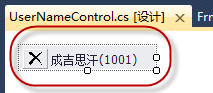
自定義 UserNameControl(繼承 UserControl),包含 Label 顯示姓名、Button 處理刪除,暴露 OnDeleteItem 事件。
private void RefreshSelectItems() {
    this.flowLayoutPanel1.Controls.Clear();
    foreach (string key in SelectUserDict.Keys) {
        string info = SelectUserDict[key];
        if (!string.IsNullOrEmpty(info)) {
            UserNameControl control = new UserNameControl();
            control.BindData(key, info);
            control.OnDeleteItem += new UserNameControl.DeleteEventHandler(control_OnDeleteItem);
            this.flowLayoutPanel1.Controls.Add(control);
        }
    }
    this.lblItemCount.Text = string.Format("當前選擇【{0}】項目", SelectUserDict.Keys.Count);
}
機構編輯界面「包含用戶」區域點擊「添加」按鈕彈出選擇器,回填結果至標簽面板。
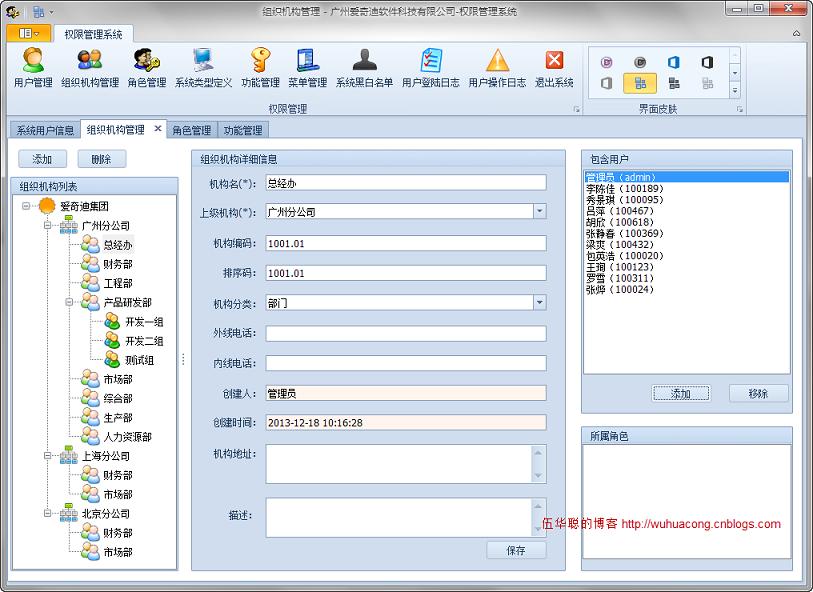
該選擇器通過「雙樹篩選源 + 勾選網格 + 流式標簽匯總」三層交互疊加,解決了跨維度選人、重複選擇去重、結果可視化移除三大痛點。控件封裝度高,僅暴露 SelectUserDict 結果字典,極易集成至角色授權、流程指派等任意業務場景。