前文分析 Add-In 運行機制,建立基礎認知。現在進入核心:如何在 VS 中完成實際操作。Add-In 需提供 UI 元素(主選單項目、編輯器右鍵選單等),本文詳解命令系統與實作。
場景:選取文字 → 點選「編輯 → 複製」或按 Ctrl+C → 文字進入剪貼簿。背後執行者是「命令」。命令即特定功能邏輯實體(如 Copy、Paste、Cut)。VS 內建數千命令,選單項、工具列按鈕、熱鍵、命令視窗皆為「觸發者」。
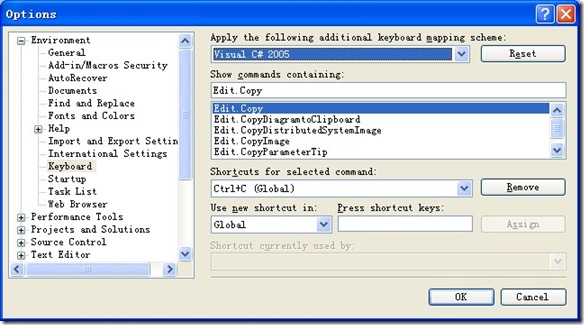
觸發者與命令分離:使用者透過觸發者執行命令,命令檢查狀態(名稱、可見、啟用)並執行或轉向「命令目標」。同一命令(如 Edit.Copy)在編輯器與方案總管行為不同,因命令目標實作不同。
| 角色 | 職責 |
|---|---|
| 觸發者 | 提供使用者操作入口 |
| 命令 | 邏輯實體,檢查狀態、執行或轉向命令目標 |
| 命令目標 | 依自身實作執行命令 |
命令不單獨存在,群組於命令列(如主選單 File 下的項目)。要向現有命令列加入命令,先找到命令列。
用 Add-In 精靈建立 NEnhancer 專案,勾選「在 Tools 選單新增項目」。OnConnection 中自動產生程式碼:
// 取得文化相關的 Tools 選單名稱
string toolsMenuName = "Tools"; // 透過資源檔處理多語言

// 取得主選單列
CommandBar menuBarCommandBar = ((CommandBars)_applicationObject.CommandBars)["MenuBar"];

// 取得 Tools 選單
CommandBarControl toolsControl = menuBarCommandBar.Controls[toolsMenuName];
CommandBarPopup toolsPopup = (CommandBarPopup)toolsControl;

// 核心:AddNamedCommand2
Command command = commands.AddNamedCommand2(_addInInstance, "CommandViewer", "CommandViewer",
  "Executes the command for NEnhancer", true, 59, ref contextGUIDS,
  (int)vsCommandStatus.vsCommandStatusSupported + (int)vsCommandStatus.vsCommandStatusEnabled,
  (int)vsCommandStyle.vsCommandStylePictAndText, vsCommandControlType.vsCommandControlTypeButton);

if (command != null && toolsPopup != null)
  command.AddControl(toolsPopup.CommandBar, 1);
AddInInstance:命令所屬 Add-InName:命令名稱(完整命名規則:Namespace.ClassName.CommandName,如 NEnhancer.Connect.CommandViewer)ButtonText、Tooltip:顯示文字與提示MSOButton、Bitmap:是否用 Office 內建圖示及索引(59 = 笑臉)ContextUIGUIDs:命令啟用情境(如除錯模式)vsCommandStatusValue:預設啟用狀態CommandStyleFlags:外觀(圖示、文字、兩者皆有)ControlType:UI 元素類型(按鈕、下拉框等)使用者點選選單 → VS 呼叫 Exec 方法:
void Exec(string CmdName, vsCommandExecOption ExecuteOption,
  ref object VariantIn, ref object VariantOut, ref bool Handled);
CmdName:完整命令名稱ExecuteOption:通常為 vsCommandExecOptionDoDefaultVariantIn/Out:輸入/輸出資料Handled:true 表示已處理,false 會讓 VS 尋找其他處理者(自訂命令應設 true)非時時啟用的命令(如需開啟文件才啟用)需實作 QueryStatus:
void QueryStatus(string CmdName, vsCommandStatusTextWanted NeededText,
  ref vsCommandStatus StatusOption, ref object CommandText);
StatusOption:最關鍵,設定 Supported、Enabled、Visible 等旗標(可組合)CommandText:目前 VS 未使用,勿設值建立視窗顯示所有命令列與命令,便於開發參考:
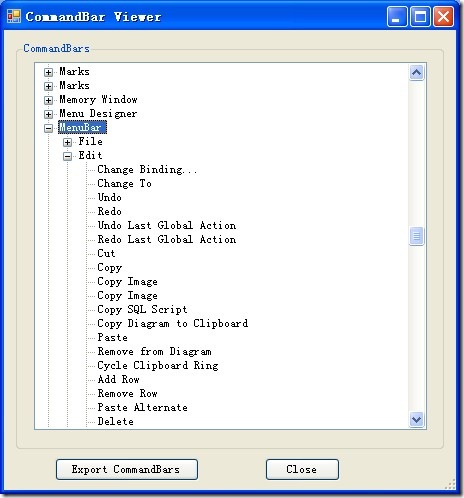
核心程式碼:
public void QueryStatus(...) {
  if (neededText == vsCommandStatusTextWanted.vsCommandStatusTextWantedNone) {
    if (commandName == "NEnhancer.Connect.CommandViewer") {
      status = vsCommandStatus.vsCommandStatusSupported | vsCommandStatus.vsCommandStatusEnabled;
      return;
    }
  }
}

public void Exec(...) {
  handled = false;
  if (executeOption == vsCommandExecOption.vsCommandExecOptionDoDefault) {
    if (commandName == "NEnhancer.Connect.CommandViewer") {
      ShowCmdBarViewer();
      handled = true;
      return;
    }
  }
}

private void ShowCmdBarViewer() {
  CommandBarViewer viewerForm = new CommandBarViewer();
  viewerForm.DTEObject = _applicationObject;
  viewerForm.ShowDialog();
}
需求:關閉所有文件(VS 無直接選單項)。查找命令名稱:Window.CloseAllDocuments。
新增命令至文件標籤右鍵選單(命令列名稱 Easy MDI Document Window):
CommandBar mdiDocCommandBar = ((CommandBars)_applicationObject.CommandBars)["Easy MDI Document Window"];
Command closeAllDocsCmd = commands.AddNamedCommand2(_addInInstance, "CloseAllDocuments", "Close All Documents",
  "Close All Documents", false, 0, ref contextGUIDS,
  (int)vsCommandStatus.vsCommandStatusSupported + (int)vsCommandStatus.vsCommandStatusEnabled,
  (int)vsCommandStyle.vsCommandStylePictAndText, vsCommandControlType.vsCommandControlTypeButton);

CommandBarControl closeAllButThisCmd = mdiDocCommandBar.Controls["Close All But This"];
int closeAllCmdIndex = (closeAllButThisCmd == null) ? 1 : (closeAllButThisCmd.Index + 1);
closeAllDocsCmd.AddControl(mdiDocCommandBar, closeAllCmdIndex);
一行代碼執行內建命令:
_applicationObject.ExecuteCommand("Window.CloseAllDocuments", string.Empty);
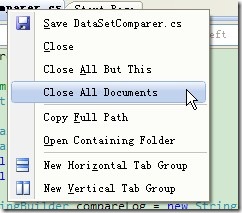
測試完成後,將 .dll 與 .AddIn 放入 [My Documents]\Visual Studio 2008\Addins,移除測試用的 - For Testing.AddIn 即可發布。
本文建立命令與命令列概念,透過兩個範例(自訂命令查看器、呼叫內建關閉所有文件)完整示範命令新增、執行、狀態控制與內建命令複用。掌握此鑰,即可操作 VS 方方面面:方案、專案、文件、代碼……敬請期待!