Visual C#實現Ping命令E:\VS.Net項目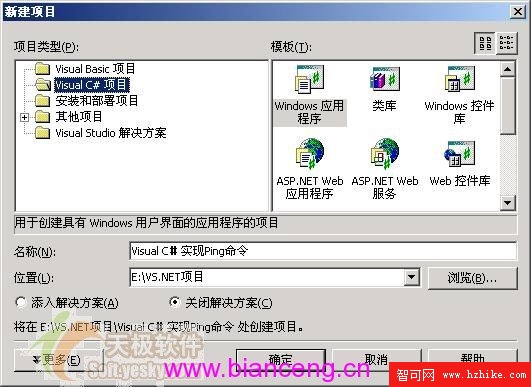
圖 05:新增專案對話方塊設定
在 Form1.cs 頂部加入:
using System.Net;
using System.Net.Sockets;
| 元件 | 名稱 | 用途 |
|---|---|---|
| TextBox | textBox1 | 輸入目標主機名/IP |
| ListBox | listBox1 | 顯示 Ping 結果 (黑底白字) |
| Label | label1 | 提示文字「請輸入主機名:」 |
| Button | button1 | 文字「Ping」,雙擊產生 Click 事件 |
private void InitializeComponent()
{
    this.textBox1 = new System.Windows.Forms.TextBox();
    this.label1 = new System.Windows.Forms.Label();
    this.listBox1 = new System.Windows.Forms.ListBox();
    this.button1 = new System.Windows.Forms.Button();
    this.SuspendLayout();

    this.textBox1.Location = new System.Drawing.Point(116, 14);
    this.textBox1.Name = "textBox1";
    this.textBox1.Size = new System.Drawing.Size(148, 21);
    this.textBox1.TabIndex = 0;
    this.textBox1.TextChanged += new System.EventHandler(this.textBox1_TextChanged);

    this.label1.Location = new System.Drawing.Point(12, 14);
    this.label1.Name = "label1";
    this.label1.TabIndex = 1;
    this.label1.Text = "請輸入主機名:";

    this.listBox1.BackColor = System.Drawing.SystemColors.WindowText;
    this.listBox1.ForeColor = System.Drawing.SystemColors.Window;
    this.listBox1.ItemHeight = 12;
    this.listBox1.Location = new System.Drawing.Point(6, 42);
    this.listBox1.Name = "listBox1";
    this.listBox1.Size = new System.Drawing.Size(400, 280);
    this.listBox1.TabIndex = 2;

    this.button1.Location = new System.Drawing.Point(274, 12);
    this.button1.Name = "button1";
    this.button1.TabIndex = 3;
    this.button1.Text = "Ping";
    this.button1.Click += new System.EventHandler(this.button1_Click);

    this.AutoScaleBaseSize = new System.Drawing.Size(6, 14);
    this.ClientSize = new System.Drawing.Size(410, 333);
    this.Controls.AddRange(new System.Windows.Forms.Control[] {
        this.button1, this.listBox1, this.label1, this.textBox1 });
    this.MaximizeBox = false;
    this.Name = "Form1";
    this.Text = "Visual C#實現Ping";
    this.ResumeLayout(false);
}
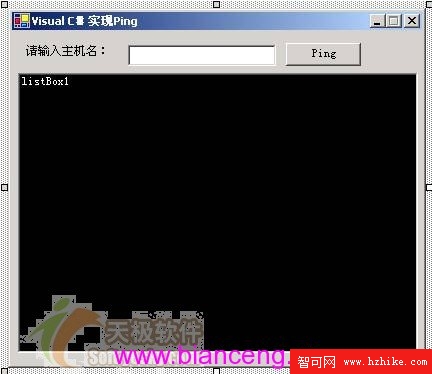
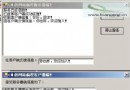
圖 06:Visual C# 實現 Ping 命令 - 設計介面
介面佈局完成,下一篇將實作 IcmpPacket 類別與核心演算法。