利用 PowerPoint 物件模型,可輕鬆實現對演示文稿文本的程式化搜索,同樣適用於 Word、Excel。理解物件模型有助於掌握文檔結構。
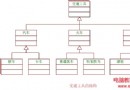
參考 VBA 說明文件 (VBAPP10.CHM) 中的物件模型圖,關鍵物件包括:
Application:PowerPoint 應用程式Presentations / Presentation:文檔集合與單個文檔Slides / Slide:幻燈片集合與單張幻燈片TextFrame:幻燈片上的文本框TextRange:文本框中的文本範圍,提供 Find 方法string filename = "...";
PowerPoint.Application pa = new PowerPoint.ApplicationClass();
PowerPoint.Presentation pp = pa.Presentations.Open(filename,
Microsoft.Office.Core.MsoTriState.msoTrue, // ReadOnly
Microsoft.Office.Core.MsoTriState.msoFalse, // Untitled (指定是否有標題)
Microsoft.Office.Core.MsoTriState.msoFalse); // WithWindow
Open 方法第三個參數 Untitled 若為 msoFalse,打開後可引用文檔標題;若不需標題,改為 msoTrue。
string[] keywords = { ... }; // 要搜索的關鍵字列表
PowerPoint.TextRange oText;

foreach (PowerPoint.Slide slide in pp.Slides) {
    foreach (PowerPoint.Shape shape in slide.Shapes) {
        foreach (string kw in keywords) {
            oText = null;
            // 在形狀的文本框中查找
            oText = shape.TextFrame.TextRange.Find(kw, 0,
                Microsoft.Office.Core.MsoTriState.msoFalse, // MatchCase
                Microsoft.Office.Core.MsoTriState.msoTrue); // WholeWords

            if (oText != null) {
                MessageBox.Show("文檔中包含指定關鍵字 " + kw + "!", "搜索結果");
                // 可根據需求 break 或 continue
            }
        }
    }
}
此方法遍歷所有幻燈片、形狀,對每個關鍵字調用 TextRange.Find。若找到則返回 TextRange 物件,否則返回 null。可輕鬆擴展為高亮顯示、替換文本等高級功能。