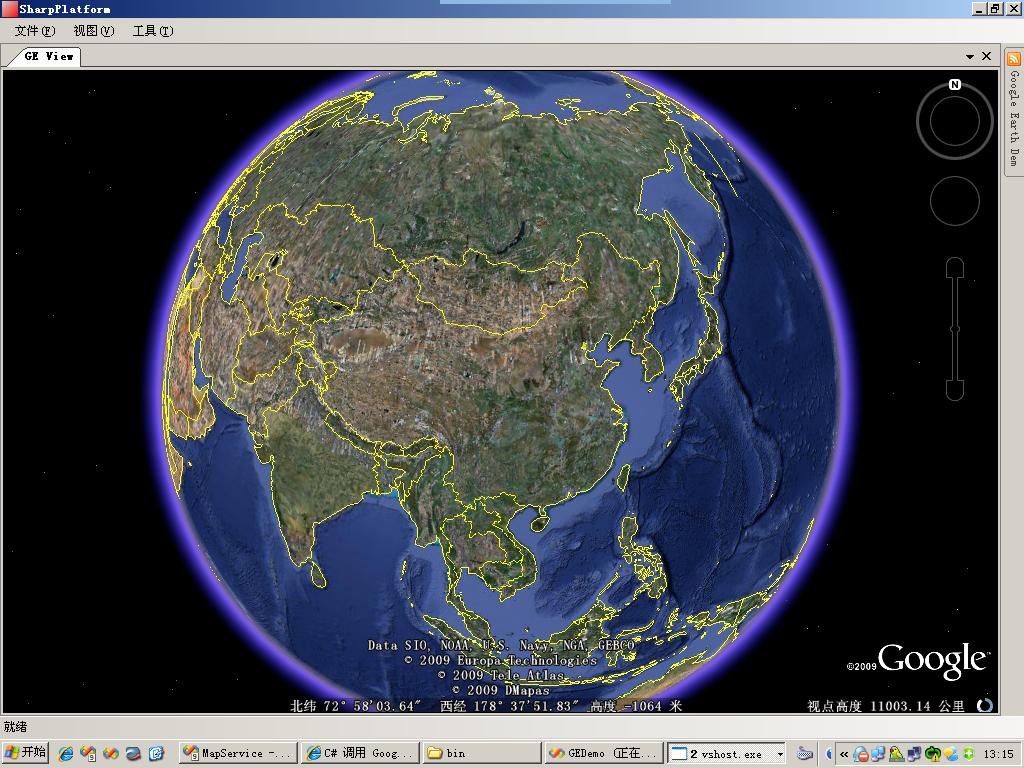
本系列第三篇,解決三大實務痛點:Google Earth 渲染區域隨容器視窗縮放自適應、攔截滑鼠單擊/雙擊事件並轉換為經緯度座標、實現彩色螢幕截圖 (解決官方 API 僅支援黑白)。完整程式碼展示 Windows API 視窗重定位、全域滑鼠鉤子、GDI+ 螢幕擷取技術。
核心邏輯:取得 GE 主視窗與渲染子視窗的矩形區域,計算邊框偏移,呼叫 SetWindowPos 重設大小,並送出 WM_SIZE 通知 GE 內部重繪。
private void ResizeGoogleControl()
{
    // 觸發重繪
    NativeMethods.SendMessage(GEHWnd, (uint)WM_COMMAND, WM_PAINT, 0);
    NativeMethods.PostMessage(GEHWnd, WM_QT_PAINT, 0, 0);

    // 取得主視窗與渲染視窗矩形
    RECT mainRect = new RECT();
    NativeMethods.GetWindowRect(GEHWnd, out mainRect);
    RECT clientRect = new RECT();
    NativeMethods.GetClientRect(GEHrender, out clientRect);

    // 計算邊框寬高差異
    int offsetW = mainRect.Width - clientRect.Width;
    int offsetH = mainRect.Height - clientRect.Height;

    // 設定新大小 = 容器大小 + 邊框偏移
    int newWidth = this.Control.Width + offsetW;
    int newHeight = this.Control.Height + offsetH;

    NativeMethods.SetWindowPos(GEHWnd, HWND_TOP, 0, 0, newWidth, newHeight, SWP_FRAMECHANGED);
    NativeMethods.SendMessage(GEHWnd, (uint)WM_COMMAND, WM_SIZE, 0);
}
在容器 Resize 事件中呼叫此方法即可實現即時自適應。
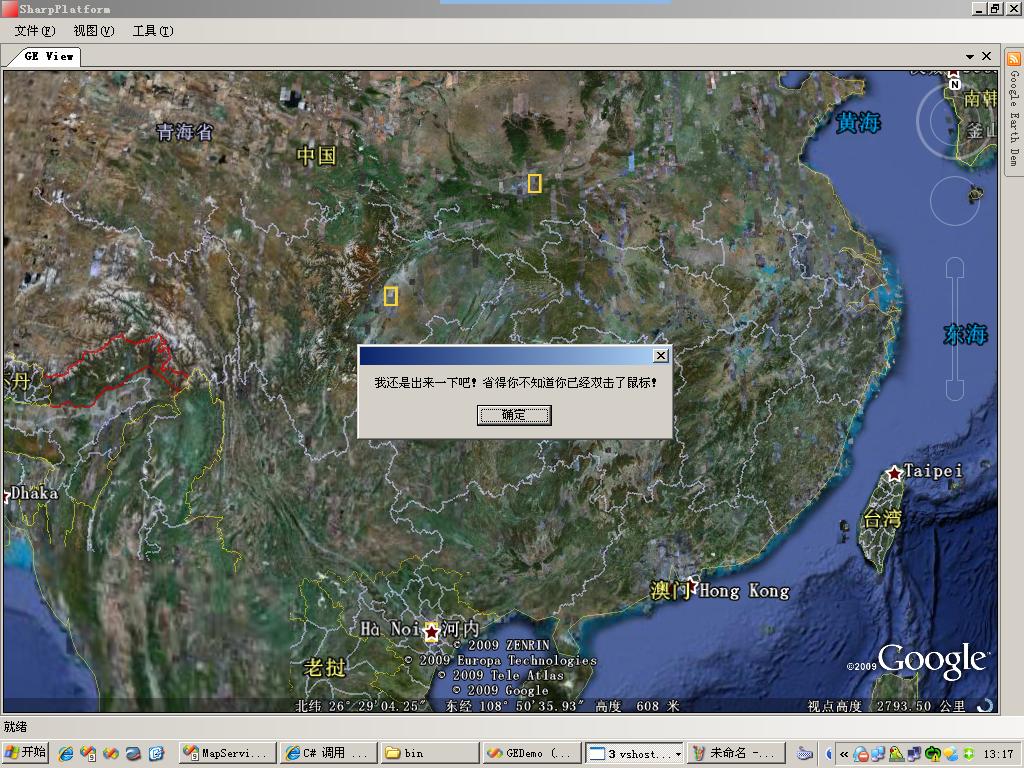
使用 HookAPI.dll 實作低階滑鼠鉤子 (WH_MOUSE_LL),攔截 WM_LBUTTONDOWN、WM_LBUTTONDBLCLK,判斷點擊位置是否在渲染視窗內,透過 GERenderPanel.DetermineScreenCoordinates 取得螢幕座標,再呼叫 GeApp.GetPointOnTerrainFromScreenCoords 轉換為經緯度。
// 鉤子初始化
mouseHook = new MouseHook();
mouseHook.MouseClick += mouseHook_MouseClick;
mouseHook.MouseDbClick += mouseHook_MouseDbClick;
mouseHook.StartHook(HookType.WH_MOUSE_LL, 0);

// 單擊處理
void mouseHook_MouseClick(object sender, MouseEventArgs e)
{
    IntPtr hWnd = NativeMethods.WindowFromPoint(e.Location);
    if (hWnd == this.GeRenderHWnd)
    {
        Point pt = this.Control.PointToClient(e.Location);
        if (this.Control.ClientRectangle.Contains(pt))
        {
            DoublePoint dp = ((GERenderPanel)Control).DetermineScreenCoordinates(pt.X, pt.Y);
            ThreadPool.QueueUserWorkItem(ShowMouseClickPoint, dp);
        }
    }
}

void ShowMouseClickPoint(object state)
{
    DoublePoint dp = (DoublePoint)state;
    PointOnTerrainGE p = GeApp.GetPointOnTerrainFromScreenCoords(dp.X, dp.Y);
    Console.WriteLine($"點擊位置: Lon={p.Longitude}, Lat={p.Latitude}");
}

// 雙擊處理 (類似,可觸發彈出視窗等)
void mouseHook_MouseDbClick(object sender, MouseEventArgs e) { /* ... */ }
官方 ge.SaveScreenShot() 僅輸出灰階。本文使用 GDI+ BitBlt 直接從渲染視窗 DC 複製像素到記憶體 DC,再建立 Bitmap 儲存為 JPG/PNG。注意:Vista/Win7 以上因 DWM 合成機制此法可能失效,需改用 DWMAPI 或 PrintWindow。
// 彩色截圖核心邏輯
GEViewContent view = GetGEView();
if (view != null)
{
    int w = view.Control.Width;
    int h = view.Control.Height;
    Point pt = view.Control.PointToScreen(view.Control.Location);
    IntPtr hRender = view.GeRenderHWnd;

    if (hRender != IntPtr.Zero)
    {
        IntPtr hRenderDC = NativeMethods.GetWindowDC(hRender);
        IntPtr hBitmap = NativeMethods.CreateCompatibleBitmap(hRenderDC, w, h);
        IntPtr hMemDC = NativeMethods.CreateCompatibleDC(hRenderDC);
        NativeMethods.SelectObject(hMemDC, hBitmap);

        // SRCCOPY = 0x00CC0020 (13369376)
        NativeMethods.BitBlt(hMemDC, 0, 0, w, h, hRenderDC, 0, 0, 13369376);

        using (Bitmap bmp = Bitmap.FromHbitmap(hBitmap))
        using (SaveFileDialog sfd = new SaveFileDialog())
        {
            sfd.Filter = "JPG|*.jpg|PNG|*.png";
            if (sfd.ShowDialog() == DialogResult.OK)
            {
                ImageFormat fmt = sfd.FilterIndex == 1 ? ImageFormat.Jpeg : ImageFormat.Png;
                bmp.Save(sfd.FileName, fmt);
            }
        }

        // 清理 GDI 資源
        NativeMethods.DeleteDC(hRenderDC);
        NativeMethods.DeleteDC(hMemDC);
        NativeMethods.DeleteObject(hBitmap);
    }
}
// 官方 API (僅黑白)
GEViewContent view = GetGEView();
if (view?.GeApplication != null && view.GeApplication.IsInitialized() > 0)
{
    using (var sfd = new SaveFileDialog { Filter = "JPG|*.jpg" })
        if (sfd.ShowDialog() == DialogResult.OK)
            view.GeApplication.SaveScreenShot(sfd.FileName, 100); // quality 0-100
}
public class NativeMethods
{
    [DllImport("user32.dll")] public static extern IntPtr GetWindowDC(IntPtr hWnd);
    [DllImport("gdi32.dll")] public static extern IntPtr CreateCompatibleBitmap(IntPtr hdc, int w, int h);
    [DllImport("gdi32.dll")] public static extern IntPtr CreateCompatibleDC(IntPtr hdc);
    [DllImport("gdi32.dll")] public static extern IntPtr SelectObject(IntPtr hdc, IntPtr hgdiobj);
    [DllImport("gdi32.dll")] public static extern bool BitBlt(IntPtr hdcDest, int x, int y, int w, int h, IntPtr hdcSrc, int x2, int y2, uint rop);
    [DllImport("gdi32.dll")] public static extern bool DeleteDC(IntPtr hdc);
    [DllImport("gdi32.dll")] public static extern bool DeleteObject(IntPtr hObject);
    [DllImport("user32.dll")] public static extern bool GetWindowRect(IntPtr hWnd, out RECT lpRect);
    [DllImport("user32.dll")] public static extern bool GetClientRect(IntPtr hWnd, out RECT lpRect);
    [DllImport("user32.dll")] public static extern bool SetWindowPos(IntPtr hWnd, IntPtr hWndInsertAfter, int x, int y, int cx, int cy, uint uFlags);
    [DllImport("user32.dll")] public static extern IntPtr SendMessage(IntPtr hWnd, uint msg, uint wParam, uint lParam);
    [DllImport("user32.dll")] public static extern IntPtr PostMessage(IntPtr hWnd, uint msg, uint wParam, uint lParam);

    public const uint WM_COMMAND = 0x0111;
    public const uint WM_PAINT = 0x000F;
    public const uint WM_SIZE = 0x0005;
    public const uint WM_QT_PAINT = 0x0358; // Qt 內部重繪訊息
    public const int HWND_TOP = 0;
    public const uint SWP_FRAMECHANGED = 0x0020;
}
GEDemo_2009-05-22.rar (含前三篇完整專案)
GetWindowDC 取得的不是真實渲染內容。解法:使用 DwmGetWindowAttribute + DwmThumbnail 或 PrintWindow(PW_RENDERFULLCONTENT) (Win10 1809+)GetForegroundWindow() == this.Handle 判斷本篇攻克了嵌入式 GE 應用的三大核心體驗:視窗自適應、滑鼠空間互動、高品質輸出。結合前兩篇的嵌入與基礎控制,已構建出功能完整的桌面 GIS 應用雛形。開發者可據此擴充圖層管理、空間查詢、GPS 軌跡回放等領域功能。