2D 繪圖系列邁入尾聲,壓軸登場的是功能最強大的 Graphics View Framework。新版 KDE 桌面即建構於此框架之上,可見其威力。Qt 白皮書如此描述:「Graphics View 提供管理與互動大量自訂 2D 圖形物件的場景與視圖元件,支援縮放旋轉,採用 BSP 樹結構快速定位物件,即使百萬物件場景也能即時顯示。」
Graphics View 採用 基於 Item 的 Model-View 架構,與 QPainter 的狀態機模式截然不同:
QGraphicsItem 物件。QPainter 採面向過程風格(drawLine()、drawPolygon()),而 Graphics View 先建立場景 QGraphicsScene,再建立各項物件並 addItem() 加入場景,最後透過 QGraphicsView 視口觀察。雖然初看較繁瑣,但管理成千上萬物件時極為便利,且符合物件導向復用原則。QGraphicsScene 為 Model(資料模型),QGraphicsView 為 View(視圖)。同一 Model 可被多個 View 從不同角度觀察——這在 QPainter 中需複雜計算,Graphics View 則輕鬆實現。QGraphicsLineItem、QGraphicsRectItem、QGraphicsEllipseItem 等。#include <QtGui>
class DrawApp : public QWidget {
public:
DrawApp();
protected:
void paintEvent(QPaintEvent *event);
};
DrawApp::DrawApp() {}
void DrawApp::paintEvent(QPaintEvent *event)
{
QPainter painter(this);
painter.drawLine(10, 10, 150, 300);
}
int main(int argc, char *argv[])
{
QApplication a(argc, argv);
// Graphics View 方式
QGraphicsScene *scene = new QGraphicsScene;
scene->addLine(10, 10, 150, 300);
QGraphicsView *view = new QGraphicsView(scene);
view->resize(500, 500);
view->setWindowTitle("Graphics View");
view->show();
// 傳統 QWidget 方式對比
DrawApp *da = new DrawApp;
da->resize(500, 500);
da->setWindowTitle("QWidget");
da->show();
return a.exec();
}
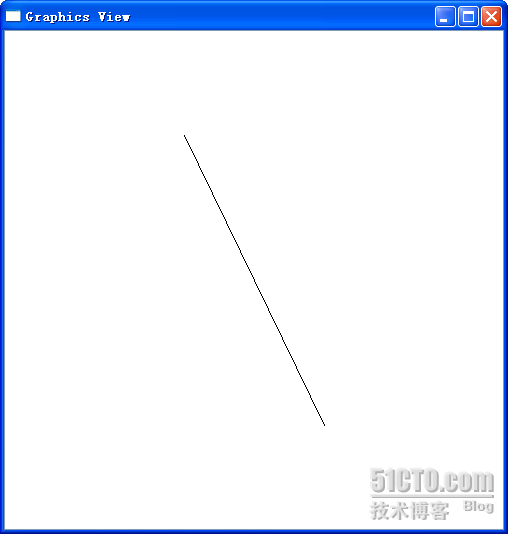
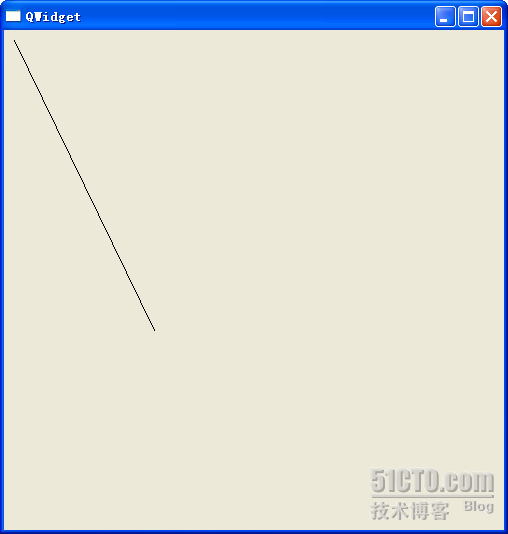
左圖為 Graphics View,右圖為傳統 QWidget。雖然座標相同,但 Graphics View 會自動將場景內容置中顯示於視口,且支援滑鼠拖曳平移;傳統方式則按原始座標繪製,無自動置中與互動功能。僅這「自動置中」一項,若用 QPainter 手寫需大量座標轉換計算。
Graphics View 也可設定不自動置中,模擬傳統繪圖行為。此框架真正威力在於大規模場景管理、多視圖同步、幾何變換與物件互動,後續章節將深入探討。