上一篇介紹了透過共享資料夾訂閱報表。本篇針對 SSRS 原生郵件訂閱的限制(需自建 SMTP、不支援第三方 SMTP),提供一套「變通方案」:利用 SQL Server Agent 排程觸發,結合 WinForm 應用產生 PDF,再由獨立發送程式依設定檔群發郵件。
ReportViewer,以隱藏模式將指定報表渲染為 PDF,存放至預設目錄(如 D:\ReportOutput\)。Microsoft.Reporting.WinForms.ReportViewer 控件。ProcessingMode = Remote,指定 ReportServerUrl 與 ReportPath。var viewer = new ReportViewer();
viewer.ProcessingMode = ProcessingMode.Remote;
viewer.ServerReport.ReportServerUrl = new Uri("https://ssrs-server/ReportServer");
viewer.ServerReport.ReportPath = "/Reports/MonthlySales";
viewer.ServerReport.SetParameters(new[] { new ReportParameter("Month", DateTime.Now.AddMonths(-1).ToString("yyyy-MM")) });
byte[] pdfBytes = viewer.ServerReport.Render("PDF");
File.WriteAllText($@"D:\ReportOutput\MonthlySales_{DateTime.Now:yyyyMM}.pdf", pdfBytes);三張核心表:
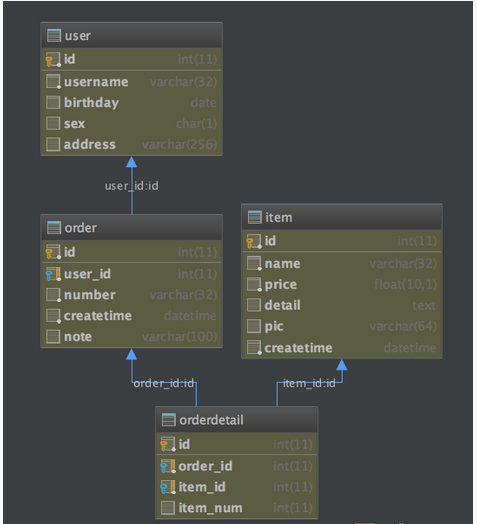
| 表名 | 用途 | 關鍵欄位 |
|---|---|---|
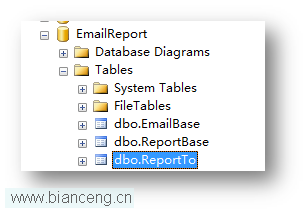
ReportBase | 報表定位 | ReportServer, ReportPath |
EmailBase | SMTP 設定 | SmtpHost, SmtpPort, Account, Password, EnableSsl |
ReportTo | 收件人對應 | ReportID, EmailGroup, ToAddresses (分號分隔) |
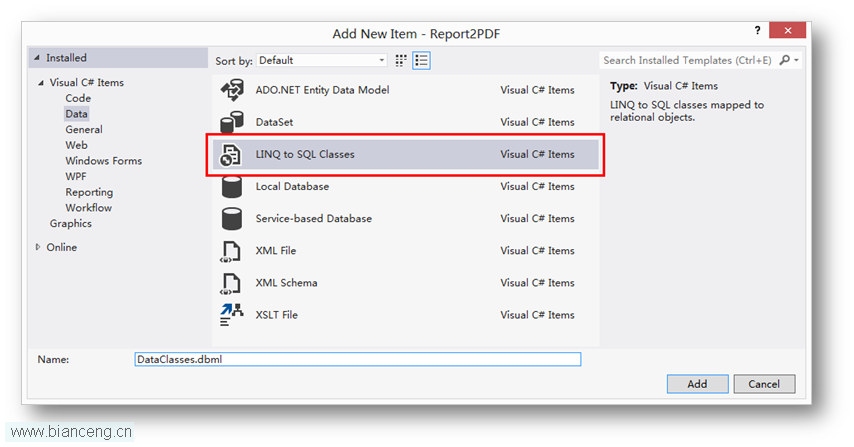
專案右鍵 → Add → New Item → LINQ to SQL Classes (或 ADO.NET Entity Data Model),拖入上述三表,自動產生實體類別,方便後續程式存取。
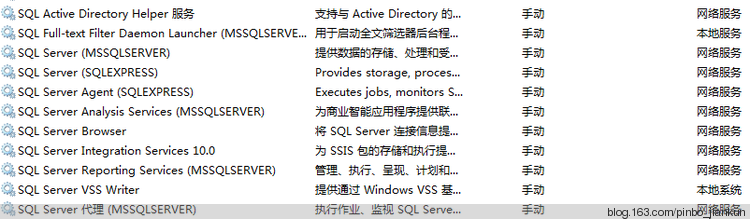
GenReport.exe,放置伺服器固定路徑。cmd /c "D:\Tools\GenReport.exe";步驟 2:cmd /c "D:\Tools\SendMail.exe"。