本文提供一個開箱即用的 Swing 圖片查看器 PictureViewer,支持 多格式過濾、自適應縮放居中、目錄連續翻頁、鍵盤/按鈕雙控,代碼結構清晰,適合作為桌面應用圖片預覽模組的起點。
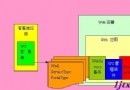
PictureViewer (主控制器、事件處理)
    ├─ MyCanvas       (繪圖畫布:雙緩衝、縮放算法、ComponentListener)
    ├─ MyFilter       (文件過濾器:支援 jpg/gif/png/bmp 等)
    └─ FileDialog     (原生文件選擇對話框)
public class MyCanvas extends Canvas implements ComponentListener {
    private BufferedImage source; // 原圖
    private Image scaled;         // 縮放後用於繪製的 Image
    private int drawW, drawH;     // 實際繪製寬高

    public void setImage(BufferedImage img) {
        this.source = img;
        zoom(); // 重新計算縮放
    }

    public void paint(Graphics g) {
        if (scaled != null) {
            int x = (getWidth() - drawW) / 2;
            int y = (getHeight() - drawH) / 2;
            g.drawImage(scaled, x, y, this); // 居中繪製
        }
    }

    // 視窗大小變化時自動重算
    public void componentResized(ComponentEvent e) {
        if (source != null) { zoom(); repaint(); }
    }

    // 核心縮放算法:保持比例、最大化填充
    private void zoom() {
        if (source == null) return;
        int sw = getWidth(), sh = getHeight();
        double sp = 1.0 * sh / sw; // 屏幕比
        int iw = source.getWidth(this), ih = source.getHeight(this);
        double ip = 1.0 * ih / iw; // 圖片比

        if (ip > sp) { // 圖片更「高」 → 以高為準
            drawH = sh;
            drawW = (int)(drawH / ip);
        } else {       // 圖片更「寬」 → 以寬為準
            drawW = sw;
            drawH = (int)(drawW * ip);
        }
        // SCALE_SMOOTH 品質優先
        scaled = source.getScaledInstance(drawW, drawH, Image.SCALE_SMOOTH);
    }
    // 其他 ComponentListener 方法留空...
}
public class MyFilter implements FilenameFilter {
    private final String[] exts;

    public MyFilter() {
        this(new String[]{".jpg",".jpeg",".gif",".png",".bmp",".JPG",".JPEG",".GIF",".PNG",".BMP"});
    }
    public MyFilter(String[] exts) { this.exts = exts; }

    public boolean accept(File dir, String name) {
        for (String ext : exts) if (name.endsWith(ext)) return true;
        return false;
    }
}
public class PictureViewer implements ActionListener {
    private Frame frame;
    private MyCanvas canvas;
    private File[] files; // 當前目錄圖片列表
    private int index;    // 當前索引

    public void init() {
        // 佈局:頂部按鈕欄 + 中央畫布
        Panel bar = new Panel();
        Button open = new Button("選擇圖片");
        Button prev = new Button("上一張");
        Button next = new Button("下一張");
        open.addActionListener(this); prev.addActionListener(this); next.addActionListener(this);
        bar.add(open); bar.add(prev); bar.add(next);

        canvas = new MyCanvas();
        canvas.setBackground(new Color(200,210,230));
        canvas.addComponentListener(canvas); // 關鍵:自己監聽自己大小變化

        frame = new Frame("PictureViewer");
        frame.add(bar, "North");
        frame.add(canvas, "Center");
        frame.setSize(360, 360);
        frame.setLocation(400, 200);
        frame.addWindowListener(new WindowAdapter() {
            public void windowClosing(WindowEvent e) { System.exit(0); }
        });
        frame.setVisible(true);

        // 文件選擇器綁定過濾器
        FileDialog fd = new FileDialog(frame, "打開文件", FileDialog.LOAD);
        fd.setFilenameFilter(new MyFilter());
    }

    public void actionPerformed(ActionEvent e) {
        String cmd = e.getActionCommand();
        if ("選擇圖片".equals(cmd)) {
            fd.setVisible(true); // 阻塞直到用戶選擇
            String dir = fd.getDirectory(), file = fd.getFile();
            if (dir != null && file != null) {
                File f = new File(dir, file);
                display(f);
                files = new File(dir).listFiles(new MyFilter());
                findIndex(f);
            }
        } else if ("上一張".equals(cmd)) { navigate(-1); }
        else if ("下一張".equals(cmd)) { navigate(+1); }
        updateButtonState();
    }

    private void display(File f) {
        try {
            BufferedImage bi = ImageIO.read(f); // 支援所有 JDK 內建格式
            canvas.setImage(bi);
            frame.setTitle("PictureViewer - [" + f.getName() + "]");
        } catch (IOException ex) { ex.printStackTrace(); }
        canvas.repaint();
    }

    private void navigate(int delta) {
        if (files == null) return;
        index = Math.max(0, Math.min(files.length - 1, index + delta));
        display(files[index]);
        updateButtonState();
    }

    private void findIndex(File target) {
        if (files != null) for (int i = 0; i < files.length; i++)
            if (target.equals(files[i])) { index = i; break; }
    }

    private void updateButtonState() {
        if (files == null) { prev.setEnabled(false); next.setEnabled(false); return; }
        prev.setEnabled(index > 0);
        next.setEnabled(index < files.length - 1);
    }
}
MyCanvas 添加 MouseListener 實現雙擊選文件、拖拽文件進窗口。Frame 添加 KeyListener,←/→ 翻頁,+/- 縮放,0 重置。SCALE_FAST/SCALE_SMOOTH/SCALE_REPLICATE 切換。JPanel + paintComponent 獲得 Swing 內建雙緩衝,消除閃爍。這個 PictureViewer 雖精簡,但涵蓋了文件 IO、圖像縮放算法、事件驅動、Swing 佈局等桌面開發核心技能,是進階學習 Java 客戶端圖形處理的優秀實戰樣本。