Eclipse UI 不允許任意位置新增元件,只能在文件化的「擴展點」掛載。開啟 plugin.xml → Extensions 頁籤,點擊 Add... 可見數百個擴展點,常用者附帶模板(如 Action Set 的 Hello World 模板)。
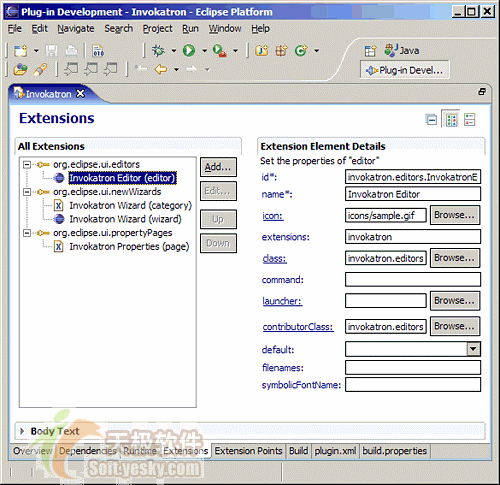
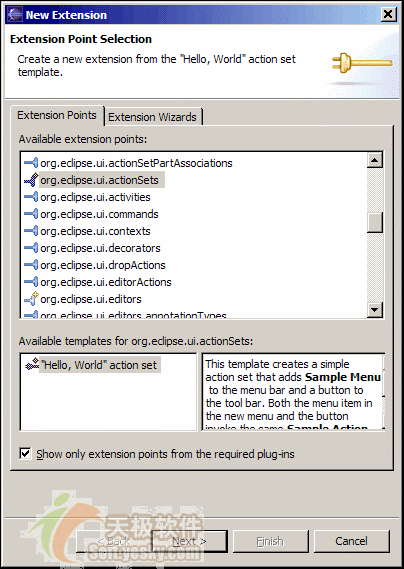
plugin.xml → Add... → 選 org.eclipse.ui.actionSets(無模板直接 Finish)。設定:
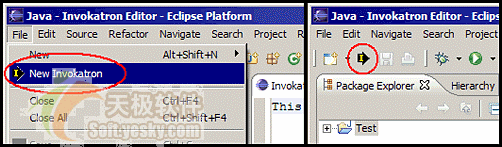
NewInvokatronActionNew Invokatron Document Actionorg.eclipse.ui.actionSets在 <extension> 內加入 <actionSet> → <action>:
<extension id="NewInvokatronAction" name="New Invokatron Document Action" point="org.eclipse.ui.actionSets">
  <actionSet id="invokatron.actionSet" label="Invokatron Actions" visible="true">
    <action id="invokatron.wizard.RunWizardAction"
            toolbarPath="org.eclipse.ui.workbench.file/new.ext"
            icon="icons/InvokatronIcon16.gif"
            tooltip="Starts the New Invokatron Document Wizard."
            class="invokatron.wizard.RunWizardAction">
    </action>
  </actionSet>
</extension>
關鍵屬性:
toolbarPath:按鈕位置,org.eclipse.ui.workbench.file/new.ext 為「檔案」工具列的「新建」群組。icon:16x16 GIF,放入 icons/ 目錄(已含於二進位建置路徑)。class:Action Delegate 完整類名。| 工具列 | 基礎路徑 | 常用群組標記 |
|---|---|---|
| 檔案 | org.eclipse.ui.workbench.file | new.ext, save.ext, print.ext, build.ext |
| 導航 | org.eclipse.ui.workbench.navigate | — |
| 執行 | org.eclipse.debug.ui.launchActionSet | — |
| 搜尋 | org.eclipse.search.searchActionSet | — |
若不帶群組標記,按鈕會建立新工具列;若自訂工具列 ID,會置於「檔案」工具列之後。
package invokatron.wizard;
import org.eclipse.jface.action.Action;
import org.eclipse.ui.IWorkbenchWindowActionDelegate;
import org.eclipse.ui.PlatformUI;
import org.eclipse.jface.wizard.WizardDialog;
import org.eclipse.swt.widgets.Shell;

public class RunWizardAction extends Action implements IWorkbenchWindowActionDelegate {
    public void init(IWorkbenchWindow window) {}
    public void dispose() {}
    public void run(IAction action) {
        InvokatronWizard wizard = new InvokatronWizard();
        Shell shell = PlatformUI.getWorkbench().getActiveWorkbenchWindow().getShell();
        WizardDialog dialog = new WizardDialog(shell, wizard);
        dialog.create();
        dialog.open();
    }
    public void selectionChanged(IAction action, ISelection selection) {}
}流程幾乎相同,差異在 <action> 使用 menubarPath 而非 toolbarPath,並需 label 屬性(顯示文字,快捷鍵用 & 表示)。
<action id="invokatron.wizard.RunWizardAction"
        label="New Invokatron"
        menubarPath="file/new.ext"
        icon="icons/InvokatronIcon16.gif"
        tooltip="Starts the New Invokatron Document Wizard."
        class="invokatron.wizard.RunWizardAction">
</action>
合併工具列與選單:同時指定 toolbarPath 與 menubarPath。
| 選單列 | 基礎路徑 | 常用群組 |
|---|---|---|
| 檔案 | file | fileStart, new/additions, new.ext, close.ext, save.ext, additions, fileEnd |
| 編輯 | edit | editStart, undo.ext, cut.ext, find.ext, additions, fileEnd |
| 視窗 | window | additions, additionsend |
| 說明 | help | helpStart, group.main.ext, group.about.ext, helpEnd |
完整路徑範例:file/new.ext(檔案→新增群組)。建議工具列與選單路徑保持一致性。
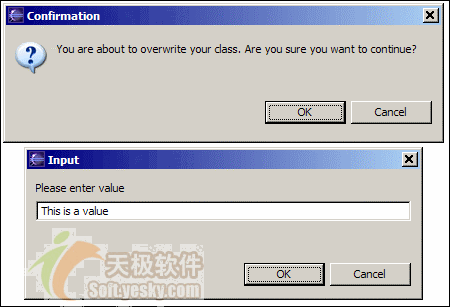
Eclipse 標準對話框由 org.eclipse.jface.dialogs.MessageDialog 提供:
| 類型 | 建立方法 | 對應 Swing |
|---|---|---|
| 確認 | openConfirm(parent, title, msg) | JOptionPane.showConfirmDialog(OK_CANCEL) |
| 錯誤 | openError(parent, title, msg) | JOptionPane.showMessageDialog(ERROR) |
| 資訊 | openInformation(parent, title, msg) | JOptionPane.showMessageDialog(INFORMATION) |
| 是/否 | openQuestion(parent, title, q) | JOptionPane.showConfirmDialog(YES_NO) |
| 警告 | openWarning(parent, title, msg) | JOptionPane.showMessageDialog(WARNING) |
public static boolean openOverwriteDialog(Shell parent) {
    return MessageDialog.openConfirm(parent, "Confirmation",
        "You are about to overwrite your class. Are you sure you want to continue?");
}MessageDialog 無輸入欄,改用 org.eclipse.jface.dialogs.InputDialog:
public static String openInputDialog(Shell parent, String title, String question, String initialValue) {
    InputDialog dlg = new InputDialog(parent, title, question, initialValue, null);
    dlg.open();
    if (dlg.getReturnCode() != Window.OK) return null;
    return dlg.getValue();
}
掌握擴展點與對話框,如同學會樂器,即可譜寫屬於自己的 Eclipse 交響樂。