前文曾介紹 ToolbarLayout 和 FlowLayout(統稱 OrderedLayout)的使用,但許多應用需要自由拖動子圖形的佈局,GEF 中稱為 XYLayout,且常需在圖形間建立連接線。連接的出現增加了模型複雜度,連接線的刷新也是 GEF 關注的重點。本文主要討論此類應用的實現,並詳細說明展開/折疊功能的實現。
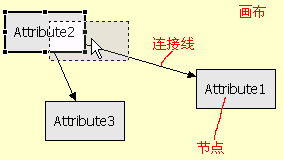
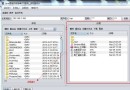
圖1 使用 XYLayout 的應用程序
使用 XYLayout 時,每個子圖形對應的模型需維護自身座標與尺寸資訊,這在模型中引入了與業務無關的成員變數。為解決此問題,通常讓所有需具備界面資訊的模型元素繼承自一個抽象類(如 Node),該類提供 point、dimension 等變數及 getter/setter 方法:
public class Node extends Element implements IPropertySource {
    protected Point location = new Point(0, 0); // 位置
    protected Dimension size = new Dimension(100, 150); // 尺寸
    protected String name = "Node"; // 標籤
    protected List outputs = new ArrayList(5); // 節點作為起點的連接
    protected List inputs = new ArrayList(5); // 節點作為終點的連接
    ...
}
EditPart 方面同理,若應用中有多個需自由拖動和改變大小的 EditPart,最好提供抽象基類(如 NodePart),實現 propertyChange()、createEditPolicy()、activate()、deactivate() 和 refreshVisuals() 等常用方法的預設實現。子類擴展時只需先調用 super() 再寫擴展代碼。典型的 NodePart 代碼如下,注意它繼承自 NodeEditPart(GEF 專為具連接功能的節點提供的 EditPart):
public abstract class NodePart extends AbstractGraphicalEditPart
        implements PropertyChangeListener, NodeEditPart {
    public void propertyChange(PropertyChangeEvent evt) {
        if (evt.getPropertyName().equals(Node.PROP_LOCATION))
            refreshVisuals();
        else if (evt.getPropertyName().equals(Node.PROP_SIZE))
            refreshVisuals();
        else if (evt.getPropertyName().equals(Node.PROP_INPUTS))
            refreshTargetConnections();
        else if (evt.getPropertyName().equals(Node.PROP_OUTPUTS))
            refreshSourceConnections();
    }

    protected void createEditPolicies() {
        installEditPolicy(EditPolicy.COMPONENT_ROLE, new NodeEditPolicy());
        installEditPolicy(EditPolicy.GRAPHICAL_NODE_ROLE, new NodeGraphicalNodeEditPolicy());
    }

    public void activate() {...}
    public void deactivate() {...}

    protected void refreshVisuals() {
        Node node = (Node) getModel();
        Point loc = node.getLocation();
        Dimension size = new Dimension(node.getSize());
        Rectangle rectangle = new Rectangle(loc, size);
        ((GraphicalEditPart) getParent()).setLayoutConstraint(this, getFigure(), rectangle);
    }

    // NodeEditPart 抽象方法實現
    public ConnectionAnchor getSourceConnectionAnchor(ConnectionEditPart connection) {
        return new ChopBoxAnchor(getFigure());
    }
    public ConnectionAnchor getSourceConnectionAnchor(Request request) {
        return new ChopBoxAnchor(getFigure());
    }
    public ConnectionAnchor getTargetConnectionAnchor(ConnectionEditPart connection) {
        return new ChopBoxAnchor(getFigure());
    }
    public ConnectionAnchor getTargetConnectionAnchor(Request request) {
        return new ChopBoxAnchor(getFigure());
    }
    protected List getModelSourceConnections() {
        return ((Node) this.getModel()).getOutgoingConnections();
    }
    protected List getModelTargetConnections() {
        return ((Node) this.getModel()).getIncomingConnections();
    }
}
從代碼可見,NodePart 透過安裝兩個 EditPolicy 實現圖形刪除、移動和改變尺寸功能,具體 NodePart 繼承此類即自動擁有這些功能(模型須為 Node 子類)。後半部的 getXXXAnchor() 方法規定連接線錨點,這裡使用 Draw2D 內建的 ChopBoxAnchor。最後兩個方法返回以該 EditPart 為起點/終點的連接列表,元素皆為 Connection 類型(模型一部分)。
GEF 中節點間連接線也需自己的模型與對應 EditPart,故需定義 Connection 和 ConnectionPart。前者維護 source 和 target 兩個節點變數,代表連接起點與終點;ConnectionPart 繼承 GEF 的 AbstractConnectionEditPart:
public class ConnectionPart extends AbstractConnectionEditPart {
    protected IFigure createFigure() {
        PolylineConnection conn = new PolylineConnection();
        conn.setTargetDecoration(new PolygonDecoration());
        conn.setConnectionRouter(new BendpointConnectionRouter());
        return conn;
    }

    protected void createEditPolicies() {
        installEditPolicy(EditPolicy.COMPONENT_ROLE, new ConnectionEditPolicy());
        installEditPolicy(EditPolicy.CONNECTION_ENDPOINTS_ROLE, new ConnectionEndpointEditPolicy());
    }

    protected void refreshVisuals() {}

    public void setSelected(int value) {
        super.setSelected(value);
        if (value != EditPart.SELECTED_NONE)
            ((PolylineConnection) getFigure()).setLineWidth(2);
        else
            ((PolylineConnection) getFigure()).setLineWidth(1);
    }
}
在 createFigure() 指定連接線類型、箭頭樣式、路由方式(直線或直角折線)。為 ConnectionPart 安裝 EditPolicy.CONNECTION_ENDPOINTS_ROLE 的 ConnectionEndpointEditPolicy(GEF 內建),提供連接線選擇、端點改變功能。refreshVisuals() 無動作,因連接線刷新在連接節點的刷新中透過 refreshSourceConnections() 和 refreshTargetConnections() 完成。覆寫 setSelected() 可定義選中後外觀,上述代碼讓被選中的連接線變粗。
GEF 提供的每種 GraphicalEditPolicy 均與佈局相關,容器使用何種佈局,通常選擇對應的 EditPolicy。使用 XYLayout 時,子元素稱為節點,對應的 EditPolicy 為 GraphicalNodeEditPolicy。前文 NodePart 安裝的 EditPolicy.GRAPHICAL_NODE_ROLE 的 NodeGraphicalNodeEditPolicy 即此類子類。同所有 EditPolicy 一樣,裡面有一系列 getXXXCommand() 方法,提供實現各種編輯目的的命令:
public class NodeGraphicalNodeEditPolicy extends GraphicalNodeEditPolicy {
    protected Command getConnectionCompleteCommand(CreateConnectionRequest request) {
        ConnectionCreateCommand command = (ConnectionCreateCommand) request.getStartCommand();
        command.setTarget((Node) getHost().getModel());
        return command;
    }

    protected Command getConnectionCreateCommand(CreateConnectionRequest request) {
        ConnectionCreateCommand command = new ConnectionCreateCommand();
        command.setSource((Node) getHost().getModel());
        request.setStartCommand(command);
        return command;
    }

    protected Command getReconnectSourceCommand(ReconnectRequest request) {
        return null;
    }

    protected Command getReconnectTargetCommand(ReconnectRequest request) {
        return null;
    }
}
針對節點,故皆與連接線相關。方法名稱意義明顯:getConnectionCreateCommand() 在用戶選擇連接線工具並點中節點時調用;getConnectionCompleteCommand() 在用戶選擇連接終點時調用;getReconnectSourceCommand() 和 getReconnectTargetCommand() 分別在用戶拖動連接線起點/終點到其他節點時調用,這裡回傳 null 表示不提供改變連接端點功能。關於命令本身,只要搞清模型間關係,命令很容易寫出,請下載範例自行查看。
應朋友要求,說明容器展開/折疊功能實現。某些應用中,畫布圖形可包含子圖形,稱為容器(畫布本身也是容器)。為讓畫布更簡潔,容器可有「折疊」和「展開」兩種狀態:折疊時只顯示部分資訊,不顯示子圖形;展開時顯示完整容器和子圖形。本例中模型元素包含關係為 Diagram -> Subject -> Attribute。
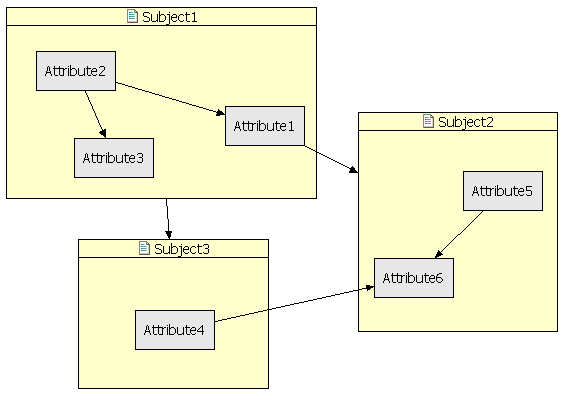
圖2 容器 Subject3 處於展開狀態
實現展開/折疊主要考慮兩個問題:一是如何隱藏容器內子圖形並改變容器外觀,採取的方法是在折疊/展開時改變容器圖形,將 contentPane(包含子圖形的圖形)隱藏;二是處理與容器包含的子圖形相連的連接線,因子圖形可能與其他容器或容器中的子圖形有連接線(如圖2 中 Attribute4 與 Attribute6 間的連接線),折疊狀態下這些連接線應連接到子圖形所在容器上(如 Subject3 折疊後,原從 Attribute4 到 Attribute6 的連接變為從 Subject3 到 Attribute6,見圖3)。
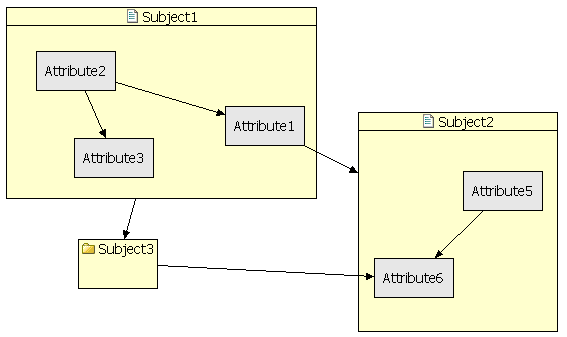
圖3 容器 Subject3 處於折疊狀態
不論容器狀態,皆為視圖變化而非模型變化(折疊後不顯示子圖形不代表模型中容器不包含子圖形)。但在容器模型中需有一布林變數 collapsed(初始 false)指示 EditPart 刷新視圖。假設用戶雙擊容器改變展開/折疊狀態,在容器 EditPart(SubjectPart)覆寫 performRequest():
public void performRequest(Request req) {
    if (req.getType() == RequestConstants.REQ_OPEN)
        getSubject().setCollapsed(!getSubject().isCollapsed());
}
狀態值改變會觸發所有監聽器的 propertyChange(),SubjectPart 正是其中之一,故在其 propertyChange() 中增加對新屬性變化事件的處理,判斷當前狀態隱藏或顯示 contentPane:
public void propertyChange(PropertyChangeEvent evt) {
    if (Subject.PROP_COLLAPSED.equals(evt.getPropertyName())) {
        SubjectFigure figure = ((SubjectFigure) getFigure());
        if (!getSubject().isCollapsed()) {
            figure.add(getContentPane());
        } else {
            figure.remove(getContentPane());
        }
        refreshVisuals();
        refreshSourceConnections();
        refreshTargetConnections();
    }
    if (Subject.PROP_STRUCTURE.equals(evt.getPropertyName()))
        refreshChildren();
    super.propertyChange(evt);
}
為讓容器顯示不同圖標反映折疊狀態,在 SubjectPart 的 refreshVisuals() 做額外工作:
protected void refreshVisuals() {
    super.refreshVisuals();
    SubjectFigure figure = (SubjectFigure) getFigure();
    figure.setName(((Node) this.getModel()).getName());
    if (!getSubject().isCollapsed()) {
        figure.setIcon(SubjectPlugin.getImage(IConstants.IMG_FILE));
    } else {
        figure.setIcon(SubjectPlugin.getImage(IConstants.IMG_FOLDER));
    }
}
因折疊後容器圖形應變小,讓 Subject 覆寫 Node 的 getSize() 方法,折疊狀態返回固定 Dimension,決定折疊狀態圖形尺寸:
protected Dimension collapsedDimension = new Dimension(80, 50);
public Dimension getSize() {
    if (!isCollapsed())
        return super.getSize();
    else
        return collapsedDimension;
}
為在不同狀態下返回正確連接,需修改 getModelSourceConnections() 和 getModelTargetConnections()。這兩方法返回與節點相關的連接物件列表,需根據節點當前狀態返回正確連接。作為容器的 SubjectPart 修改如下:
protected List getModelSourceConnections() {
    if (!getSubject().isCollapsed()) {
        return getSubject().getOutgoingConnections();
    } else {
        List l = new ArrayList();
        l.addAll(getSubject().getOutgoingConnections());
        for (Iterator iter = getSubject().getAttributes().iterator(); iter.hasNext();) {
            Attribute attribute = (Attribute) iter.next();
            l.addAll(attribute.getOutgoingConnections());
        }
        return l;
    }
}
展開狀態正常返回自己作為起點的連接;否則除這些連接外,還包括子圖形對應的連接。作為子圖形的 AttributePart 也要修改,因容器折疊後,它們對應的連接也要隱藏:
protected List getModelSourceConnections() {
    Attribute attribute = (Attribute) getModel();
    Subject subject = (Subject) ((SubjectPart) getParent()).getModel();
    if (!subject.isCollapsed()) {
        return attribute.getOutgoingConnections();
    } else {
        return Collections.EMPTY_LIST;
    }
}
getModelTargetConnections() 代碼類似,不再列出。一般讓一個 EditPart 監聽一個模型變化,但 GEF 未規定 EditPart 與被監聽模型一一對應。實現展開/折疊時,子元素 EditPart 應能監聽容器狀態變化,collapsed 值改變時更新與子圖形相關的連接線(否則變成「無頭線」)。讓子元素 EditPart 監聽容器模型變化很簡單,在 AttributePart 的 activate() 把自己加到容器模型監聽器列表,deactivate() 註銷,propertyChange() 處理事件:
public void activate() {
    super.activate();
    ((Attribute) getModel()).addPropertyChangeListener(this);
    ((Subject) getParent().getModel()).addPropertyChangeListener(this);
}
public void deactivate() {
    super.deactivate();
    ((Attribute) getModel()).removePropertyChangeListener(this);
    ((Subject) getParent().getModel()).removePropertyChangeListener(this);
}
public void propertyChange(PropertyChangeEvent evt) {
    if (evt.getPropertyName().equals(Subject.PROP_COLLAPSED)) {
        refreshSourceConnections();
        refreshTargetConnections();
    }
    super.propertyChange(evt);
}
基本實現了容器展開/折疊功能。說「基本上」是因未做仔細測試(時間關係),代碼可能存在問題,特別在 Undo/Redo 及多重選擇情況下;另外此方法僅適用於容器內子元素非容器的情況,若有多層容器關係,每層都需類似處理。