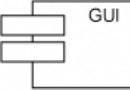
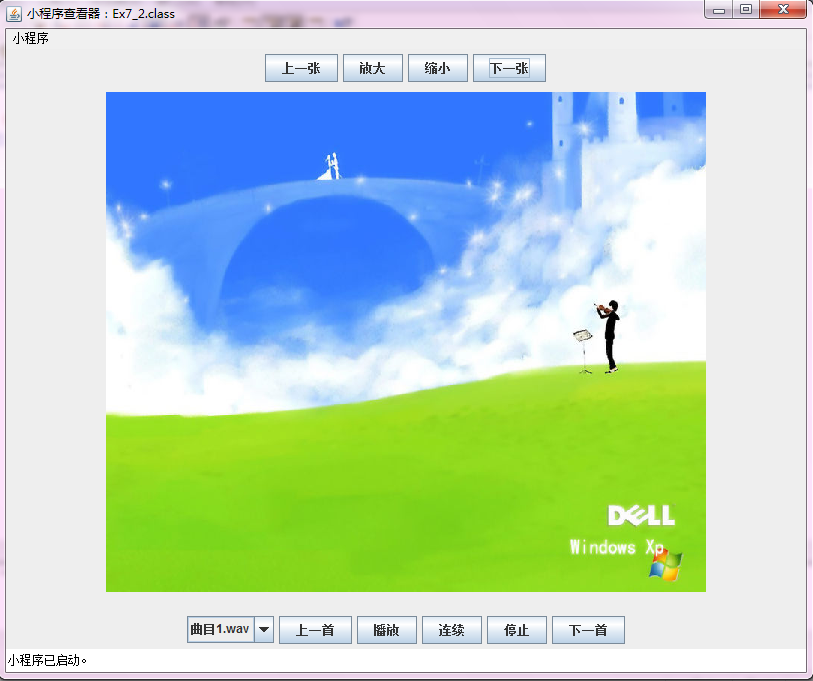
本範例展示如何使用 Java Applet 結合 Swing 元件,打造一個具備圖片瀏覽(上一張、下一張、放大、縮小)與音樂播放(播放、循環、停止、上一首、下一首)功能的多媒體小程式。介面包含頂部圖片控制列、底部音樂控制列與中央畫布區域。
/**
 * 程式需求:編寫一個 Applet 小程式,準備 5 張圖片與 3 首音樂,
 * 繪製於 Applet 中,並新增按鈕控制圖片切換、縮放與音樂播放。
 * 作者:wwj | 日期:2012/4/29 | 參考:neicole
 */
import javax.swing.*;
import java.awt.*;
import java.awt.event.*;
import java.applet.Applet;
import java.applet.AudioClip;

public class Ex7_2 extends Applet implements ActionListener, ItemListener {
    // 面板佈局
    JPanel p1 = new JPanel(), p2 = new JPanel(), p3 = new JPanel();
    // 音樂陣列
    AudioClip[] sound = new AudioClip[3];
    int playingSong = 0;

    // 圖片控制按鈕
    JButton lastPic = new JButton("上一張");
    JButton setLarge = new JButton("放大");
    JButton setLittle = new JButton("縮小");
    JButton nextPic = new JButton("下一張");
    // 音樂控制按鈕
    JButton lastSound = new JButton("上一首");
    JButton play = new JButton("播放");
    JButton loop = new JButton("連續");
    JButton stop = new JButton("停止");
    JButton nextSound = new JButton("下一首");
    // 曲目下拉選單
    JComboBox<String> xx;
    String[] names = {"曲目1.wav", "曲目2.wav", "曲目3.wav"};

    // 自訂畫布
    MyCanvasl showPhotos;

    public void init() {
        setLayout(new BorderLayout());

        // 註冊圖片按鈕監聽
        lastPic.addActionListener(this);
        setLarge.addActionListener(this);
        setLittle.addActionListener(this);
        nextPic.addActionListener(this);
        p1.add(lastPic); p1.add(setLarge); p1.add(setLittle); p1.add(nextPic);

        // 初始化音樂下拉選單
        xx = new JComboBox<>(names);
        xx.addItemListener(this);

        // 註冊音樂按鈕監聽
        lastSound.addActionListener(this);
        play.addActionListener(this);
        loop.addActionListener(this);
        stop.addActionListener(this);
        nextSound.addActionListener(this);

        // 載入音樂檔
        for (int i = 0; i < 3; i++) {
            sound[i] = getAudioClip(getCodeBase(), "music/曲目" + (i+1) + ".wav");
        }

        p2.add(xx); p2.add(lastSound); p2.add(play); p2.add(loop); p2.add(stop); p2.add(nextSound);

        showPhotos = new MyCanvasl();
        p3.add(showPhotos);

        add(p1, BorderLayout.NORTH);
        add(p2, BorderLayout.SOUTH);
        add(p3, BorderLayout.CENTER);
    }

    // 按鈕事件處理
    public void actionPerformed(ActionEvent e) {
        if (e.getSource() == lastPic) showPhotos.changePhotoShow('P');
        else if (e.getSource() == nextPic) showPhotos.changePhotoShow('N');
        else if (e.getSource() == setLarge) showPhotos.changePhotoSize('B');
        else if (e.getSource() == setLittle) showPhotos.changePhotoSize('S');
        else if (e.getSource() == lastSound) { // 上一首
            sound[playingSong].stop();
            playingSong = (playingSong - 1 + 3) % 3;
            xx.setSelectedIndex(playingSong);
            sound[playingSong].play();
        } else if (e.getSource() == play) sound[playingSong].play();
        else if (e.getSource() == loop) sound[playingSong].loop();
        else if (e.getSource() == stop) sound[playingSong].stop();
        else { // 下一首
            sound[playingSong].stop();
            playingSong = (playingSong + 1) % 3;
            xx.setSelectedIndex(playingSong);
            sound[playingSong].play();
        }
    }

    // 下拉選單事件
    public void itemStateChanged(ItemEvent e) {
        sound[playingSong].stop();
        sound[playingSong] = getAudioClip(getCodeBase(), "music/" + xx.getSelectedItem());
    }

    // 內部類別:自訂畫布
    class MyCanvasl extends Canvas {
        Image[] img = new Image[5];
        int MaxWidth = 600, MaxHeight = 500;
        int nowImageIndex = 0, coordinateX = 0, coordinateY = 0;
        int currentWidth = MaxWidth, currentHeight = MaxHeight;

        MyCanvasl() {
            setSize(MaxWidth, MaxHeight);
            for (int i = 0; i < 5; i++) {
                img[i] = getImage(getCodeBase(), "image/" + (i+1) + ".jpg");
            }
        }

        private void changePhotoIndex(int index) {
            nowImageIndex = index;
            changePhotoSize('M');
        }

        public void changePhotoShow(char cmd) {
            if (cmd == 'P') changePhotoIndex((nowImageIndex + 4) % 5);
            else if (cmd == 'N') changePhotoIndex((nowImageIndex + 1) % 5);
        }

        public void changePhotoSize(char cmd) {
            if (cmd == 'M') { currentWidth = MaxWidth; currentHeight = MaxHeight; }
            else if (cmd == 'B') {
                if (MaxWidth >= currentWidth + 100 && MaxHeight >= currentHeight + 100) {
                    currentWidth += 100; currentHeight += 100;
                }
            } else if (cmd == 'S') {
                if (currentWidth > 100 && currentHeight > 100) {
                    currentWidth -= 100; currentHeight -= 100;
                }
            }
            coordinateX = (MaxWidth - currentWidth) / 2;
            coordinateY = (MaxHeight - currentHeight) / 2;
            repaint();
        }

        public void paint(Graphics g) {
            g.drawImage(img[nowImageIndex], coordinateX, coordinateY, currentWidth, currentHeight, this);
        }
    }
}
<applet code="Ex7_2.class" width="600" height="600"></applet>