WF4 重新裝載工作流設計器時,UndoEngine 服務提供設計階段的撤銷與重做功能。本文示範在 WPF 應用中整合設計器並啟用 Undo/Redo 的完整步驟與代碼。
WorkflowDesigner:設計器核心類別,承載工作流定義編輯介面UndoEngine:提供 Undo()、Redo() 方法與 UndoUnitAdded 事件DesignerMetadata:註冊活動設計器中繼資料ToolboxControl、ToolboxCategory、ToolboxItemWrapper:工具箱 UI 組件
<Window x:Class="CaryUndo.MainWindow"
        xmlns="https://schemas.microsoft.com/winfx/2006/xaml/presentation"
        xmlns:x="https://schemas.microsoft.com/winfx/2006/xaml"
        xmlns:sadt="clr-namespace:System.Activities.Presentation.Toolbox;assembly=System.Activities.Presentation"
        xmlns:sys="clr-namespace:System;assembly=mscorlib"
        Title="WF4 Designer Undo/Redo Demo" Height="350" Width="525">

    <Window.CommandBindings>
        <CommandBinding Command="Undo" Executed="UndoHandle" />
        <CommandBinding Command="Redo" Executed="RedoHandle" />
    </Window.CommandBindings>

    <Window.Resources>
        <sys:String x:Key="AssemblyName">System.Activities, Version=4.0.0.0, Culture=neutral, PublicKeyToken=31bf3856ad364e35</sys:String>
    </Window.Resources>

    <Grid>
        <Grid.ColumnDefinitions>
            <ColumnDefinition Width="2*"/>
            <ColumnDefinition Width="7*"/>
            <ColumnDefinition Width="3*"/>
        </Grid.ColumnDefinitions>

        <!-- 工具箱 -->
        <Border Grid.Column="0">
            <sadt:ToolboxControl>
                <sadt:ToolboxCategory CategoryName="Basic">
                    <sadt:ToolboxItemWrapper AssemblyName="{StaticResource AssemblyName}" ToolName="System.Activities.Statements.Sequence"/>
                    <sadt:ToolboxItemWrapper AssemblyName="{StaticResource AssemblyName}" ToolName="System.Activities.Statements.WriteLine"/>
                    <sadt:ToolboxItemWrapper AssemblyName="{StaticResource AssemblyName}" ToolName="System.Activities.Statements.Pick"/>
                </sadt:ToolboxCategory>
            </sadt:ToolboxControl>
        </Border>

        <!-- 設計畫布 -->
        <Border Grid.Column="1" Name="DesignerBorder"/>

        <!-- 屬性視窗 -->
        <Border Grid.Column="2" Name="PropertyBorder"/>

        <!-- 按鈕區 -->
        <Button Content="Undo" Command="Undo" Height="23" Margin="9,179,0,0" Name="button1" VerticalAlignment="Top" Width="75" />
        <Button Content="Redo" Command="Redo" Height="23" Margin="9,218,0,0" Name="button2" VerticalAlignment="Top" Width="75" />
    </Grid>
</Window>
using System;
using System.Windows;
using System.Windows.Input;
using System.Activities.Presentation;
using System.Activities.Core.Presentation;
using System.Activities.Statements;

namespace CaryUndo
{
    public partial class MainWindow : Window
    {
        private WorkflowDesigner wd = new WorkflowDesigner();
        private UndoEngine undoEngineService;

        public MainWindow()
        {
            InitializeComponent();
        }

        protected override void OnInitialized(EventArgs e)
        {
            base.OnInitialized(e);

            // 1. 註冊活動設計器中繼資料
            new DesignerMetadata().Register();

            // 2. 建立設計器,載入初始工作流 (Sequence)
            wd.Load(new Sequence());

            // 3. 將設計器視圖與屬性視窗掛載至 UI
            DesignerBorder.Child = wd.View;
            PropertyBorder.Child = wd.PropertyInspectorView;

            // 4. 取得 UndoEngine 服務並訂閱事件
            undoEngineService = wd.Context.Services.GetService<UndoEngine>();
            undoEngineService.UndoUnitAdded += OnUndoUnitAdded;
        }

        private void OnUndoUnitAdded(object sender, UndoUnitEventArgs e)
        {
            MessageBox.Show("Undo Unit Added: " + e.Unit.Description);
        }

        private void UndoHandle(object sender, ExecutedRoutedEventArgs e)
        {
            wd.Context.Services.GetService<UndoEngine>().Undo();
        }

        private void RedoHandle(object sender, ExecutedRoutedEventArgs e)
        {
            wd.Context.Services.GetService<UndoEngine>().Redo();
        }
    }
}
拖曳活動至設計器、修改屬性、刪除活動等操作均會記錄至 Undo 堆疊。點擊「Undo」/「Redo」按鈕或按 Ctrl+Z/Ctrl+Y 可多步撤銷/重做。
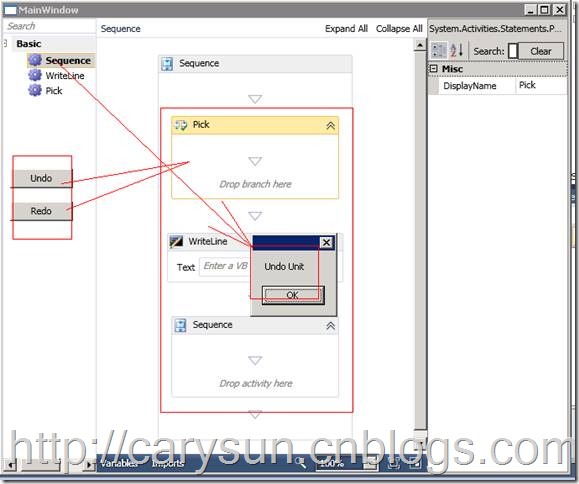
WorkflowDesigner 實例Load() 載入根活動 (如 Sequence)wd.View (設計畫布) 與 wd.PropertyInspectorView (屬性視窗) 加入視覺樹wd.Context.Services.GetService<UndoEngine>() 取得服務CommandBinding 至 Undo/Redo 路由命令,處理器中呼叫服務方法UndoUnitAdded 事件監控操作單元DesignerMetadata.Register(),否則工具箱活動無法正確渲染UndoEngine 僅在設計模式有效,運行時工作流執行不支援撤銷ActivityDesigner 並註冊中繼資料WF4 設計器模型透過服務導向架構提供豐富擴展點,UndoEngine 讓重新裝載設計器具備專業 IDE 級編輯體驗。結合工具箱、屬性視窗、自訂活動,可快速建構領域專用工作流建模工具。