Command 模式幾乎無所不在——複製、貼上、復原等操作皆是典型應用。它將「請求者」與「執行邏輯」解耦,並天然支援排隊、復原等進階需求。WPF 進一步封裝了 RoutedCommand 與 RoutedUICommand,並內建數十種常用命令、先進的路由機制,讓命令使用變得簡單高效。
但 WPF 內建命令真的能應付所有場景嗎?並非如此。這正是 Prism 另闢蹊徑打造自有 Command 體系的原因。本文將逐層剖析 WPF 命令的四大侷限,並示範如何打造支援多重處理器的自定義命令。
WPF 提供 RoutedCommand 與 RoutedUICommand(繼承自前者)。MSDN 解釋:它實作 ICommand,並透過元素樹路由——Execute 與 CanExecute 不包含應用邏輯,而是引發事件沿元素樹尋找擁有 CommandBinding 的物件,由其處理程式執行實際邏輯。
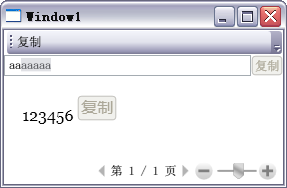
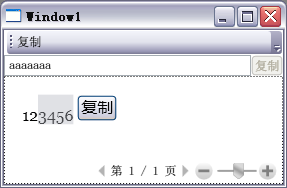
按鈕 XAML 皆為:<Button Command="Copy" .../>
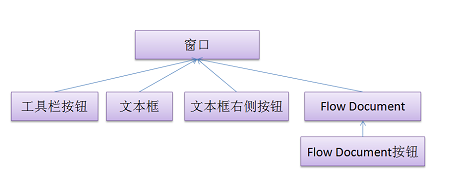
觀察元素樹:針對 ApplicationCommands.Copy 設有 CommandBinding 的元素分別是「TextBox」與「FlowDocument(Viewer)」。
FocusManager.IsFocusScope="True" 時啟用此模式。若給「TextBox 右側按鈕」加上 FocusManager.IsFocusScope="True",它也能被啟用(見圖三)。
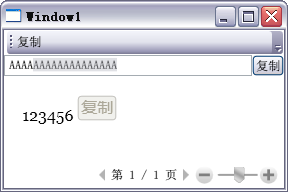
侷限一:複雜 UI 下路由邏輯令人暈眩,易出錯。 折中做法是用 CommandTarget 明確指定目標,但在 Composite Application 中,View 需暴露目標或提供 API,且難以預知其他模組會用哪些元素作為 Target。
CommandBinding 扮演紅娘角色,串聯 Command、CanExecute、Execute。但 CommandBindings 屬性僅存在於 UIElement、ContentElement、UIElement3D——全是可視元素。因為 WPF 內建支援的是 RoutedCommand,非視覺元素無路由可言。即便用 CommandManager.RegisterClassCommandBinding,傳入的仍須是上述三類視覺元素。
侷限二:CommandBinding 強綁定 View 層,無法直接掛接非 UI 類別的邏輯。 採用 MVC、MVP 模式時,只能在頂層視窗或 View 根節點為每個 Command 加 CommandBinding,再轉呼叫其他層方法,顯得笨重。
組合命令常見於「全部復原」按鈕——它不是簡單的迴圈呼叫多次 Undo,而是組合模式的實現(點擊「全部復原」後再點「重做」觀察行為即知)。可惜 WPF 內建 RoutedCommand 不支援命令組合。
侷限三:無組合模式支援。 例如介面有兩個文字框各自對應 Save 按鈕,若選單列想加「SaveAll」按鈕,處理起來相當棘手。
RoutedCommand 一次只呼叫一個處理器(如兩個文字框中擁有焦點者)。無法一次命令將文字同時貼上到兩個文字框。
侷限四:不支援多重處理邏輯掛接。 這在複雜 UI 中極為實用,也是許多廠商自行實作命令模式的主因。
自定義 Command 核心在兩點:
CanExecute 與 Execute 委派。CanExecuteChanged 事件——這最關鍵也最易出錯,若觸發不當會導致 UI 元素啟用/禁用狀態異常。public class GreetingsCommand : ICommand
{
private Func<bool> canExecuteHandler = () => false;
private Action<string> executeHandler = obj => { };
public event EventHandler CanExecuteChanged = (sender, e) => { };
public event Func<bool> CanExecuteHandler
{
add { canExecuteHandler += value; CanExecuteChanged(this, EventArgs.Empty); }
remove { canExecuteHandler -= value; CanExecuteChanged(this, EventArgs.Empty); }
}
public event Action<string> ExecuteHandler
{
add { executeHandler += value; }
remove { executeHandler -= value; }
}
public void Execute(object parameter)
{
Delegate[] delegates = executeHandler.GetInvocationList();
foreach (Action<string> act in delegates)
{
act.Invoke(parameter != null ? parameter.ToString() : string.Empty);
}
}
public bool CanExecute(object parameter)
{
Delegate[] delegates = canExecuteHandler.GetInvocationList();
foreach (Func<bool> fun in delegates)
{
if (fun.Invoke()) return true;
}
return false;
}
public void RaiseCanExecuteChanged()
{
CanExecuteChanged(this, EventArgs.Empty);
}
}當 Presenter 發現 Model 資料變更時,主動呼叫 RaiseCanExecuteChanged() 通知 UI 更新狀態:
void Model_PropertyChanged(object sender, PropertyChangedEventArgs e)
{
    if (string.Equals(e.PropertyName, "Greetings"))
    {
        Greetings.RaiseCanExecuteChanged();
    }
}WPF 內建命令雖強,但在複雜合成應用、非 UI 邏輯解耦、命令組合與多重處理等場景下明顯力有未逮。自行實作 ICommand 並非難事,關鍵在於妥善管理委派集合與正確觸發 CanExecuteChanged。Prism 的 DelegateCommand/CompositeCommand 正是此思路的成熟封裝,實務上建議直接採用或參考其設計。