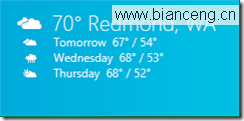
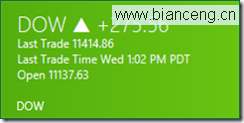
次要磁貼 讓使用者將應用內特定內容 (某城市天氣、特定股票、聊天聯繫人、播放清單) **釘選到開始畫面**,點擊直接啟動應用並導航至該內容,無需進入主頁層層點選。這是提升應用使用頻率、支援深度連結的關鍵功能。
using Windows.UI.StartScreen;
using Windows.Foundation;
using Windows.UI.Popups;
// 需在 StandardStyles.xaml 或頁面 Resources 定義 AppBarButton 樣式
// PinAppBarButtonStyle (內容: ), UnpinAppBarButtonStyle (內容: )
<Page.BottomAppBar>
    <AppBar x:Name="SecondaryTileAppBar" IsSticky="False" Padding="10,0,10,0">
        <Grid>
            <StackPanel x:Name="RightPanel" Orientation="Horizontal" HorizontalAlignment="Right">
                <Button x:Name="PinButton" Click="OnPinButtonClicked" />
            </StackPanel>
        </Grid>
    </AppBar>
</Page.BottomAppBar>
public sealed partial class MainPage : Page {
    // 次要磁貼唯一 ID (應用內唯一,建議含業務鍵值)
    public const string SecondaryTileId = "SecondaryTile.AppBar.CityWeather";

    public MainPage() {
        InitializeComponent();
        UpdatePinButtonState(); // 頁面載入時檢查狀態
    }

    // 檢查磁貼是否存在,切換按鈕樣式
    private void UpdatePinButtonState() {
        bool exists = SecondaryTile.Exists(SecondaryTileId);
        PinButton.Style = exists ?
            (Style)Resources["UnpinAppBarButtonStyle"] :
            (Style)Resources["PinAppBarButtonStyle"];
    }

    // 釘選/取消釘選統一處理
    private async void OnPinButtonClicked(object sender, RoutedEventArgs e) {
        // 關鍵:設定 IsSticky=true 防止 AppBar 在彈出確認對話框時自動關閉
        SecondaryTileAppBar.IsSticky = true;

        if (SecondaryTile.Exists(SecondaryTileId)) {
            // ---- 取消釘選 ----
            var tile = new SecondaryTile(SecondaryTileId);
            // 彈出確認對話框,定位在按鈕上方
            Rect buttonRect = GetElementRect((FrameworkElement)sender);
            bool unpinned = await tile.RequestDeleteForSelectionAsync(buttonRect, Placement.Above);
            UpdatePinButtonState(); // 更新按鈕狀態
        } else {
            // ---- 釘選 ----
            // 1. 視覺屬性
            Uri squareLogo = new Uri("ms-appx:///Assets/SquareLogo.png"); // 150x150
            Uri wideLogo = new Uri("ms-appx:///Assets/WideLogo.png");     // 310x150 (可選)
            string displayName = "台北天氣";
            string shortName = "北市天氣"; // ≤13字元
            string arguments = $"city=taipei&pinnedAt={DateTime.Now:O}"; // 自定義啟動參數

            // 2. 建立 SecondaryTile 物件
            var tile = new SecondaryTile(
                SecondaryTileId,
                shortName,
                displayName,
                arguments,
                TileOptions.ShowNameOnLogo | TileOptions.ShowNameOnWideLogo, // 選項
                squareLogo
            ) {
                WideLogo = wideLogo,
                ForegroundText = ForegroundText.Dark, // 文字顏色配合 Logo 背景
                SmallLogo = new Uri("ms-appx:///Assets/SmallLogo.png") // 30x30
            };

            // 3. 發起釘選請求 (彈出系統確認對話框)
            Rect buttonRect = GetElementRect((FrameworkElement)sender);
            bool pinned = await tile.RequestCreateForSelectionAsync(buttonRect, Placement.Above);
            UpdatePinButtonState();
        }

        SecondaryTileAppBar.IsSticky = false;
    }

    // 取得按鈕相對視窗的矩形區域 (用於對話框定位)
    public Rect GetElementRect(FrameworkElement element) {
        GeneralTransform transform = element.TransformToVisual(null);
        Point point = transform.TransformPoint(new Point(0, 0));
        return new Rect(point, new Size(element.ActualWidth, element.ActualHeight));
    }
}
protected override void OnLaunched(LaunchActivatedEventArgs args) {
    // args.Arguments 即為釘選時傳入的 arguments 字串
    if (!string.IsNullOrEmpty(args.Arguments)) {
        // 解析查詢字串格式 "city=taipei&pinnedAt=..."
        var query = System.Web.HttpUtility.ParseQueryString(args.Arguments);
        string city = query["city"];
        if (!string.IsNullOrEmpty(city)) {
            // 直接導航至詳細頁,跳過主頁
            rootFrame.Navigate(typeof(WeatherDetailPage), city);
            return;
        }
    }
    // 正常啟動
    rootFrame.Navigate(typeof(MainPage));
}
| 屬性 | 建議規格 | 說明 |
|---|---|---|
| SquareLogo | 150×150, PNG, 透明背景 | 中型磁貼核心圖示 |
| WideLogo | 310×150, PNG | 寬幅磁貼 (啟用 `TileOptions.ShowNameOnWideLogo` 顯示名稱) |
| SmallLogo | 30×30, PNG | 應用清單、搜尋、分享來源顯示 |
| ForegroundText | `Dark` / `Light` | 依 Logo 主色調決定,確保文字可讀 |
| ShowNameOnLogo / WideLogo | TileOptions 旗標 | 磁貼上直接顯示 Short Name,強化辨識度 |
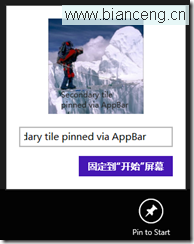
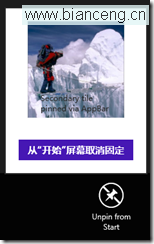
次要磁貼實作核心在於:**唯一 ID 設計、視覺資產準備 (三尺寸 Logo)、啟動參數結構化、AppBar 狀態同步、系統確認對話框定位**。掌握此流程,即可將應用內任意深度內容提升為開始畫面的一級入口,大幅縮短使用者觸達路徑,提升日活與留存。