WPF 的 Behavior(行為) 模式讓我們將互動邏輯封裝為可重用元件,透過 XAML 宣告式套用,實現關注點分離。本文示範建立一個 DragInCanvasBehavior,讓任何 UIElement 在 Canvas 中可拖曳移動。
System.Windows.Interactivity.dll)。PresentationCore、PresentationFramework、WindowsBase、System.Xaml、System.Windows.Interactivity。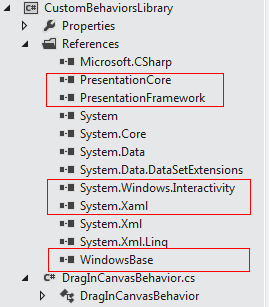
using System.Windows;
using System.Windows.Controls;
using System.Windows.Input;
using System.Windows.Interactivity;
using System.Windows.Media;

public class DragInCanvasBehavior : Behavior<UIElement>
{
    private Canvas _canvas;
    private Point _mouseOffset;
    private bool _isDragging;

    protected override void OnAttached()
    {
        base.OnAttached();
        AssociatedObject.MouseLeftButtonDown += OnMouseLeftButtonDown;
        AssociatedObject.MouseLeftButtonUp += OnMouseLeftButtonUp;
        AssociatedObject.MouseMove += OnMouseMove;
    }

    protected override void OnDetaching()
    {
        base.OnDetaching();
        AssociatedObject.MouseLeftButtonDown -= OnMouseLeftButtonDown;
        AssociatedObject.MouseLeftButtonUp -= OnMouseLeftButtonUp;
        AssociatedObject.MouseMove -= OnMouseMove;
    }

    private void OnMouseLeftButtonDown(object sender, MouseButtonEventArgs e)
    {
        _canvas = VisualTreeHelper.GetParent(AssociatedObject) as Canvas;
        if (_canvas != null)
        {
            _isDragging = true;
            _mouseOffset = e.GetPosition(AssociatedObject);
            AssociatedObject.CaptureMouse();
        }
    }

    private void OnMouseMove(object sender, MouseEventArgs e)
    {
        if (_canvas != null && _isDragging)
        {
            var p = e.GetPosition(_canvas);
            AssociatedObject.SetValue(Canvas.TopProperty, p.Y - _mouseOffset.Y);
            AssociatedObject.SetValue(Canvas.LeftProperty, p.X - _mouseOffset.X);
        }
    }

    private void OnMouseLeftButtonUp(object sender, MouseButtonEventArgs e)
    {
        if (_isDragging)
        {
            AssociatedObject.ReleaseMouseCapture();
            _isDragging = false;
        }
    }
}
System.Windows.Interactivity.dll。xmlns:i="https://schemas.microsoft.com/expression/2010/interactivity"
xmlns:custom="clr-namespace:MyBehaviors;assembly=MyBehaviors"
<Canvas>
    <Label Content="我是中國人" Background="LemonChiffon" Width="240" FontSize="16">
        <i:Interaction.Behaviors>
            <custom:DragInCanvasBehavior/>
        </i:Interaction.Behaviors>
    </Label>
    <Label Content="我也能動" Background="LightBlue" Width="240" FontSize="16" Canvas.Top="50">
        <i:Interaction.Behaviors>
            <custom:DragInCanvasBehavior/>
        </i:Interaction.Behaviors>
    </Label>
</Canvas>

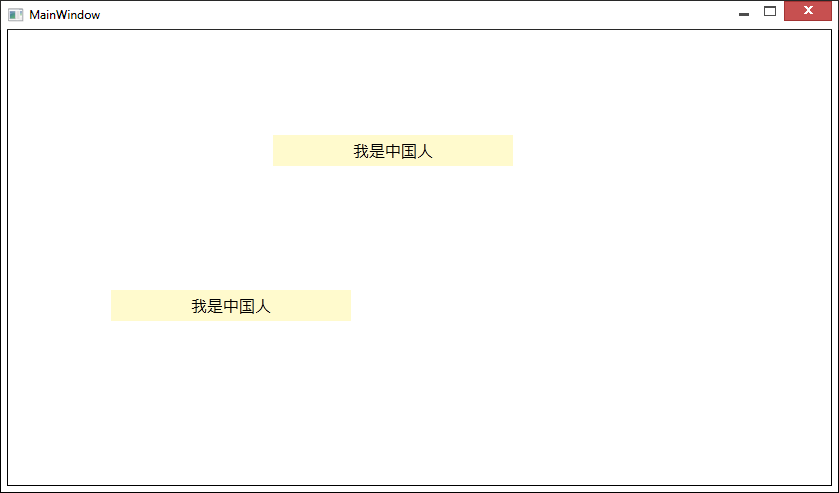
DependencyProperty 讓行為可設定:限制拖曳範圍、吸附網格、拖曳時視覺回饋。DataContext 實現拖曳後自動更新 ViewModel 座標。Behavior 模式讓程式碼後置大幅精簡,邏輯可跨專案重用,是 WPF 開發必備技能。