功能流程
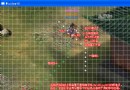
- 點擊按鈕 → 擷取全螢幕影像存為 Bitmap。
- 開啟無框全螢幕視窗(
FormBorderStyle=None,WindowState=Maximized),以截圖為背景。
- 滑鼠拖曳繪製選取矩形,右鍵取消,雙擊確認。
- 確認時將選取區域複製到新 Bitmap,存入剪貼簿,關閉視窗。
核心程式碼結構
主表單:啟動截圖
private void btnCapture_Click(object sender, EventArgs e)
{
    Bitmap screen = new Bitmap(Screen.AllScreens[0].Bounds.Width, Screen.AllScreens[0].Bounds.Height);
    using (Graphics g = Graphics.FromImage(screen))
        g.CopyFromScreen(Point.Empty, Point.Empty, Screen.AllScreens[0].Bounds.Size);

    new SelectionForm { BackgroundImage = screen }.Show();
}
選取視窗:SelectionForm
public partial class SelectionForm : Form
{
    private Graphics _g;          // 視窗繪圖介面
    private Pen _pen = new Pen(Color.Blue, 2);
    private bool _mouseDown, _rectReady;
    private Image _baseImage;     // 原始螢幕截圖
    private Rectangle _rect;      // 目前選取矩形
    private Point _startPt;       // 滑鼠按下位置
    private int _lastX, _lastY;   // 移動時上一座標

    public SelectionForm()
    {
        InitializeComponent();
        FormBorderStyle = FormBorderStyle.None;
        WindowState = FormWindowState.Maximized;
        DoubleBuffered = true;
    }

    protected override void OnLoad(EventArgs e)
    {
        base.OnLoad(e);
        _g = CreateGraphics();
        _baseImage = BackgroundImage;
        _rect = Rectangle.Empty;
        _rectReady = false;
    }

    // 滑鼠按下:開始選取或拖曳現有矩形
    protected override void OnMouseDown(MouseEventArgs e)
    {
        if (e.Button == MouseButtons.Left)
        {
            _mouseDown = true;
            if (!_rectReady) { _rect.Location = e.Location; _startPt = e.Location; }
            else { _lastX = e.X; _lastY = e.Y; }
        }
        else if (e.Button == MouseButtons.Right && !_rectReady)
            Close(); // 右鍵取消
    }

    // 滑鼠移動:即時繪製/移動矩形
    protected override void OnMouseMove(MouseEventArgs e)
    {
        if (!_rectReady && _mouseDown) DrawSelectionRect(e.X, e.Y);
        else if (_rectReady && _rect.Contains(e.Location) && _mouseDown) MoveRect(e.X, e.Y);
    }

    // 滑鼠釋放:完成選取
    protected override void OnMouseUp(MouseEventArgs e)
    {
        if (e.Button == MouseButtons.Left) { _mouseDown = false; _rectReady = true; }
    }

    // 雙擊確認:複製到剪貼簿並關閉
    protected override void OnDoubleClick(EventArgs e)
    {
        if (_rectReady && _rect.Contains(PointToClient(MousePosition)))
        {
            using (Bitmap bmp = new Bitmap(_rect.Width, _rect.Height))
            using (Graphics g = Graphics.FromImage(bmp))
                g.CopyFromScreen(_rect.Location, Point.Empty, _rect.Size);
            Clipboard.SetImage(bmp);
            Close();
        }
    }

    // 繪製選取框(雙緩衝手動實作)
    private void DrawSelectionRect(int x, int y)
    {
        using (Bitmap buffer = new Bitmap(_baseImage))
        using (Graphics g = Graphics.FromImage(buffer))
        {
            UpdateRect(_startPt, new Point(x, y));
            g.DrawRectangle(_pen, _rect);
            _g.DrawImageUnscaled(buffer, 0, 0);
        }
    }

    private void MoveRect(int x, int y)
    {
        int dx = x - _lastX, dy = y - _lastY;
        _rect.Offset(dx, dy);
        _lastX = x; _lastY = y;
        using (Bitmap buffer = new Bitmap(_baseImage))
        using (Graphics g = Graphics.FromImage(buffer))
        {
            g.DrawRectangle(_pen, _rect);
            _g.DrawImageUnscaled(buffer, 0, 0);
        }
    }

    private void UpdateRect(Point p1, Point p2)
    {
        _rect.X = Math.Min(p1.X, p2.X);
        _rect.Y = Math.Min(p1.Y, p2.Y);
        _rect.Width = Math.Abs(p1.X - p2.X);
        _rect.Height = Math.Abs(p1.Y - p2.Y);
    }

    protected override void OnFormClosed(FormClosedEventArgs e)
    {
        _pen.Dispose(); _g?.Dispose();
        base.OnFormClosed(e);
    }
}
關鍵技術點
- CopyFromScreen:高效螢幕像素複製,支援多螢幕(範例取主螢幕)。
- 無框最大化視窗:覆蓋全螢幕,無標題列干擾。
- 手動雙緩衝:在記憶體 Bitmap 繪製後一次
DrawImageUnscaled 到螢幕,避免閃爍。
- 剪貼簿互通:
Clipboard.SetImage 直接支援 Bitmap,貼上即可使用。
已知限制
- 單螢幕支援,多螢幕需處理虛擬螢幕座標。
- 高 DPI 縮放下座標需轉換(
SetProcessDpiAwareness)。
- 無放大鏡、標註、儲存檔案等進階功能。