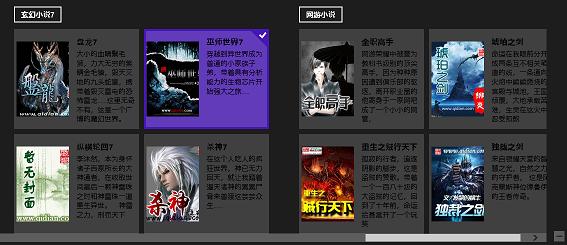
Windows 8 `SemanticZoom` 控制項提供「縮放視圖」體驗:`ZoomedInView` 顯示詳細資料(如 `GridView` 列表),`ZoomedOutView` 顯示群組索引供快速跳轉。本文示範搭配 `CollectionViewSource` 實現分組資料的語意縮放。
<SemanticZoom x:Name="semanticZoom">
  <SemanticZoom.ZoomedOutView>
    <!-- 群組索引視圖,通常繫結 Group.Title -->
    <GridView ...> ... </GridView>
  </SemanticZoom.ZoomedOutView>
  <SemanticZoom.ZoomedInView>
    <!-- 詳細資料視圖 -->
    <GridView ...> ... </GridView>
  </SemanticZoom.ZoomedInView>
</SemanticZoom>
`CollectionViewSource` 關鍵屬性:
`Source`:資料來源。
`IsSourceGrouped="true"`:啟用分組。
`ItemsPath`:群組內項目屬性名。
`View.CollectionGroups`:取得分組集合,供 `ZoomedOutView` 繫結。
<Grid.Resources>
  <CollectionViewSource x:Name="itemcollectSource" IsSourceGrouped="true" ItemsPath="ItemContent" />
</Grid.Resources>

<SemanticZoom x:Name="semanticZoom" VerticalAlignment="Center">
  <SemanticZoom.ZoomedOutView>
    <GridView ScrollViewer.IsHorizontalScrollChainingEnabled="False">
      <GridView.ItemTemplate>
        <DataTemplate>
          <TextBlock Text="{Binding Group.GroupTitle}" FontSize="24"/>
        </DataTemplate>
      </GridView.ItemTemplate>
      <GridView.ItemsPanel>
        <ItemsPanelTemplate>
          <WrapGrid ItemWidth="150" ItemHeight="75" MaximumRowsOrColumns="1" VerticalChildrenAlignment="Center"/>
        </ItemsPanelTemplate>
      </GridView.ItemsPanel>
      <GridView.ItemContainerStyle>
        <Style TargetType="GridViewItem">
          <Setter Property="Margin" Value="4"/>
          <Setter Property="Padding" Value="10"/>
          <Setter Property="BorderBrush" Value="Gray"/>
          <Setter Property="BorderThickness" Value="1"/>
          <Setter Property="HorizontalContentAlignment" Value="Center"/>
          <Setter Property="VerticalContentAlignment" Value="Center"/>
        </Style>
      </GridView.ItemContainerStyle>
    </GridView>
  </SemanticZoom.ZoomedOutView>

  <SemanticZoom.ZoomedInView>
    <GridView x:Name="gv_Item"
              ItemsSource="{Binding Source={StaticResource itemcollectSource}}"
              ScrollViewer.IsHorizontalScrollChainingEnabled="False"
              Margin="20,140,40,20" IsSwipeEnabled="True">
      <GridView.ItemTemplate>
        <DataTemplate>
          <Grid Width="250" Height="200" Background="#33CCCCCC">
            <Grid.ColumnDefinitions>
              <ColumnDefinition Width="110"/>
              <ColumnDefinition/>
            </Grid.ColumnDefinitions>
            <Image Grid.Column="0" Margin="5,0,0,0" Source="{Binding ImageUrl}" Stretch="None"/>
            <TextBlock Grid.Column="1" Margin="15,15,0,0" Foreground="Black" Text="{Binding txtTitle}" FontWeight="Bold" FontSize="16" TextWrapping="Wrap"/>
            <TextBlock Grid.Column="1" Margin="15,40,0,0" Foreground="Black" Text="{Binding txtContent}" FontWeight="Light" FontSize="14" TextWrapping="Wrap"/>
          </Grid>
        </DataTemplate>
      </GridView.ItemTemplate>
      <GridView.ItemsPanel>
        <ItemsPanelTemplate>
          <VariableSizedWrapGrid Orientation="Vertical" MaximumRowsOrColumns="3"/>
        </ItemsPanelTemplate>
      </GridView.ItemsPanel>
      <GridView.GroupStyle>
        <GroupStyle>
          <GroupStyle.HeaderTemplate>
            <DataTemplate>
              <Grid Margin="1,0,0,6">
                <Button AutomationProperties.Name="組名稱" Content="{Binding GroupTitle}"/>
              </Grid>
            </DataTemplate>
          </GroupStyle.HeaderTemplate>
          <GroupStyle.Panel>
            <ItemsPanelTemplate>
              <VariableSizedWrapGrid Orientation="Vertical" Margin="0,0,50,0"/>
            </ItemsPanelTemplate>
          </GroupStyle.Panel>
        </GroupStyle>
      </GridView.GroupStyle>
    </GridView>
  </SemanticZoom.ZoomedInView>
</SemanticZoom>
public MainPage() {
    this.InitializeComponent();
    // 設定資料來源
    this.itemcollectSource.Source = new ViewModelData().Sourcedata;
    // 關鍵:將 ZoomedOutView 的 ItemsSource 指向 CollectionViewSource 的分組集合
    (semanticZoom.ZoomedOutView as ListViewBase).ItemsSource = itemcollectSource.View.CollectionGroups;
}

原始碼下載:win8Gridview3.rar