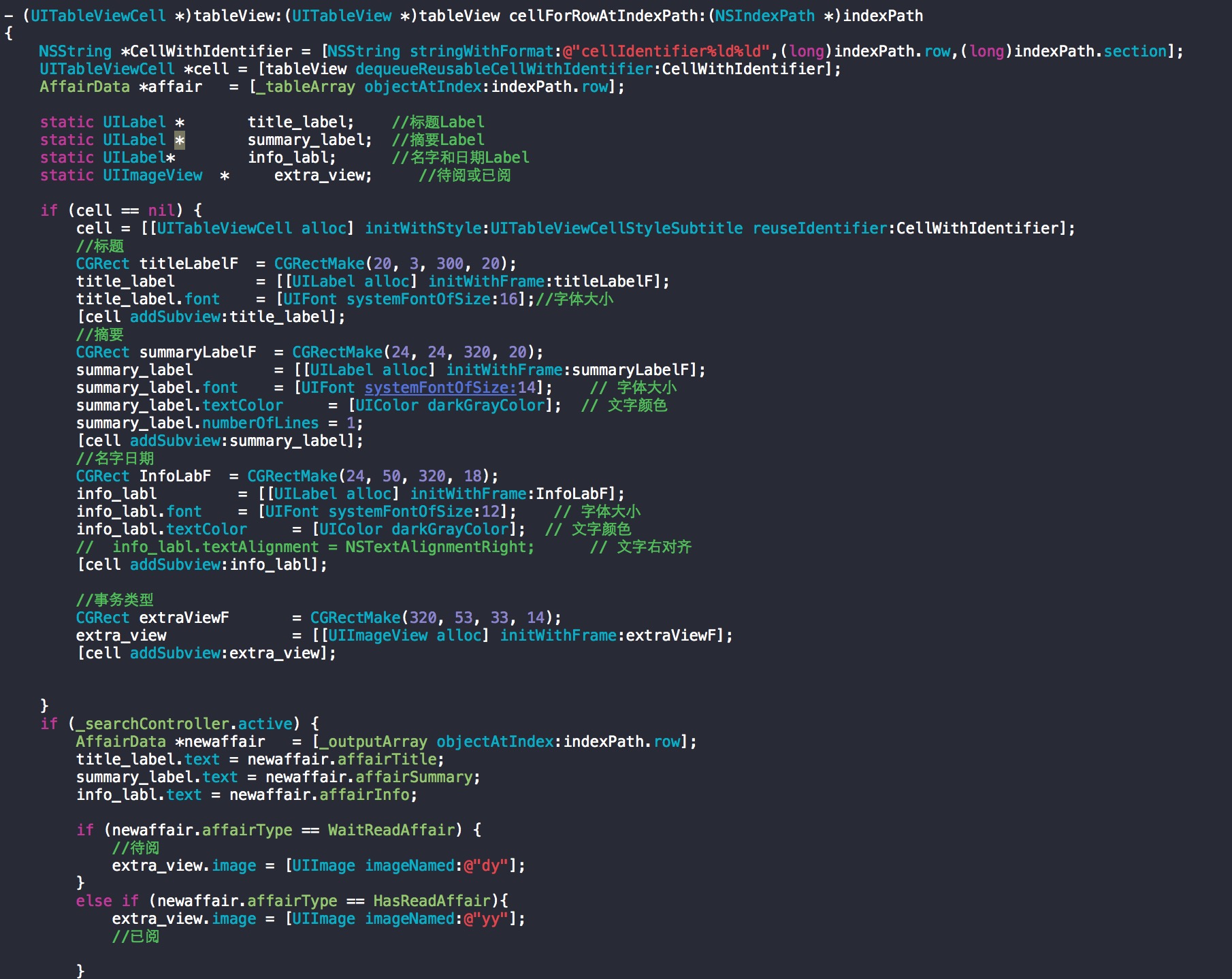
自定義 UITableViewCell 中的 UILabel 顯示 URL 字串,點擊打開 Safari。
// Cell 配置代碼
func configure(with urlString: String) {
    urlLabel.text = urlString
    urlLabel.isUserInteractionEnabled = true  // 關鍵:啟用交互

    // 避免重複添加手勢
    if urlLabel.gestureRecognizers?.isEmpty ?? true {
        let tap = UITapGestureRecognizer(target: self, action: #selector(openUrl(_:)))
        tap.numberOfTapsRequired = 1
        urlLabel.addGestureRecognizer(tap)
    }
}

@objc private func openUrl(_ sender: UITapGestureRecognizer) {
    guard let label = sender.view as? UILabel,
          let urlString = label.text,
          let url = URL(string: urlString),
          UIApplication.shared.canOpenURL(url) else { return }

    UIApplication.shared.open(url, options: [:], completionHandler: nil)
}
@objc private func openUrl(_ sender: UITapGestureRecognizer) {
    let location = sender.location(in: contentView) // 在 cell 內容視圖座標系
    // hitTest 返回最底層響應觸摸的視圖
    if let hitView = contentView.hitTest(location, with: nil),
       let label = hitView as? UILabel,
       let urlString = label.text,
       let url = URL(string: urlString) {
        UIApplication.shared.open(url)
    }
}
// 配置
myLabel.userInteractionEnabled = YES;
UITapGestureRecognizer *tap = [[UITapGestureRecognizer alloc] initWithTarget:self action:@selector(openUrl:)];
tap.numberOfTapsRequired = 1;
[myLabel addGestureRecognizer:tap];

// 動作
- (void)openUrl:(UITapGestureRecognizer *)gesture {
    CGPoint location = [gesture locationInView:self.contentView];
    UIView *hitView = [self.contentView hitTest:location withEvent:nil];
    if ([hitView isKindOfClass:[UILabel class]]) {
        UILabel *label = (UILabel *)hitView;
        NSURL *url = [NSURL URLWithString:label.text];
        if (url && [[UIApplication sharedApplication] canOpenURL:url]) {
            [[UIApplication sharedApplication] openURL:url];
        }
    }
}
// 使用 UITextView (非編輯模式) 自動檢測數據類型
UITextView *textView = [[UITextView alloc] initWithFrame:frame];
textView.text = @"訪問 https://apple.com 或致電 400-123-4567";
textView.editable = NO;
textView.selectable = YES;      // 關鍵:可選擇才能點擊鏈接
textView.dataDetectorTypes = UIDataDetectorTypeLink | UIDataDetectorTypePhoneNumber;
textView.backgroundColor = [UIColor clearColor];
textView.textContainerInset = UIEdgeInsetsZero;
textView.textContainer.lineFragmentPadding = 0;
// 無需手動添加手勢,系統自動處理
| 方案 | 優點 | 缺點 | 適用場景 |
|---|---|---|---|
| UILabel + TapGesture | 輕量、完全自定義樣式 | 需手動解析 URL、多 Label 需 hitTest | 純 URL 顯示、自定義交互邏輯 |
| UITextView + DataDetector | 自動識別 URL/電話/地址/日期、無代碼 | 樣式自定義受限、性能略重 | 富文本、多類型數據檢測 |
| NSAttributedString + 自定義屬性 | 精確控制部分鏈接樣式、點擊回調 | 實現複雜 | 混合文本中特定片段可點擊 |
openURL:options:completionHandler:,openURL: 已棄用LSApplicationQueriesSchemes 若需檢測特定 SchemenumberOfLines=0 + lineBreakMode 確保完整 URL 可見accessibilityTraits = UIAccessibilityTraitLink