常見錯誤訊息
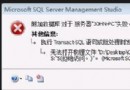
"An error has occurred while establishing a connection to the server. When connecting to SQL Server 2005, this failure may be caused by the fact that under the default settings SQL Server does not allow remote connections. (provider: Named Pipes Provider, error: 40 - Could not open a connection to SQL Server)"
四步驟啟用遠端連線
1. 安裝管理工具
下載並安裝 SQL Server Management Studio Express (SSMSEE),官方免費提供。
2. 啟用遠端連線協定
- 啟動 SQL Server Surface Area Configuration(外圍應用配置器)。
- 選擇 Surface Area Configuration for Services and Connections。
- 展開
MSSQLSERVER → Database Engine → Remote Connections。
- 勾選 Local and remote connections,建議選 Using both TCP/IP and named pipes。
- 確定後重啟 SQL Server 服務(MSSQLSERVER)。
3. 切換混合驗證模式
- 開啟 SSMSEE,以 Windows 驗證登入。
- 右鍵伺服器節點 → Properties → Security。
- 選擇 SQL Server and Windows Authentication mode。
- 重啟服務生效。
4. 建立 SQL 驗證登入帳號
- SSMSEE → Security → Logins → 右鍵 New Login。
- 選擇 SQL Server authentication,輸入登入名稱與密碼。
- 取消勾選 "Enforce password expiration"(否則每次登入需改密碼)。
- 或用 T-SQL 快速建立 sa 帳號:
EXEC sp_password NULL, 'sa123456', 'sa';
連接字串正確寫法
Server=.\SQLEXPRESS;Uid=帳號;Pwd=密碼;Database=master;
關鍵點:.\SQLEXPRESS 代表本機具名實例;(local) 或 . 僅適用於預設實例(MSSQLSERVER)。
防火牆與瀏覽器服務
- Windows 防火牆開放 TCP 1433 埠(或自訂埠)。
- 啟動 SQL Server Browser 服務(協助具名實例解析)。
快速驗證
另一台電腦安裝 SSMSEE,用上述連接字串登入,成功即完成設定。