本文詳細記錄在 Ubuntu 12.04 Server 環境下安裝 Oracle Database 11g Release 2 的完整流程,包含 VNC 圖形化界面配置、GNOME 桌面環境部署、常見問題排查等關鍵步驟,適合需要在無圖形界面的 Linux 伺服器上部署 Oracle 的運維人員參考。
安裝前請確認已具備 root 權限。官方安裝文檔可參考 TechieNote 專題。若遇到套件無法安裝,優先執行 apt-get update 更新軟體源;若仍失敗,建議替換為國內鏡像源(如 163、中科大、上海交大)以提升下載速度:
# 備份原有 sources.list
cp /etc/apt/sources.list /etc/apt/sources.list_backup
# 編輯軟體源
vi /etc/apt/sources.list
# 在文件中添加國內鏡像源地址,保存後執行
apt-get updateOracle 安裝程式需要圖形界面,Server 版預設無桌面環境,故需安裝 VNC:
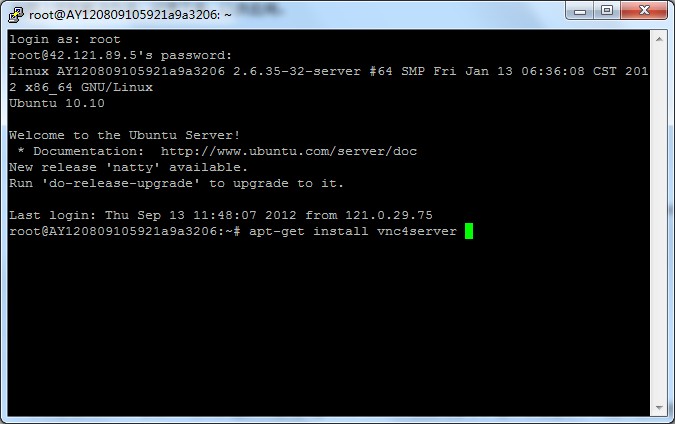
# 安裝 VNC 伺服器
apt-get install vnc4server
# 首次啟動並設定密碼
vncserver
啟動成功後會在家目錄生成 .vnc 目錄,並顯示類似 New 'host:1 (user)' desktop is host:1 的訊息。
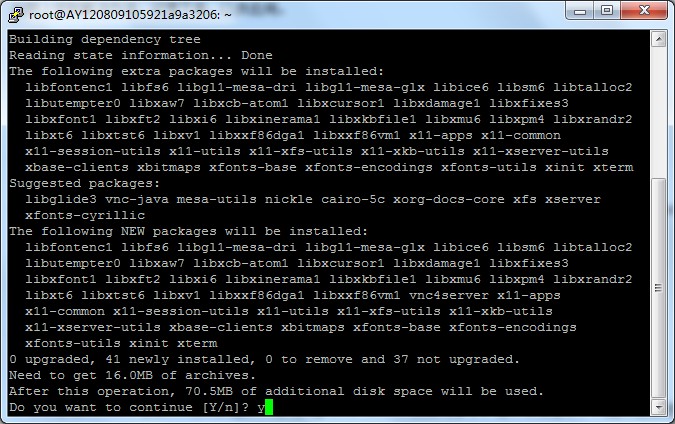
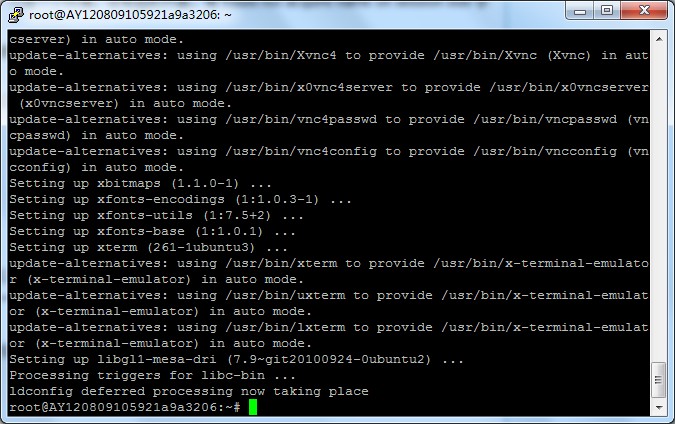
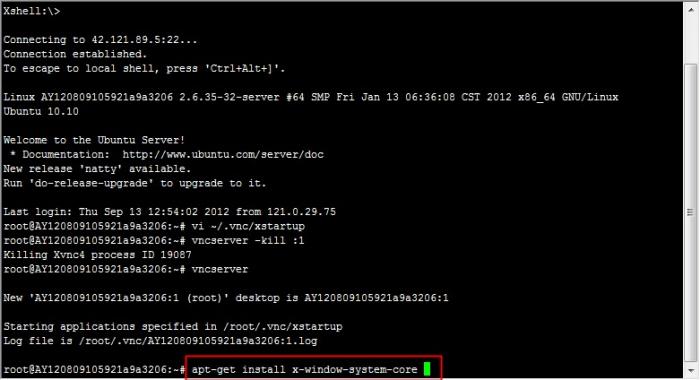
使用 VNC Viewer 連線 IP:1 後,預設僅呈現簡陋的 twm 視窗管理器。需修改 ~/.vnc/xstartup 啟用 GNOME 或 KDE:
# 備份原啟動腳本
cp ~/.vnc/xstartup ~/.vnc/xstartup.bak
# 編輯 xstartup
vi ~/.vnc/xstartup
將 x-window-manager & 註解,新增 gnome-session &(或 startkde &),存檔後重啟 VNC:
vncserver -kill :1
vncserver :1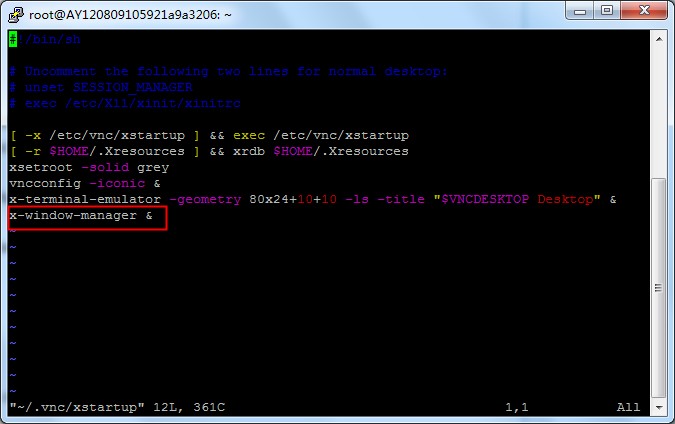
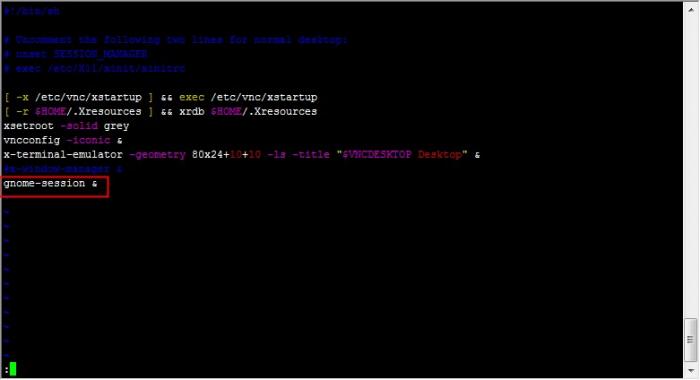
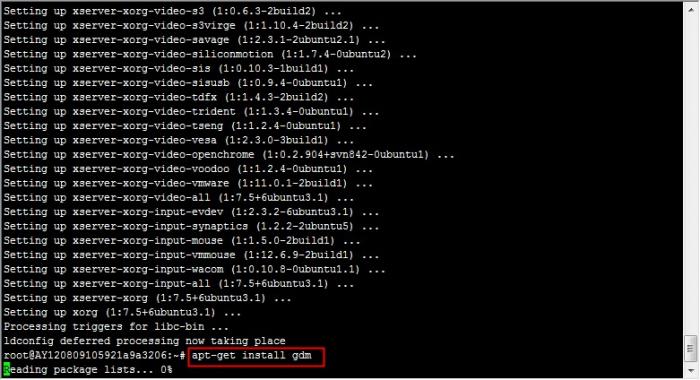
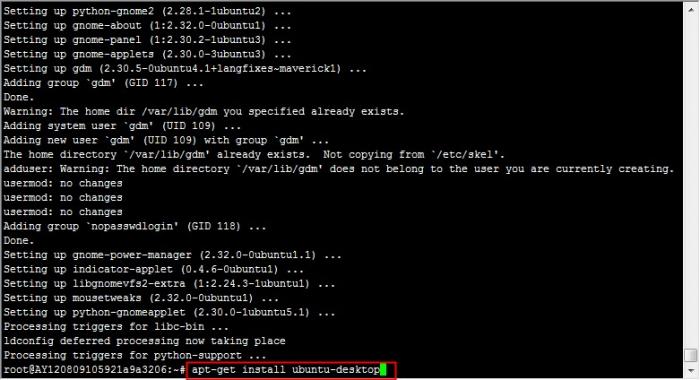
依序安裝 X Window 核心、登入管理器、Ubuntu 桌面:
(1) apt-get install x-window-system-core
(2) apt-get install gdm          # 或 kdm/xdm
(3) apt-get install ubuntu-desktop  # 或 kubuntu-desktop/xubuntu-desktop
安裝過程較長請耐心等待。完成後再次重啟 VNC 即可見到完整圖形界面。
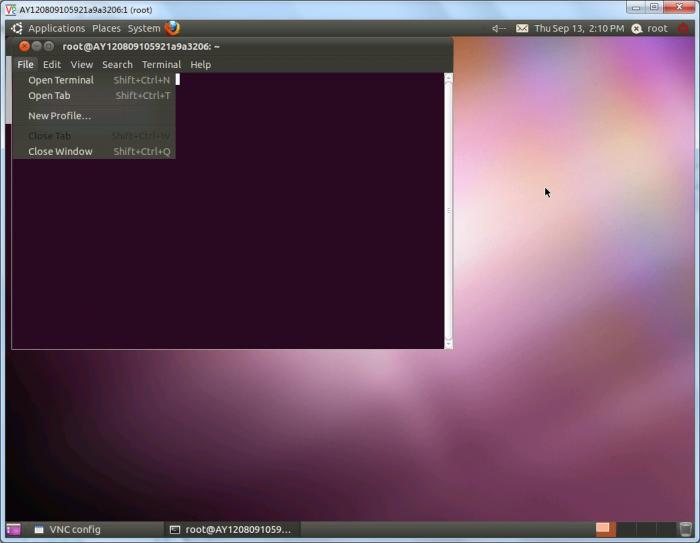
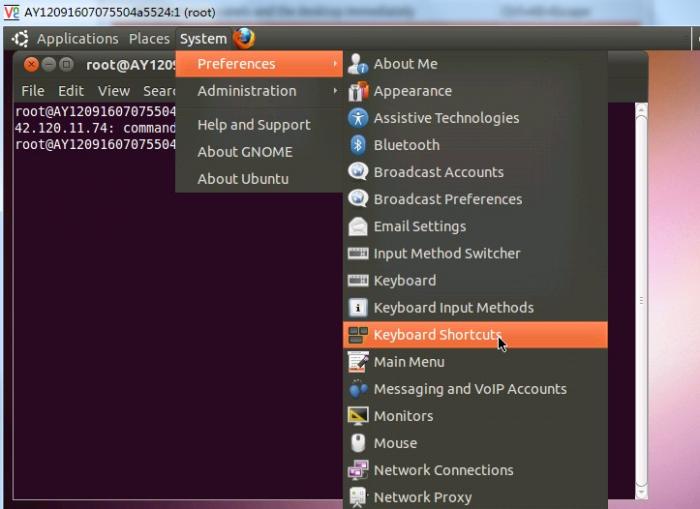
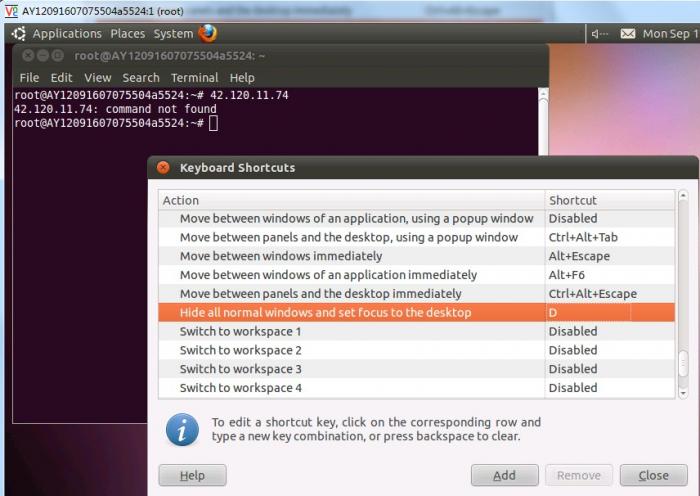
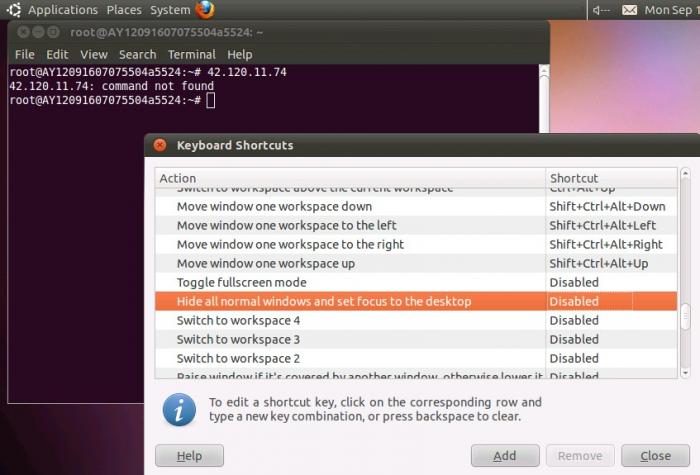
若遇 D 鍵導致桌面顯示/隱藏,請至 System → Preferences → Keyboard Shortcuts 將對應快捷鍵設為 Backspace 並停用。
編輯 /etc/rc.local,在 exit 0 前加入:
su root -c '/usr/bin/vncserver -name my-vnc-server -depth 16 -geometry 1280x800 :1'perl: warning: Setting locale failed.echo "export LC_ALL=C" >> /root/.bashrc
source /root/.bashrcxhost: unable to open displayexport LANG=en_US
export DISPLAY=localhost:1
xhost +./runInstaller -ignoreSysPrereqs