Swing 是 Java GUI 開發的基礎框架,按鈕組件是交互的核心。本文系統講解 JButton(提交按鈕)、JCheckBox(復選框)、JRadioButton(單選按鈕)的創建、屬性配置、事件處理與佈局實戰。
| 構造方法 | 說明 |
|---|---|
| 無文本無圖標 | |
| 指定文本 | |
| 指定圖標 | |
| 同時指定文本和圖標 |
setIcon(Icon) / setPressedIcon() / setRolloverIcon():不同狀態圖標setToolTipText(String):懸停提示setBorderPainted(boolean):是否繪製邊框setContentAreaFilled(boolean):是否填充內容區setFocusPainted(boolean):是否繪製焦點框setEnabled(boolean):啟用/禁用setMnemonic(int):快捷鍵public class JButtonDemo extends JFrame {
public JButtonDemo() {
// 1. 獲取圖片資源(放在 classpath 下)
URL imgUrl = JButtonDemo.class.getResource("/images/button.jpg");
Icon icon = new ImageIcon(imgUrl);
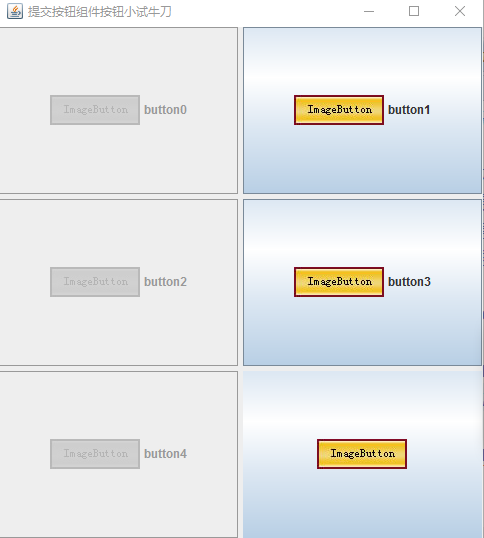
// 2. 佈局:3行2列,間隙5
setLayout(new GridLayout(3, 2, 5, 5));
Container container = getContentPane();
// 3. 批量創建按鈕,偶數禁用
for (int i = 0; i < 5; i++) {
JButton btn = new JButton("Button " + i, icon);
if (i % 2 == 0) btn.setEnabled(false);
container.add(btn);
}
// 4. 進階按鈕:純圖標、無邊框、提示、點擊彈窗
JButton advancedBtn = new JButton();
advancedBtn.setIcon(icon);
advancedBtn.setBorderPainted(false);
advancedBtn.setToolTipText("這是純圖標按鈕");
advancedBtn.setPreferredSize(new Dimension(icon.getIconWidth(), icon.getIconHeight()));
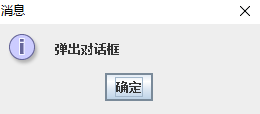
advancedBtn.addActionListener(e ->
JOptionPane.showMessageDialog(this, "點擊觸發!"));
container.add(advancedBtn);
// 窗口設置
setTitle("JButton 綜合演示");
setSize(500, 550);
setDefaultCloseOperation(EXIT_ON_CLOSE);
setLocationRelativeTo(null);
setVisible(true);
}
public static void main(String[] args) {
SwingUtilities.invokeLater(JButtonDemo::new);
}
}
public class CheckBoxDemo extends JFrame {
    private JTextArea logArea = new JTextArea(20, 50);

    public CheckBoxDemo() {
        setLayout(new BorderLayout());

        // 北部:日誌區域 + 滾動條
        JScrollPane scrollPane = new JScrollPane(logArea);
        add(scrollPane, BorderLayout.NORTH);

        // 南部:三個復選框
        JPanel panel = new JPanel();
        JCheckBox cb1 = new JCheckBox("選項 1");
        JCheckBox cb2 = new JCheckBox("選項 2");
        JCheckBox cb3 = new JCheckBox("選項 3");

        panel.add(cb1); panel.add(cb2); panel.add(cb3);
        add(panel, BorderLayout.SOUTH);

        // 統一監聽器
        ActionListener listener = e -> {
            JCheckBox source = (JCheckBox) e.getSource();
            logArea.append(source.getText() + " : " + (source.isSelected() ? "選中" : "取消") + "\n");
        };
        cb1.addActionListener(listener);
        cb2.addActionListener(listener);
        cb3.addActionListener(listener);

        setTitle("JCheckBox 事件演示");
        setSize(600, 650);
        setDefaultCloseOperation(EXIT_ON_CLOSE);
        setLocationRelativeTo(null);
        setVisible(true);
    }
}
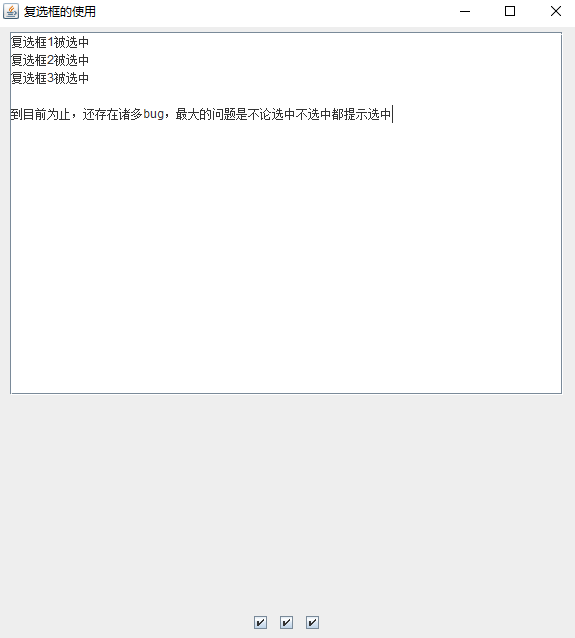
ButtonGroup 實現互斥public class RadioButtonDemo extends JFrame {
public RadioButtonDemo() {
ButtonGroup group = new ButtonGroup();
JPanel panel = new JPanel();
JRadioButton rb1 = new JRadioButton("選項 A");
JRadioButton rb2 = new JRadioButton("選項 B");
JRadioButton rb3 = new JRadioButton("選項 C");
group.add(rb1); group.add(rb2); group.add(rb3);
panel.add(rb1); panel.add(rb2); panel.add(rb3);
add(panel);
setTitle("JRadioButton 基礎演示");
setSize(200, 150);
setDefaultCloseOperation(EXIT_ON_CLOSE);
setLocationRelativeTo(null);
setVisible(true);
}
}
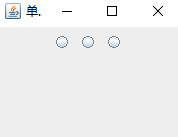
public class FormDemo extends JFrame {
    public FormDemo() {
        setLayout(new GridLayout(3, 1));
        Container cp = getContentPane();

        // 第1行:愛好(多選)
        JPanel p1 = new JPanel();
        p1.add(new JLabel("愛好:"));
        p1.add(new JCheckBox("籃球"));
        p1.add(new JCheckBox("足球"));
        p1.add(new JCheckBox("排球"));
        cp.add(p1);

        // 第2行:性別(單選)
        JPanel p2 = new JPanel();
        ButtonGroup genderGroup = new ButtonGroup();
        JRadioButton male = new JRadioButton("男");
        JRadioButton female = new JRadioButton("女");
        genderGroup.add(male); genderGroup.add(female);
        p2.add(new JLabel("性別:"));
        p2.add(male); p2.add(female);
        cp.add(p2);

        // 第3行:按鈕
        JPanel p3 = new JPanel();
        p3.add(new JButton("提交"));
        p3.add(new JButton("重置"));
        cp.add(p3);

        setTitle("綜合表單演示");
        setSize(400, 300);
        setDefaultCloseOperation(EXIT_ON_CLOSE);
        setLocationRelativeTo(null);
        setVisible(true);
    }
}
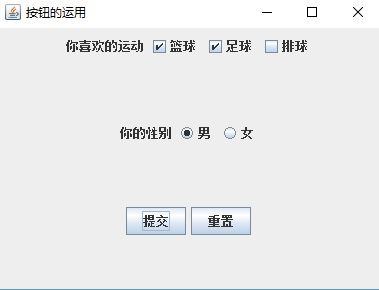
| 組件 | 適用場景 | 關鍵點 |
|---|---|---|
| JButton | 觸發動作(提交、取消、導航) | 圖標狀態分離、ToolTip、Mnemonic |
| JCheckBox | 獨立開關、多選項 | isSelected() 獲取狀態、ActionListener 監聽 |
| JRadioButton | 互斥單選(性別、支付方式) | 必須配合 ButtonGroup、預設選中 setSelected(true) |
SwingUtilities.invokeLater() 啟動 EDT,避免線程安全問題。MigLayout(第三方)或 GroupLayout,避免絕對定位。