提到 Office 相關開發,許多開發者第一反應是 VBA (Visual Basic for Applications),但其實 ATL (Active Template Library) 同樣是開發 Office 擴充功能的強大工具。本文將詳細示範如何使用 VC++ ATL,透過實作 IDTExtensibility2 介面,為 Microsoft Word 建立一個功能完整的 COM 增益集,包含工具列按鈕、選單項目與事件回應機制,並簡述如何與 Office 巨集進行混合程式設計。
在 Visual C++ 環境中,使用 ATL COM AppWizard 建立名為 WordAddin 的專案:
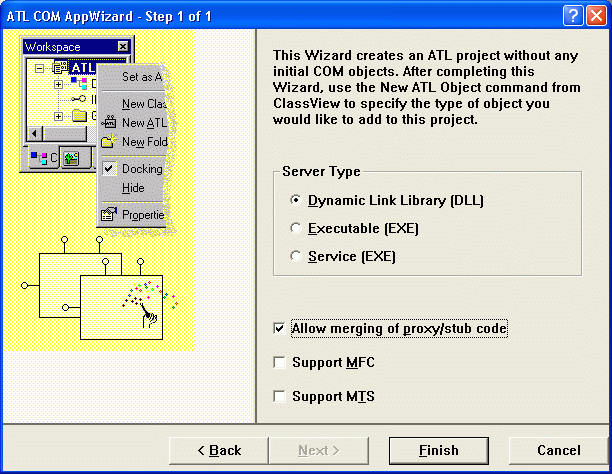
圖一:ATL COM AppWizard 設定對話框
選擇 Insert → Insert New ATL Object,在分類中選擇 Object,右側選擇 Simple Object:
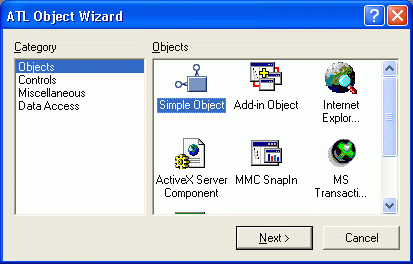
圖二:新增 ATL 物件精靈
在 Names 屬性頁的 Short Name 填入 Addin:
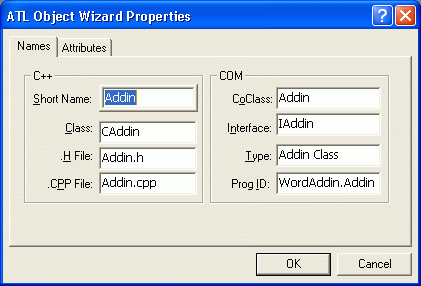
圖三:設定物件名稱為 Addin
在 Attributes 屬性頁勾選 Support ISupportErrorInfo:
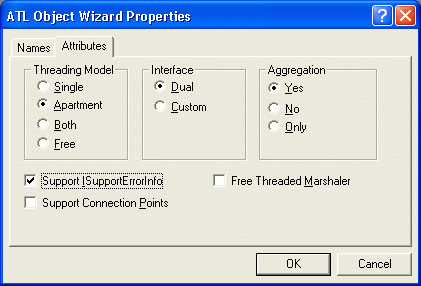
圖四:啟用錯誤資訊支援
編譯專案確認無誤後,繼續下一步。
IDTExtensibility2 定義於 MSADDNDR.dll/type library 中 (通常位於 C:\Program Files\Common Files\Designer),提供 5 個核心事件:
OnConnection - 增益集連接時觸發OnDisconnection - 增益集斷開時觸發OnAddInsUpdate - 增益集集合變更時觸發OnStartupComplete - 主機應用程式啟動完成時觸發OnBeginShutdown - 主機應用程式開始關閉時觸發CAddin 類別,選擇 Implement InterfaceIDTExtensibility2 並確定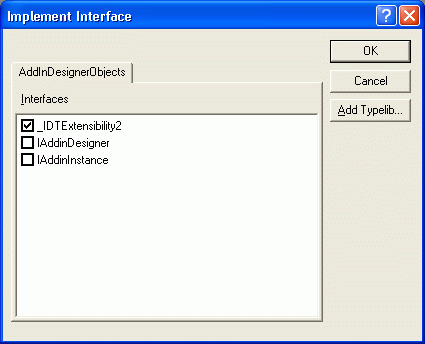
圖五:實作介面對話框
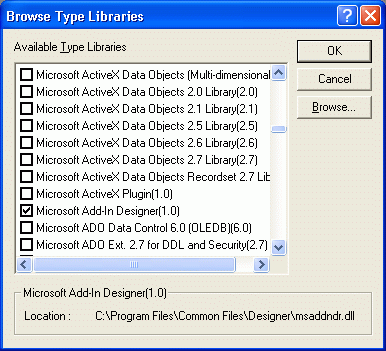
圖六:選擇 Microsoft Add-in Designer
圖七:選擇 IDTExtensibility2 介面
精靈會自動新增 5 個事件的預設實作,並更新 COM_INTERFACE_MAP()。
開啟 Addin.rgs 檔案,加入以下登錄資訊:
HKCU
{
    Software
    {
        Microsoft
        {
            Office
            {
                Word
                {
                    Addins
                    {
                        'WordAddin.Addin'
                        {
                            val FriendlyName = s 'WORD Custom Addin'
                            val Description = s 'Word Custom Addin'
                            val LoadBehavior = d '00000003'
                            val CommandLineSafe = d '00000001'
                        }
                    }
                }
            }
        }
    }
}
重新編譯專案即可完成註冊。
設定偵錯的執行檔為 Word 2000 (注意路徑需正確),執行專案。若成功,增益集已載入 Word 中。
在 Office 中,功能表列、工具列與彈出式功能表統稱為命令列 (CommandBar 物件)。所有命令列皆可包含其他命令列與任意數量的控制項。所有命令列由 CommandBars 集合管理,透過其 Add() 方法可新增命令列,每個 CommandBar 擁有 CommandBarControls 集合包含其所有控制項。
在 stdafx.h 加入:
#import "C:\Program Files\Microsoft Office\Office\mso9.dll" \
    rename_namespace("Office") named_guids
using namespace Office;

#import "C:\Program Files\Microsoft Office\Office\MSOUTL9.olb" \
    rename_namespace("Word"), raw_interfaces_only, named_guids
using namespace Outlook;
注意: 路徑需依實際 Office 安裝位置調整。
透過 Application 物件的 get_CommandBars 取得命令列集合,再呼叫 Add 建立新工具列,接著透過 CommandBarControls::Add 新增按鈕:
CComQIPtr<_Application> spApp(Application);
ATLASSERT(spApp);
m_spApp = spApp;
HRESULT hr = AppEvents::DispEventAdvise(m_spApp);
if(FAILED(hr)) return hr;

CComPtr<Office::_CommandBars> spCmdBars;
CComPtr<Office::CommandBar> spCmdBar;
hr = m_spApp->get_CommandBars(&spCmdBars);
if(FAILED(hr)) return hr;
ATLASSERT(spCmdBars);

// 新增工具列
CComVariant vName("WordAddin");
CComPtr<Office::CommandBar> spNewCmdBar;
CComVariant vPos(1); // msoBarTop
CComVariant vTemp(VARIANT_TRUE);
CComVariant vEmpty(DISP_E_PARAMNOTFOUND, VT_ERROR);
spNewCmdBar = spCmdBars->Add(vName, vPos, vEmpty, vTemp);

// 取得工具列控制項集合
CComPtr<Office::CommandBarControls> spBarControls;
spBarControls = spNewCmdBar->GetControls();
ATLASSERT(spBarControls);

// 新增兩個按鈕
CComVariant vToolBarType(1); // msoControlButton
CComVariant vShow(VARIANT_TRUE);
CComPtr<Office::CommandBarControl> spNewBar, spNewBar2;
spNewBar = spBarControls->Add(vToolBarType, vEmpty, vEmpty, vEmpty, vShow);
ATLASSERT(spNewBar);
spNewBar2 = spBarControls->Add(vToolBarType, vEmpty, vEmpty, vEmpty, vShow);
ATLASSERT(spNewBar2);

// 設定按鈕樣式、圖示、提示文字等
_bstr_t bstrNewCaption(OLESTR("Item1"));
_bstr_t bstrTipText(OLESTR("Tooltip for Item1"));

CComQIPtr<Office::_CommandBarButton> spCmdButton(spNewBar);
CComQIPtr<Office::_CommandBarButton> spCmdButton2(spNewBar2);
ATLASSERT(spCmdButton);
m_spButton = spCmdButton;
ATLASSERT(spCmdButton2);

// 按鈕 1:使用自訂點陣圖
HBITMAP hBmp = (HBITMAP)::LoadImage(_Module.GetResourceInstance(),
    MAKEINTRESOURCE(IDB_BITMAP1), IMAGE_BITMAP, 0, 0, LR_LOADMAP3DCOLORS);
::OpenClipboard(NULL);
::EmptyClipboard();
::SetClipboardData(CF_BITMAP, (HANDLE)hBmp);
::CloseClipboard();
::DeleteObject(hBmp);

spCmdButton->PutStyle(Office::msoButtonIconAndCaption);
hr = spCmdButton->PasteFace();
if (FAILED(hr)) return hr;
spCmdButton->PutVisible(VARIANT_TRUE);
spCmdButton->PutCaption(OLESTR("Item1"));
spCmdButton->PutEnabled(VARIANT_TRUE);
spCmdButton->PutTooltipText(OLESTR("Tooltip for Item1"));
spCmdButton->PutTag(OLESTR("Tag for Item1"));
spCmdButton->put_OnAction(OLESTR("MYMacro1"));

// 按鈕 2:使用內建圖示
spNewCmdBar->PutVisible(VARIANT_TRUE);
spCmdButton2->PutStyle(Office::msoButtonIconAndCaption);
spCmdButton2->PutFaceId(1758);
spCmdButton2->PutVisible(VARIANT_TRUE);
spCmdButton2->PutCaption(OLESTR("Item2"));
spCmdButton2->PutEnabled(VARIANT_TRUE);
spCmdButton2->PutTooltipText(OLESTR("Tooltip for Item2"));
spCmdButton2->PutTag(OLESTR("Tag for Item2"));
spCmdButton2->PutVisible(VARIANT_TRUE);
spCmdButton2->put_OnAction(OLESTR("MYMacro2"));流程類似:取得主功能表列 (get_ActiveMenuBar),定位至「格式」功能表 (第 5 項),在其 CommandBarControls 中新增項目:
_bstr_t bstrNewMenuText(OLESTR("New Menu Item"));
CComPtr<Office::CommandBarControls> spCmdCtrls, spCmdBarCtrls;
CComPtr<Office::CommandBarPopup> spCmdPopup;
CComPtr<Office::CommandBarControl> spCmdCtrl;

hr = spCmdBars->get_ActiveMenuBar(&spCmdBar);
if (FAILED(hr)) return hr;

spCmdCtrls = spCmdBar->GetControls();
ATLASSERT(spCmdCtrls);

CComVariant vItem(5); // 第 5 個功能表 (格式)
spCmdCtrl = spCmdCtrls->GetItem(vItem);
ATLASSERT(spCmdCtrl);

IDispatchPtr spDisp;
spDisp = spCmdCtrl->GetControl();

CComQIPtr<Office::CommandBarPopup> ppCmdPopup(spDisp);
ATLASSERT(ppCmdPopup);
spCmdBarCtrls = ppCmdPopup->GetControls();
ATLASSERT(spCmdBarCtrls);

CComVariant vMenuType(1), vMenuPos(6), vMenuEmpty(DISP_E_PARAMNOTFOUND, VT_ERROR);
CComVariant vMenuShow(VARIANT_TRUE), vMenuTemp(VARIANT_TRUE);
CComPtr<Office::CommandBarControl> spNewMenu;
spNewMenu = spCmdBarCtrls->Add(vMenuType, vMenuEmpty, vMenuEmpty, vMenuEmpty, vMenuTemp);
ATLASSERT(spNewMenu);

spNewMenu->PutCaption(bstrNewMenuText);
spNewMenu->PutEnabled(VARIANT_TRUE);
spNewMenu->PutVisible(VARIANT_TRUE);

// 設定選單項目圖示
CComQIPtr<Office::_CommandBarButton> spCmdMenuButton(spNewMenu);
ATLASSERT(spCmdMenuButton);
spCmdMenuButton->PutStyle(Office::msoButtonIconAndCaption);
spCmdMenuButton->PasteFace();
spNewMenu->PutVisible(VARIANT_TRUE);

return S_OK;ATL 提供 IDispEventImpl 與 IDispEventSimpleImpl 兩個模板類別處理 IDispatch 事件。這裡選用不需額外型別程式庫的 IDispEventSimpleImpl:
class ATL_NO_VTABLE CAddin :
    public CComObjectRootEx<CComSingleThreadModel>,
    ...
public IDispEventSimpleImpl<1, CAddin, &__uuidof(Office::_CommandBarButtonEvents)>void __stdcall OnClickButton(IDispatch* /*Office::_CommandBarButton*/ Ctrl,
VARIANT_BOOL* CancelDefault);在 CAddin.h 最上方宣告:
extern _ATL_FUNC_INFO OnClickButtonInfo;在 CAddin.cpp 定義:
_ATL_FUNC_INFO OnClickButtonInfo =
{CC_STDCALL, VT_EMPTY, 2, {VT_DISPATCH, VT_BYREF | VT_BOOL}};void __stdcall CAddin::OnClickButton(IDispatch* /*Office::_CommandBarButton*/ Ctrl,
VARIANT_BOOL* CancelDefault)
{
USES_CONVERSION;
CComQIPtr<Office::_CommandBarButton> pCommandBarButton(Ctrl);
MessageBox(NULL, "Clicked Button1", "OnClickButton", MB_OK);
}BEGIN_SINK_MAP(CAddin)
SINK_ENTRY_INFO(1, __uuidof(Office::_CommandBarButtonEvents),
0x01, OnClickButton, &OnClickButtonInfo)
END_SINK_MAP()在 OnConnection() 呼叫 DispEventAdvise(),在 OnDisconnection() 呼叫 DispEventUnadvise()。
執行專案,點擊工具列新增按鈕即可彈出訊息方塊。
若已熟悉 VBA,可直接指定巨集名稱作為按鈕動作:
spCmdButton->put_OnAction(OLESTR("YourMacroName"));本文示範了使用 ATL 開發 Office COM 增益集的完整流程,從專案建立、介面實作、UI 元素新增到事件處理。若欲深入 ATL 內部機制,建議參考《ATL Internals》一書。