初學者常因不熟悉 Layout Manager 的運作機制,而陷入「無法控制元件大小、間距」的困境。本文透過一個具體的資料庫應用程式介面範例,示範如何巧妙組合 BorderLayout、FlowLayout、GridLayout 達到彈性、美觀的自動版面配置。
典型資料庫應用介面包含三大區塊:
JTable 在 JScrollPane 中)JFrame (BorderLayout)
├─ NORTH: JPanel (FlowLayout: LEFT, hgap=5, vgap=10) → 查詢區元件
├─ CENTER: JPanel (BorderLayout) → JScrollPane (JTable)
└─ SOUTH: JPanel (FlowLayout: CENTER, hgap=30, vgap=5) → 功能按鈕
setLayout(new BorderLayout()) (預設即為 BorderLayout)。FlowLayout,setAlignment(FlowLayout.LEFT) 讓元件靠左;setPreferredSize() 控制文字欄寬度。FlowLayout,setHgap(30) 設定按鈕水平間距。JScrollPane 置於 BorderLayout.CENTER,自動填滿剩餘空間;JTable.setAutoResizeMode(JTable.AUTO_RESIZE_OFF) 啟用水平捲軸。setDefaultCloseOperation(EXIT_ON_CLOSE)。public class Frame1 extends JFrame {
// 元件宣告略...
private void jbInit() {
getContentPane().setLayout(new BorderLayout());
// 北部查詢區
jPanel1.setBackground(Color.red);
jPanel1.setLayout(flowLayout1);
flowLayout1.setAlignment(FlowLayout.LEFT);
flowLayout1.setHgap(5); flowLayout1.setVgap(10);
jLabel1.setPreferredSize(new Dimension(100,16));
jLabel1.setText("請輸入查詢條件");
jTextField1.setPreferredSize(new Dimension(140,22));
jButton1.setText("查詢");
jPanel1.add(jLabel1); jPanel1.add(jTextField1); jPanel1.add(jButton1);
// 南部按鈕區
jPanel2.setBackground(Color.orange);
jPanel2.setLayout(flowLayout2);
flowLayout2.setHgap(30); flowLayout2.setVgap(5);
jButton2.setText("增加"); jButton3.setText("刪除"); jButton4.setText("修改");
jPanel2.add(jButton2); jPanel2.add(jButton3); jPanel2.add(jButton4);
// 中部表格區
jPanel3.setBackground(Color.pink);
jPanel3.setLayout(new BorderLayout());
jPanel3.add(jScrollPane1, BorderLayout.CENTER);
jScrollPane1.getViewport().add(jTable1);
// 組裝
getContentPane().add(jPanel1, BorderLayout.NORTH);
getContentPane().add(jPanel2, BorderLayout.SOUTH);
getContentPane().add(jPanel3, BorderLayout.CENTER);
setDefaultCloseOperation(EXIT_ON_CLOSE);
}
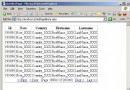
// 查詢按鈕事件:模擬產生 30 欄 x 100 列資料
void jButton1_actionPerformed(ActionEvent e) {
Vector vcol = new Vector(), vrow = new Vector();
for (int c=1; c<=30; c++) vcol.add("欄"+c);
for (int r=1; r<=100; r++) {
Vector vr = new Vector();
for (int c=1; c<=30; c++) vr.add(r+"/"+c);
vrow.add(vr);
}
jTable1 = new JTable(vrow, vcol);
jTable1.setAutoResizeMode(JTable.AUTO_RESIZE_OFF);
jScrollPane1.getViewport().add(jTable1);
}
public static void main(String[] args) {
new Frame1().show();
}
}
| Layout | 元件大小 | 適用場景 |
|---|---|---|
| FlowLayout | 保持 preferredSize | 按鈕列、工具列、簡單對齊 |
| GridLayout | 強制填滿等分格子 | 計算機鍵盤、棋盤、等寬表單欄位 |
| BorderLayout | N/S 保持高度、E/W 保持寬度、CENTER 填滿剩餘 | 主視窗大區塊切割 |
| GridBagLayout | 極度彈性,需 GridBagConstraints 精細控制 | 複雜表單、報表編輯器 |
善用容器巢狀,將複雜介面拆解為「大區塊用 BorderLayout、列狀用 FlowLayout、矩陣用 GridLayout」,即可輕鬆掌握自動版面配置,無需手動計算座標。