.jrxml(XML 定義)→ 編譯為 .jasper(二進位)供引擎執行iReport.bat 啟動(Linux/Mac 用 iReport.sh)File → New Document 或工具列圖示Report Name:命名(如 EmployeeReport)Page size:A4、Letter 等i18n → XML Encoding:建議 UTF-8(舊版預設),中文環境可改 GB2312/Big5,但 UTF-8 通用性最佳DataSource → Connections/DataSources → New
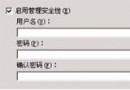
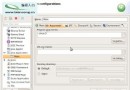
JDBCMySQL_HR)com.mysql.cj.jdbc.Driver (MySQL 8+) 或 com.microsoft.sqlserver.jdbc.SQLServerDriverjdbc:mysql://localhost:3306/hrdb?useSSL=false&serverTimezone=UTCWizard 更新 URL → Test 驗證連線DataSource → Report query
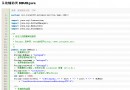
SELECT emp_id, emp_name, dept, salary FROM employeeAutomatically Retrieve Fields → Read Fields 讀取欄位清單View → Report Fields 拖入 Detail 區,或手工繪製文字欄位設定 $F{emp_name} 等運算式Title 區放置靜態文字「員工薪資表」.jasperBuild 選單匯出 PDF/XLS/HTMLitext-asian-5.2.0.jar (Maven: com.itextpdf:itext-asian) 放入 classpathPDF Font Name = STSong-LightPDF Encoding = UniGB-UCS2-H (簡體) / UniCNS-UCS2-H (繁體)PDF Embedded = true| 現象 | 原因 | 修正 |
|---|---|---|
| 預覽僅顯示標題,資料欄位為 null | 點擊「靜態預覽」而非「動態填充」 | 使用資料庫圖示按鈕 |
編譯報 NoClassDefFoundError | 缺少 JasperReport 核心 JAR | Maven 引入 net.sf.jasperreports:jasperreports |
| 匯出 PDF 中文方塊 | 未設亞洲字體 | 依上節設定字體與編碼 |
| 欄位型別錯誤導致編譯失敗 | Field Class 與資料庫不符 | 修正為 java.lang.String/Integer/Date 等 |
// Spring Boot Controller
@GetMapping("/report/employee.pdf")
public void exportEmployeeReport(HttpServletResponse response) throws Exception {
    InputStream jasperStream = getClass().getResourceAsStream("/reports/EmployeeReport.jasper");
    JasperReport jasperReport = (JasperReport) JRLoader.loadObject(jasperStream);

    Map<String, Object> params = new HashMap<>();
    params.put("title", "員工薪資表");

    JasperPrint jasperPrint = JasperFillManager.fillReport(jasperReport, params, dataSource.getConnection());

    response.setContentType("application/pdf");
    response.setHeader("Content-Disposition", "attachment; filename=employee.pdf");
    JasperExportManager.exportReportToPdfStream(jasperPrint, response.getOutputStream());
}掌握「新建 → 資料源 → 查詢 → 版面 → 編譯 → 預覽」六步驟,並解決中文字體、欄位型別、預覽模式三大新手坑,即可快速上手 JasperReport 生態。建議直接使用最新版 JasperReport Library (7.x+) 與 Jaspersoft Studio (Eclipse-based 設計工具),獲得更好支援。