Windows 7 繼承了 Windows Vista 及更早版本的檢測平台,提供多種機制公開應用程式的診斷資訊,包含:
分析應用程式效能並善用檢測資訊,是實務上進行故障診斷的關鍵任務。Windows 檢測機制結合 Windows Performance Toolkit,能提供精簡且強大的診斷分析體驗。
注意: 本實驗展示的技術僅供教學示範,實務開發中應使用獨立的提升流程(或安裝程式)註冊效能計數器,並考慮使用多執行個體效能計數器以支援多使用者案例(如快速使用者切換、終端服務),避免影響使用者體驗。
本練習將引導您為現有的檔案複製應用程式加入 Windows 效能計數器,使其能對外公開複製進度資訊,方便程式化存取或遠端監控。
請以系統管理員身分啟動 Visual Studio,或確保應用程式以權限提升方式執行(右鍵點擊執行檔選擇「以系統管理員身分執行」),這是效能計數器註冊的必要條件。
%TrainingKitInstallfolder%\InstrumentationAndPerformance\Ex1-PerfCounters\Begin\Begin.sln,選擇 C# 或 Visual Basic 專案。FileCopyPerformanceCounters 的類別 (C#) 或模組 (VB)。static,確保只需單一執行個體。System.Diagnostics 命名空間。Initialize 方法,初始化 PerformanceCounterCategory 與 PerformanceCounter 物件。CounterCreationDataCollection 執行個體,並加入兩個計數器:
PerformanceCounterType.NumberOfItems32)PerformanceCounterType.NumberOfItems32)PerformanceCounterCategory.Exists 檢查 FileCopier 類別是否存在,若存在則刪除後重建。PerformanceCounterCategory.Create 正式註冊計數器類別與計數器。PerformanceCounter 欄位:totalFilesCounter、percentDoneCounter,並在 Initialize 中實例化。MainForm 建構函式中呼叫 FileCopyPerformanceCounters.Initialize()。FileCopyPerformanceCounters 中新增 UpdateTotalFiles(int) 與 UpdatePercentDone(int) 方法,分別設定對應計數器的 RawValue 屬性。BtnCopy_Click 或 worker_DoWork),每複製一個檔案即呼叫 UpdateTotalFiles 更新已複製檔案數。ProgressChanged)中呼叫 UpdatePercentDone 更新完成百分比。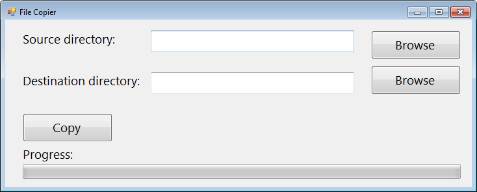
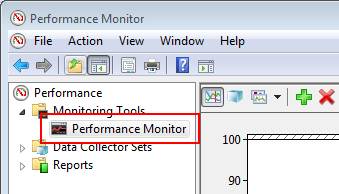

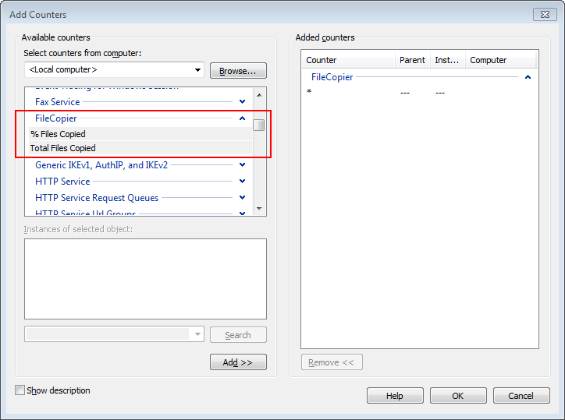
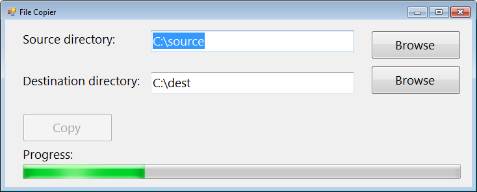
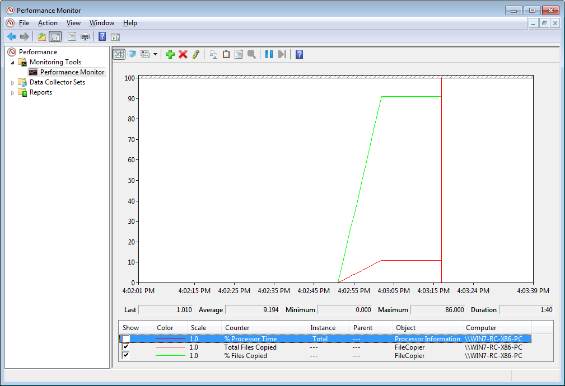
本練習示範如何在不修改程式碼、不使用第三方分析工具的情況下,利用 Windows Performance Toolkit 分析應用程式的 CPU 與 I/O 使用情形。
%TrainingKitInstallfolder%\InstrumentationAndPerformance\Ex1-PerfCounters\End 提供的完整解決方案)。C:\Program Files\Microsoft Windows Performance Toolkit)。xperf -on BASE 啟動基本檢測設定檔。xperf -d result.etl 產生追蹤檔案。xperf result.etl 開啟分析介面。del result.etl 清理追蹤檔。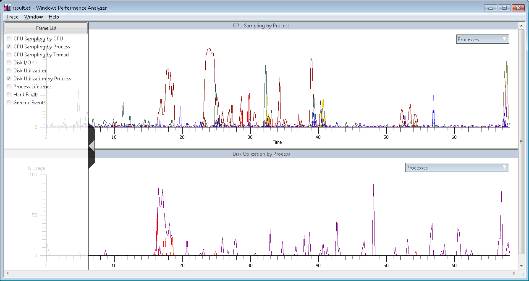
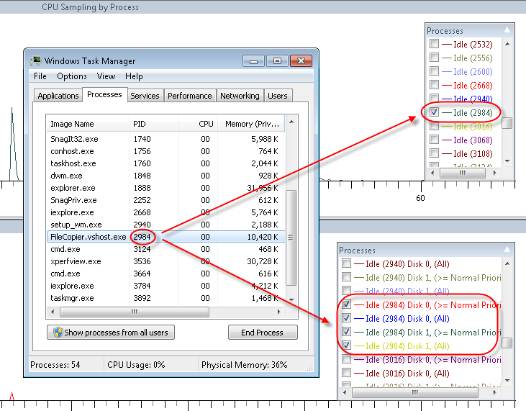
本實驗實作了兩項核心技能:
完整練習解決方案位於 %TrainingKitInstallfolder%\InstrumentationAndPerformance\Ex1-PerfCounters\End 目錄下。