WPF 4.0 透過 System.Windows.Shell 命名空間原生支援 Windows 7 任務欄進階功能。本文詳細實作四大核心特性:Overlay Icon(覆蓋圖示)、Thumbnail Toolbar(縮略圖工具列)、Progress Bar(進度條)、Thumbnail Clip(縮略圖裁剪)。
所有任務欄功能集中於 TaskbarItemInfo,在 XAML 中掛載至 Window:
<Window.TaskbarItemInfo>
    <TaskbarItemInfo x:Name="taskBar" Description="Taskbar Demo" />
</Window.TaskbarItemInfo>直接設定 Overlay 屬性為圖示資源:
<TaskbarItemInfo x:Name="taskBar" Overlay="Resources/Question.ico" />
需將 System.Drawing.Icon 轉為 ImageSource:
private ImageSource IconToBitmapSource(Icon icon) {
    using (var bitmap = icon.ToBitmap()) {
        var hBitmap = bitmap.GetHbitmap();
        try {
            return Imaging.CreateBitmapSourceFromHBitmap(
                hBitmap, IntPtr.Zero, Int32Rect.Empty, BitmapSizeOptions.FromEmptyOptions());
        } finally {
            DeleteObject(hBitmap); // P/Invoke 清理非託管資源
        }
    }
}

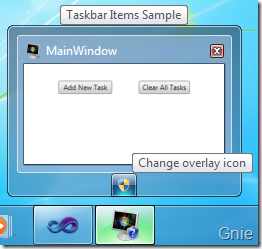
private void ChangeOverlay_Click(object sender, EventArgs e) {
    taskBar.Overlay = IconToBitmapSource(Properties.Resources.Safe);
}

在 TaskbarItemInfo.ThumbButtonInfos 集合中添加 ThumbButtonInfo:
<TaskbarItemInfo.ThumbButtonInfos>
    <ThumbButtonInfoCollection>
        <ThumbButtonInfo x:Name="btnChangeIcon"
            ImageSource="Resources/Safe.ico"
            Description="切換覆蓋圖示"
            Click="btnChangeIcon_Click"
            DismissWhenClicked="True" />
        <ThumbButtonInfo x:Name="btnProgress"
            ImageSource="Resources/Error.ico"
            Description="設定進度條錯誤狀態"
            Click="btnProgress_Click"
            DismissWhenClicked="False" />
    </ThumbButtonInfoCollection>
</TaskbarItemInfo.ThumbButtonInfos>屬性說明:
DismissWhenClicked:點擊後是否關閉縮略圖預覽(True 適合動作型按鈕,False 適合切換狀態型)ImageSource:按鈕圖示(16x16 建議尺寸)Description:滑鼠懸停提示文字五種狀態對應 TaskbarItemProgressState 列舉:
| 狀態 | 視覺效果 | 適用場景 |
|---|---|---|
None | 無進度條 | 閒置狀態 |
Indeterminate | 無限循環動畫 | 未知進度的長時間操作 |
Normal | 綠色進度條 | 正常下載/處理進度 |
Paused | 黃色進度條 | 使用者暫停操作 |
Error | 紅色進度條 | 操作失敗/錯誤狀態 |
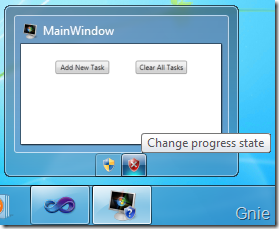
private void btnProgress_Click(object sender, EventArgs e) {
    taskBar.ProgressState = TaskbarItemProgressState.Error;
    taskBar.ProgressValue = 0.4; // 40% 位置顯示紅色
}
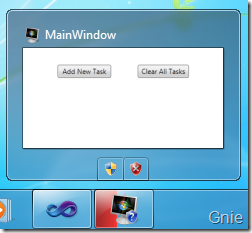
ProgressValue 範圍 0.0 ~ 1.0,超出範圍會被截斷ProgressValue,避免 UI 凍結感ProgressState.None 清除進度條透過 ThumbnailClipMargin 只顯示視窗特定區域(如僅顯示工具列):
<TaskbarItemInfo x:Name="taskBar" ThumbnailClipMargin="120,90,120,40" />四個值依序為 Left, Top, Right, Bottom(裝置獨立像素),從視窗邊緣向內裁剪。
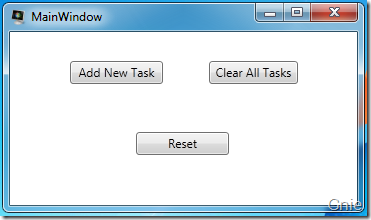
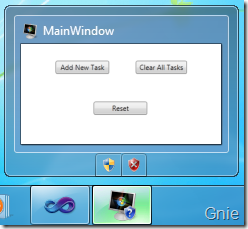
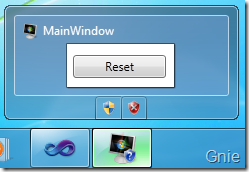
<Window x:Class="Win7TaskbarDemo.MainWindow"
        xmlns="https://schemas.microsoft.com/winfx/2006/xaml/presentation"
        xmlns:x="https://schemas.microsoft.com/winfx/2006/xaml"
        Title="Windows 7 Taskbar Demo" Height="300" Width="400">
    <Window.TaskbarItemInfo>
        <TaskbarItemInfo x:Name="taskBar"
                         Overlay="Resources/Question.ico"
                         Description="WPF 4 Taskbar Integration Demo"
                         ThumbnailClipMargin="120,90,120,40">
            <TaskbarItemInfo.ThumbButtonInfos>
                <ThumbButtonInfoCollection>
                    <ThumbButtonInfo x:Name="btnChangeIcon"
                        ImageSource="Resources/Safe.ico"
                        Description="切換覆蓋圖示為盾牌"
                        Click="btnChangeIcon_Click"
                        DismissWhenClicked="True" />
                    <ThumbButtonInfo x:Name="btnProgress"
                        ImageSource="Resources/Error.ico"
                        Description="模擬錯誤進度 40%"
                        Click="btnProgress_Click"
                        DismissWhenClicked="False" />
                </ThumbButtonInfoCollection>
            </TaskbarItemInfo.ThumbButtonInfos>
        </TaskbarItemInfo>
    </Window.TaskbarItemInfo>

    <Grid>
        <Button Content="Reset" HorizontalAlignment="Center" VerticalAlignment="Center" />
    </Grid>
</Window>GetHbitmap() 必須配對 DeleteObject (P/Invoke gdi32.dll) 避免記憶體洩漏WPF 4.0 將 Windows 7 任務欄 API 完美封裝為聲明式 XAML 屬性與事件模型,開發者無需 P/Invoke 即可實現專業級桌面整合體驗。善用覆蓋圖示傳達狀態、縮略圖工具列提供快捷操作、進度條回饋長時間任務、裁剪聚焦關鍵區域,能大幅提升應用程式的原生感與使用者生產力。