在 MediaElement 基礎上構建功能完整的播放器:播放控制列、全螢幕切換、進度條同步、音量調節、音軌切換,並說明效能優化原則。
ContentControl 包裹 MediaElement 啟用全螢幕DispatcherTimer 同步進度條<ContentControl x:Name="videoContainer" KeyUp="VideoContainer_KeyUp">
<MediaElement x:Name="videoMediaElement"
Source="Video/Azure_Tmobile_500k.wmv"
MediaOpened="videoElement_MediaOpened"
MediaEnded="videoMediaElement_MediaEnded"
MediaFailed="videoMediaElement_MediaFailed"
CurrentStateChanged="videoMediaElement_CurrentStateChanged"
PosterSource="Media/1.png"
AutoPlay="False" />
</ContentControl><StackPanel Orientation="Horizontal">
<Button x:Name="btnPlay" Click="btnPlay_Click" Content="播放"/>
<Button x:Name="btnPause" Click="btnPause_Click" Content="暫停"/>
<Button x:Name="btnStop" Click="btnStop_Click" Content="停止"/>
<Button x:Name="btnReverse" Click="btnReverse_Click" Content="快退"/>
<Button x:Name="btnForward" Click="btnForward_Click" Content="快轉"/>
<Button x:Name="btnMute" Click="btnMute_Click" Content="靜音"/>
<Button x:Name="btnFullScreenToggle" Click="btnFullScreenToggle_Click" Content="全螢幕"/>
<ComboBox x:Name="cbAudioTracks" SelectionChanged="cbAudioTracks_SelectionChanged"/>
<Button x:Name="btnVolumeDown" Click="btnVolumeDown_Click" Content="-"/>
<Button x:Name="btnVolumeUp" Click="btnVolumeUp_Click" Content="+"/>
<TextBlock x:Name="txtVolume" Text="{Binding Volume, ElementName=videoMediaElement}"/>
</StackPanel>private void btnPlay_Click(object sender, RoutedEventArgs e) {
if (videoMediaElement.DefaultPlaybackRate != 1)
videoMediaElement.DefaultPlaybackRate = 1.0;
videoMediaElement.Play();
}
private void btnPause_Click(object sender, RoutedEventArgs e) { videoMediaElement.Pause(); }
private void btnStop_Click(object sender, RoutedEventArgs e) { videoMediaElement.Stop(); }
private void btnForward_Click(object sender, RoutedEventArgs e) {
videoMediaElement.DefaultPlaybackRate = 2.0;
videoMediaElement.Play();
}
private void btnReverse_Click(object sender, RoutedEventArgs e) {
videoMediaElement.DefaultPlaybackRate = -2.0;
videoMediaElement.Play();
}
private void btnMute_Click(object sender, RoutedEventArgs e) {
videoMediaElement.IsMuted = !videoMediaElement.IsMuted;
}
private void btnVolumeUp_Click(object sender, RoutedEventArgs e) {
if (videoMediaElement.IsMuted) videoMediaElement.IsMuted = false;
if (videoMediaElement.Volume > 0) videoMediaElement.Volume -= 0.1;
}
private void btnVolumeDown_Click(object sender, RoutedEventArgs e) {
if (videoMediaElement.IsMuted) videoMediaElement.IsMuted = false;
if (videoMediaElement.Volume < 1) videoMediaElement.Volume += 0.1;
}private bool _isFullscreen = false;
private Size _previousSize;
private void FullscreenToggle() {
_isFullscreen = !_isFullscreen;
if (_isFullscreen) {
// 隱藏控制面板
TransportControlsPanel.Visibility = Visibility.Collapsed;
// 保存原始尺寸
_previousSize = new Size(videoContainer.ActualWidth, videoContainer.ActualHeight);
// 設定全螢幕尺寸
videoContainer.Width = videoMediaElement.Width = Window.Current.Bounds.Width;
videoContainer.Height = videoMediaElement.Height = Window.Current.Bounds.Height;
} else {
// 恢復控制面板與原始尺寸
TransportControlsPanel.Visibility = Visibility.Visible;
videoContainer.Width = videoMediaElement.Width = _previousSize.Width;
videoContainer.Height = videoMediaElement.Height = _previousSize.Height;
}
}
private void btnFullScreenToggle_Click(object sender, RoutedEventArgs e) { FullscreenToggle(); }
private void VideoContainer_KeyUp(object sender, KeyRoutedEventArgs e) {
if (_isFullscreen && e.Key == VirtualKey.Escape) FullscreenToggle();
e.Handled = true;
}Slider 顯示/控制播放位置DispatcherTimer 定期更新 Slider.Value = MediaElement.Positionprivate DispatcherTimer _timer;
private bool _sliderPressed = false;
private void SetupTimer() {
_timer = new DispatcherTimer { Interval = TimeSpan.FromSeconds(timelineSlider.StepFrequency) };
_timer.Tick += (s, e) => {
if (!_sliderPressed) timelineSlider.Value = videoMediaElement.Position.TotalSeconds;
};
_timer.Start();
}
private void timelineSlider_ValueChanged(object sender, RangeBaseValueChangedEventArgs e) {
if (!_sliderPressed) videoMediaElement.Position = TimeSpan.FromSeconds(e.NewValue);
}
private void slider_PointerPressed(object sender, PointerRoutedEventArgs e) { _sliderPressed = true; }
private void slider_PointerReleased(object sender, PointerRoutedEventArgs e) {
videoMediaElement.Position = TimeSpan.FromSeconds(timelineSlider.Value);
_sliderPressed = false;
}
private void videoMediaElement_CurrentStateChanged(object sender, RoutedEventArgs e) {
if (videoMediaElement.CurrentState == MediaElementState.Playing) {
if (!_sliderPressed) _timer.Start(); else _timer.Stop();
} else { _timer.Stop(); }
}
private void videoMediaElement_MediaEnded(object sender, RoutedEventArgs e) {
_timer.Stop();
timelineSlider.Value = 0;
}private void videoElement_MediaOpened(object sender, RoutedEventArgs e) {
var duration = videoMediaElement.NaturalDuration.TimeSpan;
timelineSlider.Maximum = duration.TotalSeconds;
timelineSlider.StepFrequency = CalculateStepFrequency(duration);
SetupTimer();
PopulateAudioTracks(videoMediaElement, cbAudioTracks);
}
private double CalculateStepFrequency(TimeSpan duration) {
var totalSeconds = Math.Round(duration.TotalSeconds);
var step = totalSeconds / 100;
if (duration.TotalMinutes >= 10 && duration.TotalMinutes < 30) step = 10;
else if (duration.TotalMinutes >= 30 && duration.TotalMinutes < 60) step = 30;
else if (duration.TotalHours >= 1) step = 60;
return Math.Max(1, step);
}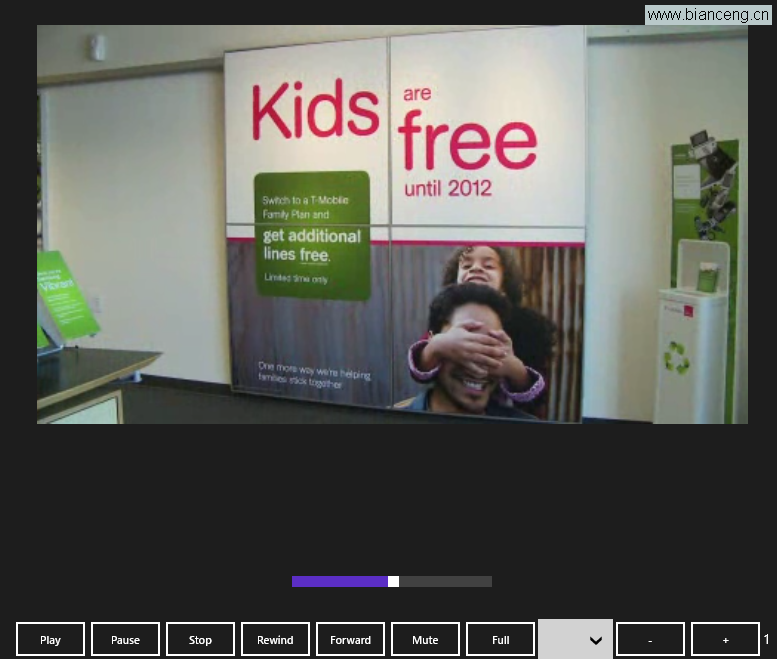
完整播放器原型完成,實際專案需進一步優化錯誤處理、緩衝策略、字幕支援等。下一章將介紹本地應用程式資料儲存。