本系列前三篇已完成 Fluent Ribbon 導航列、主題切換、狀態列。本文引入 AvalonDock 2.0,搭建標準 MDI (Multiple Document Interface) 基礎架構:靜態佈局定義、文檔容器與工具視窗容器分離、主題整合、ViewModel 驅動文檔操作。
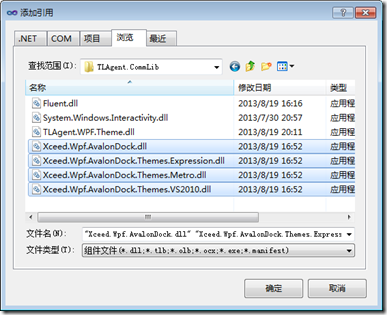
ExpressionBlueTheme、ExpressionDarkTheme、ExpressionSilverTheme、VS2010Theme、MetroTheme。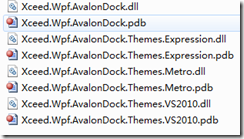
<Fluent:RibbonWindow x:Class="TLAgent.Ribbon.App.Demo.MainWindow"
        xmlns="https://schemas.microsoft.com/winfx/2006/xaml/presentation"
        xmlns:x="https://schemas.microsoft.com/winfx/2006/xaml"
        xmlns:Fluent="clr-namespace:Fluent;assembly=Fluent"
        xmlns:ad="https://schemas.xceed.com/wpf/xaml/avalondock"
        xmlns:vm="clr-namespace:TLAgent.Ribbon.App.Demo"
        Title="TLAgent.Ribbon.Application" Width="500" Height="250"
        Background="#FFEBEDF0" WindowState="Maximized"
        WindowStartupLocation="CenterScreen" Icon="/Images/usergroup.ico">

    <Grid x:Name="layoutRoot">
        <Grid.RowDefinitions>
            <RowDefinition Height="Auto"/>  <!-- Ribbon -->
            <RowDefinition Height="*"/>     <-- DockingManager -->
            <RowDefinition Height="Auto"/>  <-- StatusBar -->
        </Grid.RowDefinitions>

        <!-- Ribbon 區域 -->
        <Fluent:Ribbon Grid.Row="0">
            <Fluent:Ribbon.QuickAccessItems>
                <Fluent:QuickAccessMenuItem Target="{Binding ElementName=ButtonGreen}"/>
                <Fluent:QuickAccessMenuItem Target="{Binding ElementName=ButtonGray}"/>
            </Fluent:Ribbon.QuickAccessItems>

            <Fluent:RibbonTabItem Header="Home" ReduceOrder="(P),(P),(P),(P),(P)">
                <Fluent:RibbonGroupBox Header="Add / Remove">
                    <Fluent:Button Header="Add" Command="{Binding AddFunctionCommand}"
                                   Icon="Images\Green.png" LargeIcon="Images\GreenLarge.png" Name="ButtonGreen"/>
                    <Fluent:Button Header="Remove" Command="{Binding OpenCommand}"
                                   Icon="Images\Gray.png" LargeIcon="Images\GrayLarge.png" Name="ButtonGray"/>
                </Fluent:RibbonGroupBox>
            </Fluent:RibbonTabItem>

            <Fluent:RibbonTabItem Header="用戶管理" ReduceOrder="(P),(P),(P),(P),(P)">
                <Fluent:RibbonGroupBox Header="User Management">
                    <Fluent:Button Header="New User" Icon="Images\Pink.png" LargeIcon="Images\PinkLarge.png" Name="ButtonAddUser"/>
                    <Fluent:Button Header="Modify User" Icon="Images\Orange.png" LargeIcon="Images\OrangeLarge.png" Name="ButtonModiryUser"/>
                </Fluent:RibbonGroupBox>
            </Fluent:RibbonTabItem>

            <Fluent:Ribbon.Menu>
                <Fluent:Backstage Background="Gray">
                    <Fluent:BackstageTabControl>
                        <Fluent:Button Header="退出系統" Command="{Binding ExitSystemCommand}" Icon="Images\close.png"/>
                    </Fluent:BackstageTabControl>
                </Fluent:Backstage>
            </Fluent:Ribbon.Menu>
        </Fluent:Ribbon>

        <!-- AvalonDock 區域 -->
        <ad:DockingManager x:Name="dockManager" Grid.Row="1">
            <ad:DockingManager.Theme>
                <ad:ExpressionBlueTheme/>
            </ad:DockingManager.Theme>
            <ad:LayoutRoot>
                <ad:LayoutPanel Orientation="Vertical">
                    <ad:LayoutDocumentPane/>                     <!-- 文檔標籤容器 -->
                    <ad:LayoutAnchorablePane Name="ToolsPane" DockHeight="150"/> <!-- 工具視窗 -->
                </ad:LayoutPanel>
            </ad:LayoutRoot>
        </ad:DockingManager>

        <!-- StatusBar -->
        <StatusBar VerticalAlignment="Bottom" Height="23" Grid.Row="2">
            <StatusBarItem VerticalContentAlignment="Center">
                <TextBlock x:Name="TxtMessage" Foreground="{Binding ForeColor}"
                           FontWeight="Bold" Text="{Binding ExecuteMessage}"/>
            </StatusBarItem>
        </StatusBar>
    </Grid>
</Fluent:RibbonWindow>
using Microsoft.Practices.Prism.Commands;
using Microsoft.Practices.Prism.ViewModel;
using System.Windows;
using TLAgent.WPF.Theme;
using Xceed.Wpf.AvalonDock;
using Xceed.Wpf.AvalonDock.Layout;

namespace TLAgent.Ribbon.App.Demo
{
    class WorkspaceViewModel : NotificationObject
    {
        public DelegateCommand AddFunctionCommand { get; private set; }
        public DelegateCommand ExitSystemCommand { get; private set; }
        public DelegateCommand OpenCommand { get; private set; }

        private DockingManager _dockingManager;

        public WorkspaceViewModel()
        {
            _dockingManager = MainWindow.DockingManager; // 靜態取得 DockingManager
            AddFunctionCommand = new DelegateCommand(OnNew);
            ExitSystemCommand = new DelegateCommand(OnExit);
            OpenCommand = new DelegateCommand(OnOpen);
        }

        private void OnNew()
        {
            string functionName = "項目管理";
            CreateSystemTab(functionName);

            // 示範:同步建立左側工具視窗
            var leftGroup = _dockingManager.Layout.LeftSide.Children.FirstOrDefault();
            if (leftGroup == null)
            {
                leftGroup = new LayoutAnchorGroup();
                _dockingManager.Layout.LeftSide.Children.Add(leftGroup);
            }
            leftGroup.Children.Add(new LayoutAnchorable { Title = "New Anchorable" });

            ExecuteMessage = "成功新建, Tabs: " + functionName;
            ForeColor = new SolidColorBrush(Colors.White);
        }

        private void CreateSystemTab(string tabName)
        {
            var pane = _dockingManager.Layout.Descendents()
                                 .OfType<LayoutDocumentPane>()
                                 .FirstOrDefault();
            if (pane != null)
            {
                var doc = new LayoutDocument
                {
                    Title = tabName,
                    Content = new AddUserWindow(), // 載入實際業務 UserControl
                    IsActive = true
                };
                pane.Children.Add(doc);
            }
        }

        private void OnExit()
        {
            var result = MessageBox.Show("確定要退出系統嗎?", "確認訊息",
                                         MessageBoxButton.OKCancel, MessageBoxImage.Question);
            if (result == MessageBoxResult.OK)
            {
                // 持久化佈局
                var serializer = new XmlLayoutSerializer(_dockingManager);
                serializer.Serialize(@".\AvalonDock.config");
                Application.Current.Shutdown();
            }
        }

        private void OnOpen() { /* 主題切換示範邏輯 */ }

        #region 狀態列綁定屬性
        private string _executeMessage;
        public string ExecuteMessage
        {
            get => _executeMessage;
            set { _executeMessage = value; RaisePropertyChanged("ExecuteMessage"); }
        }

        private Brush _foreColor;
        public Brush ForeColor
        {
            get => _foreColor;
            set { _foreColor = value; RaisePropertyChanged("ForeColor"); }
        }
        #endregion
    }
}
public partial class MainWindow : RibbonWindow
{
    public static DockingManager DockingManager; // 供 ViewModel 存取

    public MainWindow()
    {
        InitializeComponent();
        DockingManager = dockManager;
        ThemeManager.ChangeTheme(dockManager, ThemeStyle.Black); // 統一主題入口
        this.DataContext = new WorkspaceViewModel();
    }
}
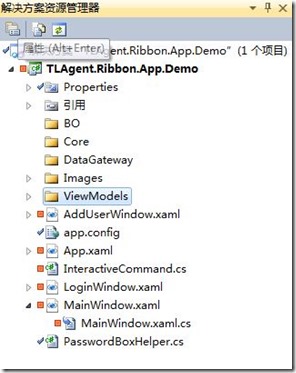
IDockingService 注入。ThemeManager.ChangeTheme 同時套用 Fluent Ribbon 與 AvalonDock 主題,確保視覺一致性。LayoutDocument.Content 直接指派 UserControl 實例,支援複雜業務表單。AvalonDock.config,下次啟動還原使用者工作環境。範例原始碼**:TLAgent.Ribbon.App.DemoDock4.rar