雖然 Visual Studio 設計器能自動產生程式碼,但手寫 InitializeComponent 能讓開發者更清楚掌握元件屬性與事件繫結。以下為完整初始化邏輯:
private void InitializeComponent()
{
    this.treeView1 = new System.Windows.Forms.TreeView();
    this.button1 = new System.Windows.Forms.Button();
    this.SuspendLayout();

    // TreeView 設定
    this.treeView1.ImageIndex = -1;
    this.treeView1.Location = new System.Drawing.Point(16, 8);
    this.treeView1.Name = "treeView1";
    this.treeView1.SelectedImageIndex = -1;
    this.treeView1.Size = new System.Drawing.Size(316, 302);
    this.treeView1.TabIndex = 0;
    this.treeView1.DoubleClick += new System.EventHandler(this.treeView1_DoubleClick);

    // Button 設定
    this.button1.Location = new System.Drawing.Point(118, 324);
    this.button1.Name = "button1";
    this.button1.Size = new System.Drawing.Size(82, 34);
    this.button1.TabIndex = 1;
    this.button1.Text = "獲取";
    this.button1.Click += new System.EventHandler(this.button1_Click);

    // Form 設定
    this.AutoScaleBaseSize = new System.Drawing.Size(6, 14);
    this.ClientSize = new System.Drawing.Size(350, 369);
    this.Controls.Add(this.button1);
    this.Controls.Add(this.treeView1);
    this.FormBorderStyle = System.Windows.Forms.FormBorderStyle.FixedSingle;
    this.MaximizeBox = false;
    this.Name = "Form1";
    this.Text = "Visual C#構建網絡計算機樹形圖";
    this.ResumeLayout(false);
}
完成上述初始化後,表單設計畫面如下:
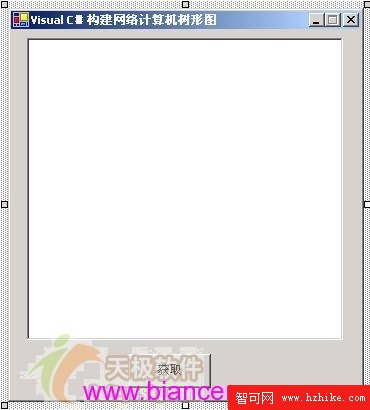
圖 01:Visual C# 構建網路電腦樹狀圖 - 設計介面
使用者點擊「獲取」按鈕時,程式會遍歷 entryPC.Children 並將每個子項(網域或工作群組)加入 TreeView:
private void button1_Click(object sender, EventArgs e)
{
    foreach (DirectoryEntry child in entryPC.Children)
    {
        TreeNode node = new TreeNode(child.Name);
        treeView1.Nodes.Add(node);
    }
}
此時樹狀圖已呈現第一層結構,雙擊節點將觸發前文的 treeView1_DoubleClick 進入第二層電腦查詢。