using System;
using System.Drawing;
using System.Collections;
using System.ComponentModel;
using System.Windows.Forms;
using System.Data;

public class Tray : Form
{
    private System.ComponentModel.Container components = null;
    private Icon trayIcon = new Icon("Tray.ico");  // 專案目錄需放置此圖示檔
    private NotifyIcon notifyIcon;
    private ContextMenu contextMenu;

    public Tray()
    {
        InitializeComponent();
        InitializeNotifyIcon();
    }

    private void InitializeNotifyIcon()
    {
        notifyIcon = new NotifyIcon();
        notifyIcon.Icon = trayIcon;
        notifyIcon.Text = "C# 系統匣程式範例\n作者:開發者 於 2024";
        notifyIcon.Visible = true;
        notifyIcon.Click += NotifyIcon_Click;

        // 建立右鍵選單
        MenuItem[] menuItems = new MenuItem[3];
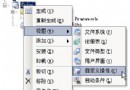
        menuItems[0] = new MenuItem("關於此程式", ShowMessage);
        menuItems[1] = new MenuItem("-"); // 分隔線
        menuItems[2] = new MenuItem("結束系統", ExitSelect) { DefaultItem = true };

        contextMenu = new ContextMenu(menuItems);
        notifyIcon.ContextMenu = contextMenu;
    }

    private void NotifyIcon_Click(object sender, EventArgs e)
    {
        MessageBox.Show("系統匣圖示被點擊了!");
    }

    private void ShowMessage(object sender, EventArgs e)
    {
        MessageBox.Show("您點擊了選單的第一個選項");
    }

    private void ExitSelect(object sender, EventArgs e)
    {
        notifyIcon.Visible = false; // 隱藏圖示 (重要:否則殘留在系統匣)
        this.Close();
    }

    protected override void Dispose(bool disposing)
    {
        if (disposing && components != null)
            components.Dispose();
        base.Dispose(disposing);
    }

    private void InitializeComponent()
    {
        this.SuspendLayout();
        this.AutoScaleBaseSize = new System.Drawing.Size(5, 13);
        this.ClientSize = new System.Drawing.Size(320, 56);
        this.ControlBox = false;      // 隱藏標題列控制盒
        this.MaximizeBox = false;
        this.MinimizeBox = false;
        this.WindowState = FormWindowState.Minimized; // 啟動即最小化
        this.Name = "Tray";
        this.ShowInTaskbar = false;   // 不在工作列顯示
        this.Text = "C# 系統匣程式範例";
        this.ResumeLayout(false);
    }

    [STAThread]
    static void Main()
    {
        Application.Run(new Tray());
    }
}
csc /t:winexe /r:System.Drawing.dll /r:System.Windows.Forms.dll Tray.cs
/t:winexe:Windows 應用程式 (無主控台視窗)System.Drawing.dll (Icon 類別) 與 System.Windows.Forms.dllTray.ico 圖示檔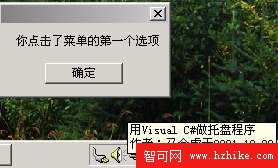
| 要點 | 實作方式 | 說明 |
|---|---|---|
| 無主視窗 | ControlBox=false, ShowInTaskbar=false, WindowState=Minimized | 啟動即隱藏,僅存在系統匣 | NotifyIcon | 核心元件,管理系統匣圖示、提示文字、事件、右鍵選單 |
| 右鍵選單 | ContextMenu + MenuItem 陣列 | 支援分隔線、預設項目、事件處理 |
| 資源清理 | Dispose() 中釋放 components,Exit 時設定 Visible=false | 防止系統匣殘留「鬼魂圖示」 |
| 圖示檔案 | 專案複製到輸出目錄,或嵌入資源流讀取 | 執行檔同目錄需有 .ico 檔 |
notifyIcon.DoubleClick += (s,e) => { this.Show(); this.WindowState = FormWindowState.Normal; };notifyIcon.ShowBalloonTip(3000, "標題", "內容", ToolTipIcon.Info);notifyIcon.Icon 顯示狀態 (如網路連線狀態)HKCU\Software\Microsoft\Windows\CurrentVersion\Run 加入捷徑Mutex 防止重複執行透過 NotifyIcon 元件,C# 開發系統匣程式極為簡單。這也再次印證:C# 雖是強大語言,但其真正威力來自 .NET Framework 基礎類別庫的豐富封裝。掌握框架提供的元件,即可輕鬆實現過去需要大量底層 API 呼叫的功能。