using System;
using System.Drawing;
using System.Collections;
using System.ComponentModel;
using System.Windows.Forms;
using System.Data;

public class Form1 : Form {
  private RichTextBox richTextBox1;
  private Button button1;
  private Container components = null;

  public Form1() { InitializeComponent(); }

  protected override void Dispose(bool disposing) {
    if (disposing && components != null) components.Dispose();
    base.Dispose(disposing);
  }

  private void InitializeComponent() {
    this.richTextBox1 = new RichTextBox();
    this.button1 = new Button();
    this.SuspendLayout();
    this.richTextBox1.Location = new Point(40, 16);
    this.richTextBox1.Name = "richTextBox1";
    this.richTextBox1.Size = new Size(336, 264);
    this.richTextBox1.TabIndex = 0;
    this.richTextBox1.Text = "";
    this.button1.Location = new Point(128, 304);
    this.button1.Name = "button1";
    this.button1.Size = new Size(128, 24);
    this.button1.TabIndex = 1;
    this.button1.Text = "取得剪貼簿資料";
    this.button1.Click += new EventHandler(this.button1_Click);
    this.AutoScaleBaseSize = new Size(6, 14);
    this.ClientSize = new Size(408, 357);
    this.Controls.Add(this.button1);
    this.Controls.Add(this.richTextBox1);
    this.Name = "Form1";
    this.Text = "用 Visual C# 儲存剪貼簿資料!";
    this.ResumeLayout(false);
  }

  [STAThread]
  static void Main() { Application.Run(new Form1()); }

  private void button1_Click(object sender, EventArgs e) {
    IDataObject data = Clipboard.GetDataObject();

    // 位圖 → 存檔
    if (data.GetDataPresent(DataFormats.Bitmap)) {
      Bitmap bmp = (Bitmap)data.GetData(DataFormats.Bitmap);
      bmp.Save(@"c:\my.bmp");
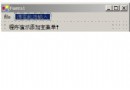
      MessageBox.Show("剪貼簿為位圖,已儲存至 MY.BMP!");
    }
    // 文字 → 顯示於 RichTextBox
    else if (data.GetDataPresent(DataFormats.Text)) {
      string txt = (string)data.GetData(DataFormats.Text);
      richTextBox1.Text = txt;
    }
    else {
      MessageBox.Show("剪貼簿為其他資料類型!");
    }
  }
}
Clipboard.GetDataObject() 回傳實作此介面的物件,統一存取不同格式資料。DataFormats.Bitmap、Text、Html 等 21 種預定義格式)。GetData 回傳 object,需強制轉型為實值型別(Bitmap、string),此為參考型別轉實值型別的拆箱操作。掌握剪貼簿讀取/儲存後,可輕鬆開發:螢幕擷圖工具、格式轉換器、剪貼簿歷史管理器、自動排版貼上工具等實用小程式。