承接前文資料型別、運算子與控制流程,本文透過實作「必應壁紙查詢下載工具」深入學習方法設計。工具具備三大功能:
同步複習:控制台輸入輸出、字串擷取、方法封裝與呼叫。
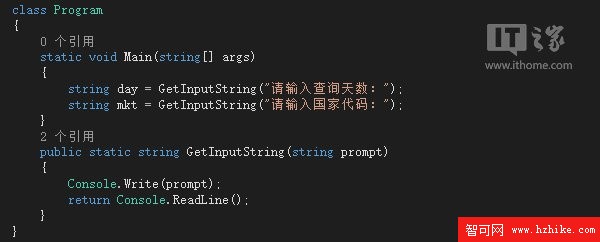
功能重複使用時,將邏輯封裝為方法:輸入參數 → 內部處理 → 回傳結果。呼叫者無需知悉內部實現,提升可讀性與維護性。方法可無參數、無回傳值。
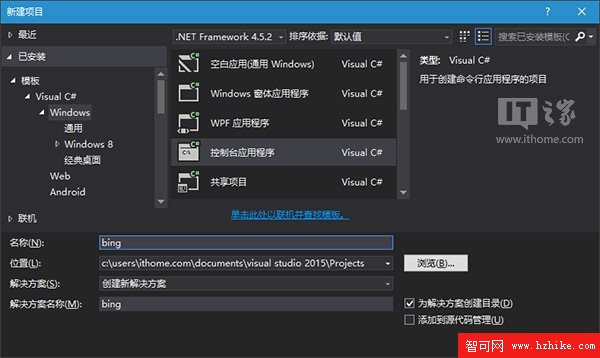
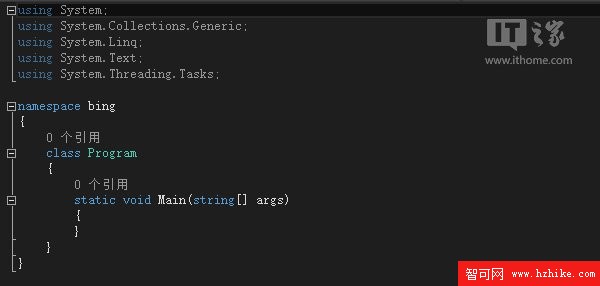
Visual Studio 2015 → 新增專案 → Visual C# → Windows → 控制台應用程式,命名為 bing。預設產生 Program 類別與 Main 進入點。
static string GetInputString(string prompt)
{
    Console.Write(prompt);  // 不換行提示
    return Console.ReadLine();  // 回傳輸入字串
}命名慣例:方法用 PascalCase(GetInputString),參數與區域變數用 camelCase(prompt)。
在 Main 中呼叫:
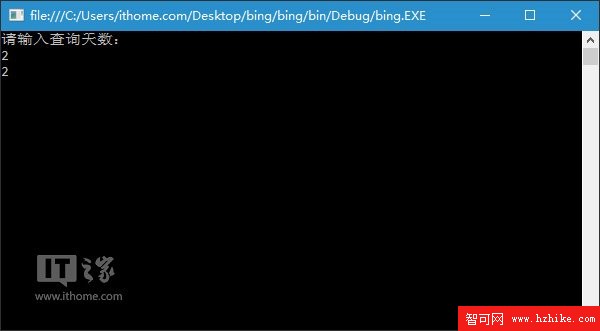
string day = GetInputString("請輸入日期(-1~15):");
string mkt = GetInputString("請輸入國家代碼:");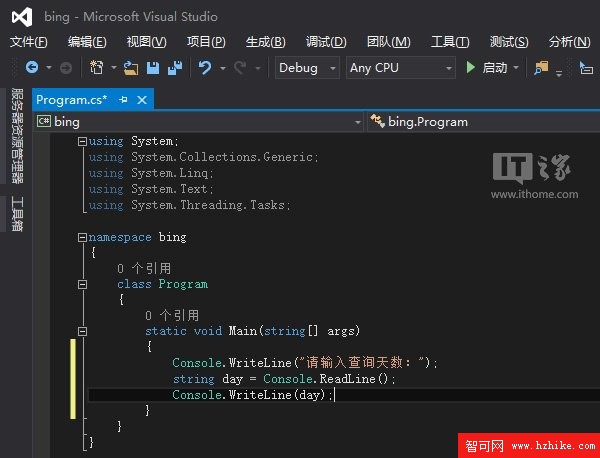
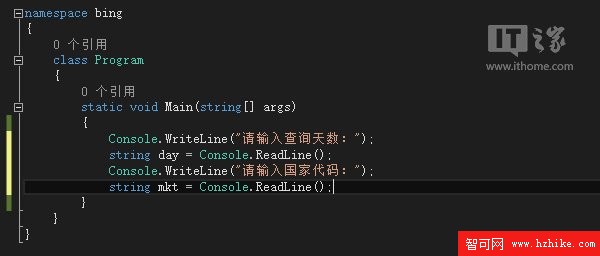
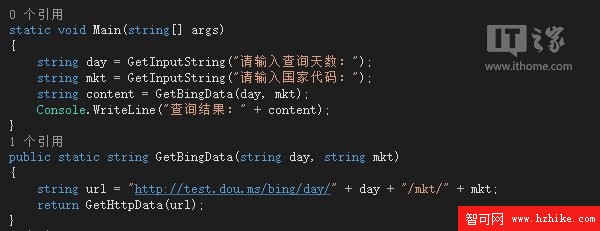
使用簡易 API:https://test.dou.ms/bing/day/{day}/mkt/{mkt}
day:-1(明天) ~ 15(15天前)mkt:zh-cn、en-us、ja-jp 等,不分大小寫封裝 HTTP 請求方法 GetHttpData(需 using System.IO; using System.Net;):
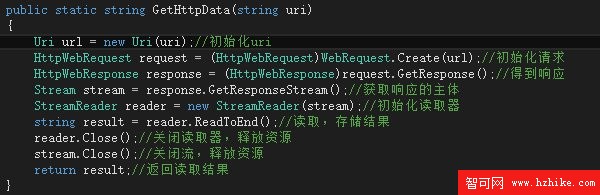
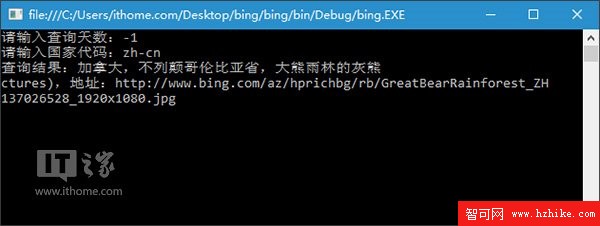
呼叫並輸出結果:
string url = "https://test.dou.ms/bing/day/" + day + "/mkt/" + mkt;
string content = GetHttpData(url);
Console.WriteLine(content);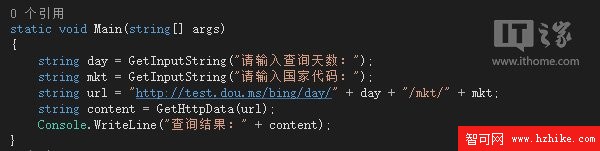
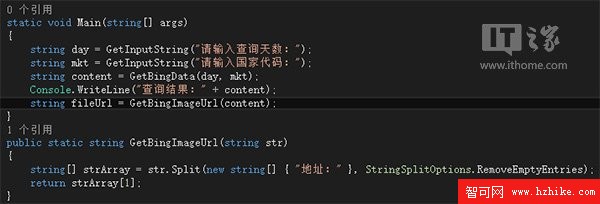
回傳字串格式含「地址:」前綴,使用 Split() 分割擷取:
static string GetBingImageUrl(string content)
{
    return content.Split(new string[] { "地址:" }, StringSplitOptions.None)[1];
}
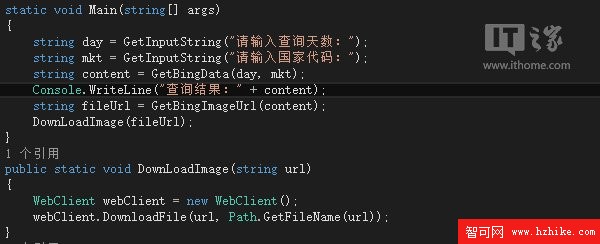
使用 WebClient.DownloadFile,檔名自動從網址取得:
static void DownloadImage(string url)
{
    using (WebClient client = new WebClient())
    {
        string fileName = Path.GetFileName(url);
        client.DownloadFile(url, fileName);  // 儲存至專案 \bin\Debug
    }
}
透過 P/Invoke 調用 user32.dll 的 SystemParametersInfo:
[DllImport("user32.dll", SetLastError = true)]
static extern bool SystemParametersInfo(uint uiAction, uint uiParam, string pvParam, uint fWinIni);

static void SetWallpaper(string path)
{
    const uint SPI_SETDESKWALLPAPER = 0x0014;
    const uint SPIF_UPDATEINIFILE = 0x01;
    SystemParametersInfo(SPI_SETDESKWALLPAPER, 0, path, SPIF_UPDATEINIFILE);
}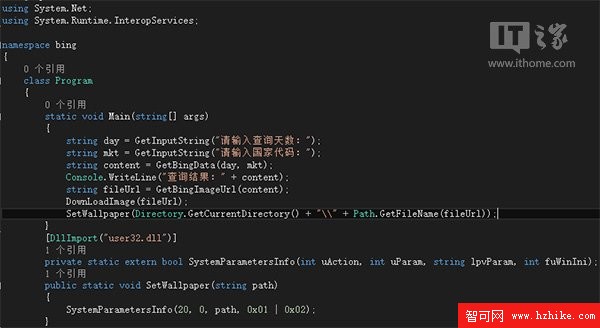
路徑拼接注意逸出字元:Directory.GetCurrentDirectory() + "\\" + fileName。
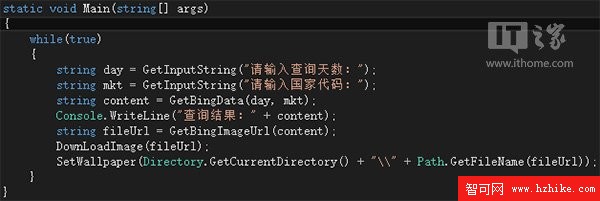
用 while (true) 包裹 Main 邏輯,直到手動關閉視窗:
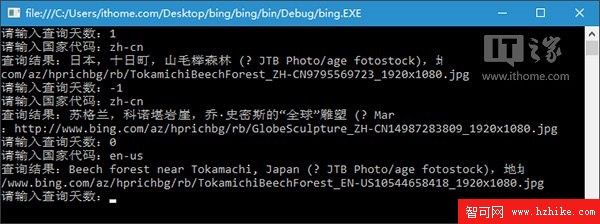
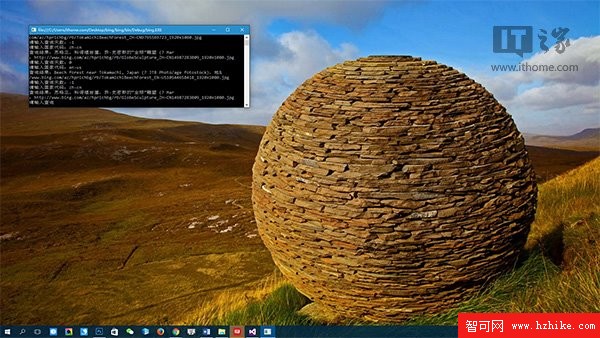
本文實作涵蓋:自訂方法、靜態方法呼叫、實例方法呼叫、P/Invoke、檔案下載、字串處理。程式尚未處理輸入驗證與例外處理,留待後續強化。下一章將深入類別與物件導向核心概念。
原始碼下載:網盤(密碼:fcbd)