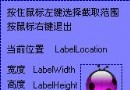
頻繁在公司、客戶端、家庭間移動,需反覆修改 IP、子網路遮罩、預設閘道、DNS。手動操作「網路連線」介面步驟繁瑣,開發一個 WinForms 小工具,下拉選單選擇預設配置,一鍵套用。
┌─────────────┐     ┌─────────────┐     ┌─────────────┐
│  WinForms   │────▶│  批次檔     │────▶│  netsh.exe  │
│  介面選擇   │     │  組裝參數   │     │  系統工具   │
└─────────────┘     └─────────────┘     └─────────────┘
以記事本建立 home.bat:
@echo off
echo 正在切換至家庭環境...
netsh interface ip set address "區域連線" static 192.168.1.100 255.255.255.0 192.168.1.1 1
netsh interface ip set dns "區域連線" static 8.8.8.8
echo 完成!按任意鍵關閉...
pause
static 表示靜態 IP;依序為 IP、遮罩、閘道、度量
public partial class MainForm : Form
{
    private const string ConfigFolder = @"config\";

    public MainForm()
    {
        InitializeComponent();
        LoadConfigs();
    }

    private void LoadConfigs()
    {
        string path = Path.Combine(Application.StartupPath, ConfigFolder);
        if (Directory.Exists(path))
        {
            foreach (var file in Directory.GetFiles(path, "*.bat"))
            {
                cboProfiles.Items.Add(Path.GetFileNameWithoutExtension(file));
            }
            if (cboProfiles.Items.Count > 0) cboProfiles.SelectedIndex = 0;
        }
    }
}
private void btnApply_Click(object sender, EventArgs e)
{
    if (cboProfiles.SelectedItem == null) return;

    string batPath = Path.Combine(Application.StartupPath, ConfigFolder,
                                  cboProfiles.SelectedItem + ".bat");

    if (!File.Exists(batPath))
    {
        MessageBox.Show("找不到設定檔!");
        return;
    }

    var psi = new ProcessStartInfo
    {
        FileName = batPath,
        UseShellExecute = true,          // 必須為 true 才能觸發 UAC 提升權限
        Verb = "runas",                  // 要求以系統管理員身分執行
        WindowStyle = ProcessWindowStyle.Normal
    };

    try
    {
        Process.Start(psi);
    }
    catch (Exception ex)
    {
        MessageBox.Show($"啟動失敗:{ex.Message}");
    }
}
關鍵點:UseShellExecute=true + Verb="runas" 才能正確提權執行 netsh。
netsh interface ip show config 解析輸出netsh interface ip set address "名稱" dhcpNetworkInterface.GetAllNetworkInterfaces() 讓使用者選擇目標介面IPHelper.execonfig\ 資料夾,放入 company.bat、home.bat、client.batIPHelper.exe此方案利用 Windows 內建 netsh 確保相容性,透過 Process.Start 跨程序執行,以最少程式碼解決實際痛點。同樣架構可擴充至任何命令列工具自動化(如 ipconfig、diskpart、robocopy 等)。